Seedream 5.5 is the newest version in ByteDance's Seedream series. In 笔画AI's model list, it's described as “more reliable multi-turn edits, with clear small text and multilingual text.” 1K and 1.5K cost 12 credits per image, 2K costs 20 credits per image, and you can use up to 10 reference images. It's the best fit for images with lots of small text, like labels, price signs, and event posters.
Your first image
- After signing in, click New canvas, then switch the creation mode to Image in the lower-left corner of the creation panel on the right.
- Choose Seedream 5.5 as the model.
- Choose an aspect ratio and resolution. Aspect ratios include 1:1, 4:3, 3:4, 16:9, 9:16, 3:2, 2:3, and 21:9; resolutions include 1K, 1.5K, and 2K.
- Write a prompt and send it. In our tests, one image took 10–25 seconds.
| Resolution | Credits per image | Tested size |
|---|---|---|
| 1K | 12 | 3:4 outputs 864×1152 |
| 1.5K | 12 | 4:3 outputs 1792×1344 |
| 2K | 20 | 3:4 outputs 1776×2368 |
1K and 1.5K cost the same, so choose 1.5K unless you have a specific reason not to.
It gets small text right
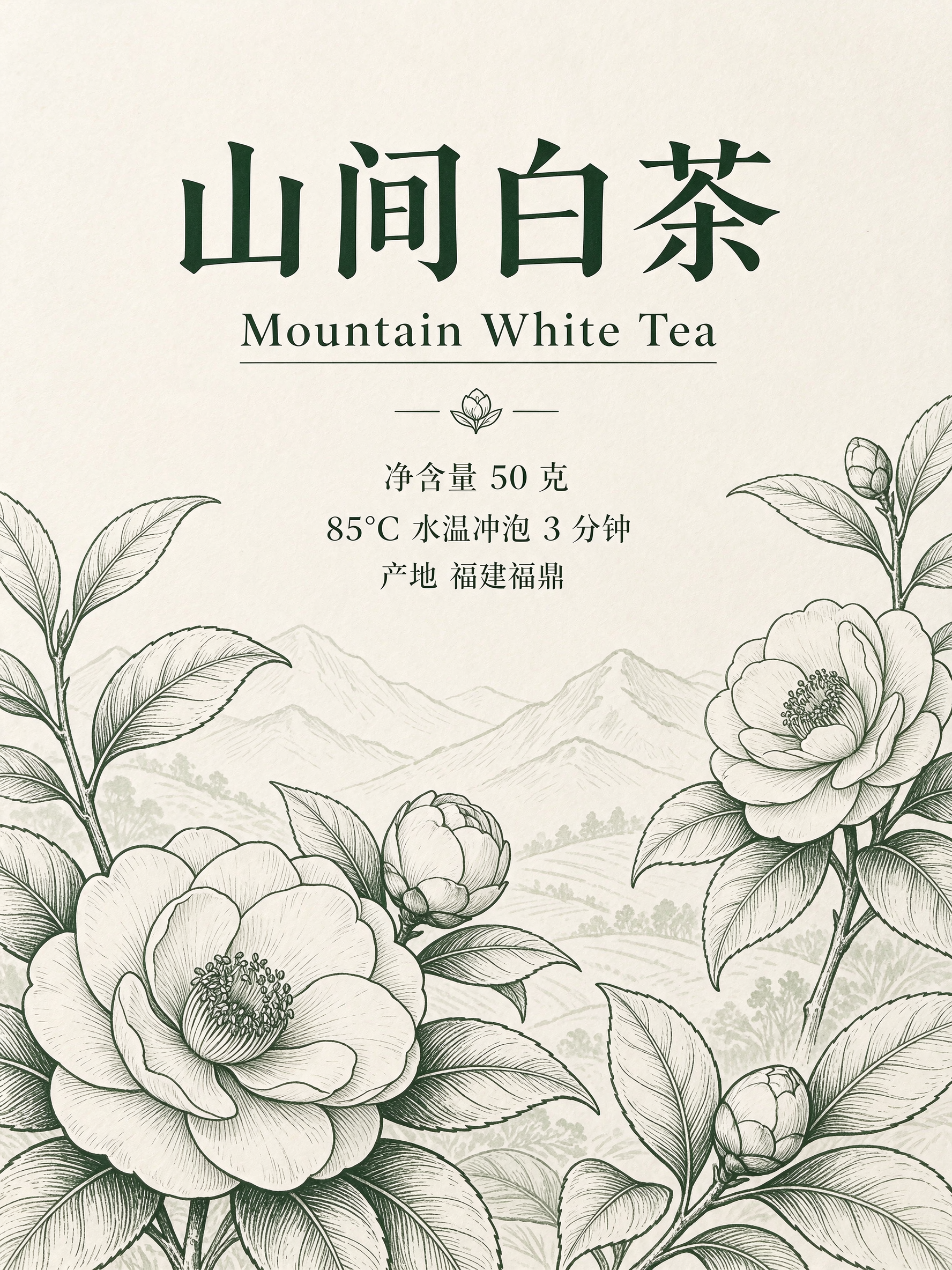
The tea tin label above was generated at 2K. The prompt asked for the product name and English name—both “Mountain White Tea”—plus three lines of small text: “Net weight 50 g,” “Brew at 85°C for 3 minutes,” and “Origin: Fuding, Fujian.” Zooming in and checking character by character, everything was correct—even the “°C” was there, with no extra characters.
The poster below was generated at 1K. Both the title “Half Price on the Second Cup This Warm Winter” and the small text “Every day, 14:00–17:00” are correct:
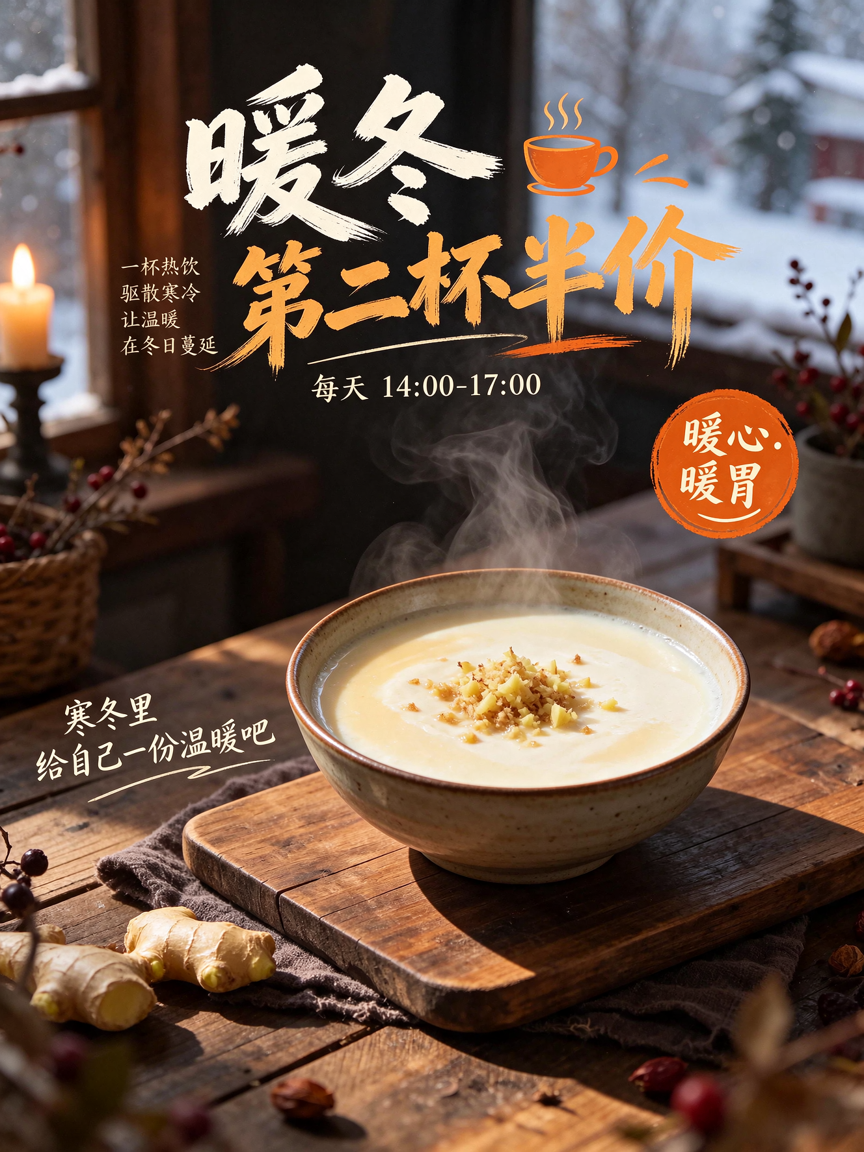
But it also added three pieces of copy that weren't in the prompt: on the left, the vertical text “A hot drink to chase away the cold and let warmth spread through winter”; on the right, the round seal “Warms the heart and stomach”; and in the lower left, “Give yourself some warmth in the cold winter.” All the characters were correct, so this is easy to miss. This prompt didn't say “do not add any other text.” The tea tin label and the price sign below included that instruction and had no extra text. However, another market poster also included it, but still repeated the address at the bottom, so the instruction can reduce extra copy but can't guarantee it.
Chinese and English
The price sign was generated at 1.5K and called for four noodle dishes, each row with a Chinese name, English name, and price. All 12 text items matched—the Chinese and English names and prices for all four dishes: Braised Beef Noodles 28, Tomato Egg Noodles 18, Scallion Oil Noodles 15, and Hot and Sour Glass Noodles 16.
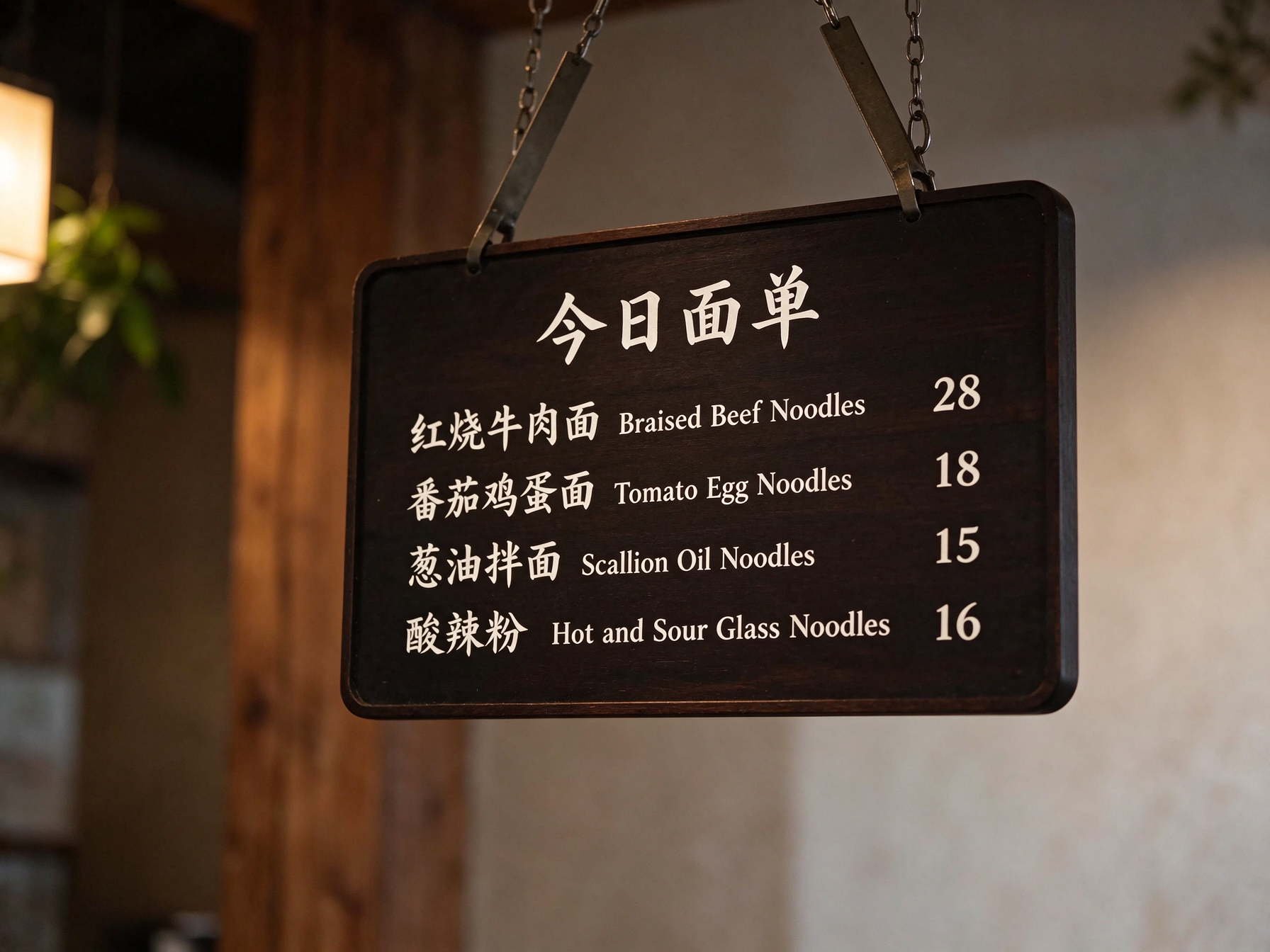
The only error was in the title: the prompt said “Today's Noodle Menu,” but the character for “menu” appeared in its traditional form. After generating, check characters whose simplified and traditional forms look similar one by one.
Editing with reference images
Click Add reference image, then upload from your computer or choose from the canvas—up to 10 images. In the prompt, use @ to specify what each image is for.
Use the winter poster above as a reference image and write this prompt: “Turn the poster in the reference image into a spring version: change the title to ‘Half Price on the Second Cup This Spring,’ replace the snowy view outside the window with blooming peach trees, and replace the ginger milk curd in the bowl with a matcha latte. Keep the layout, typography, color scheme, and other text unchanged.”
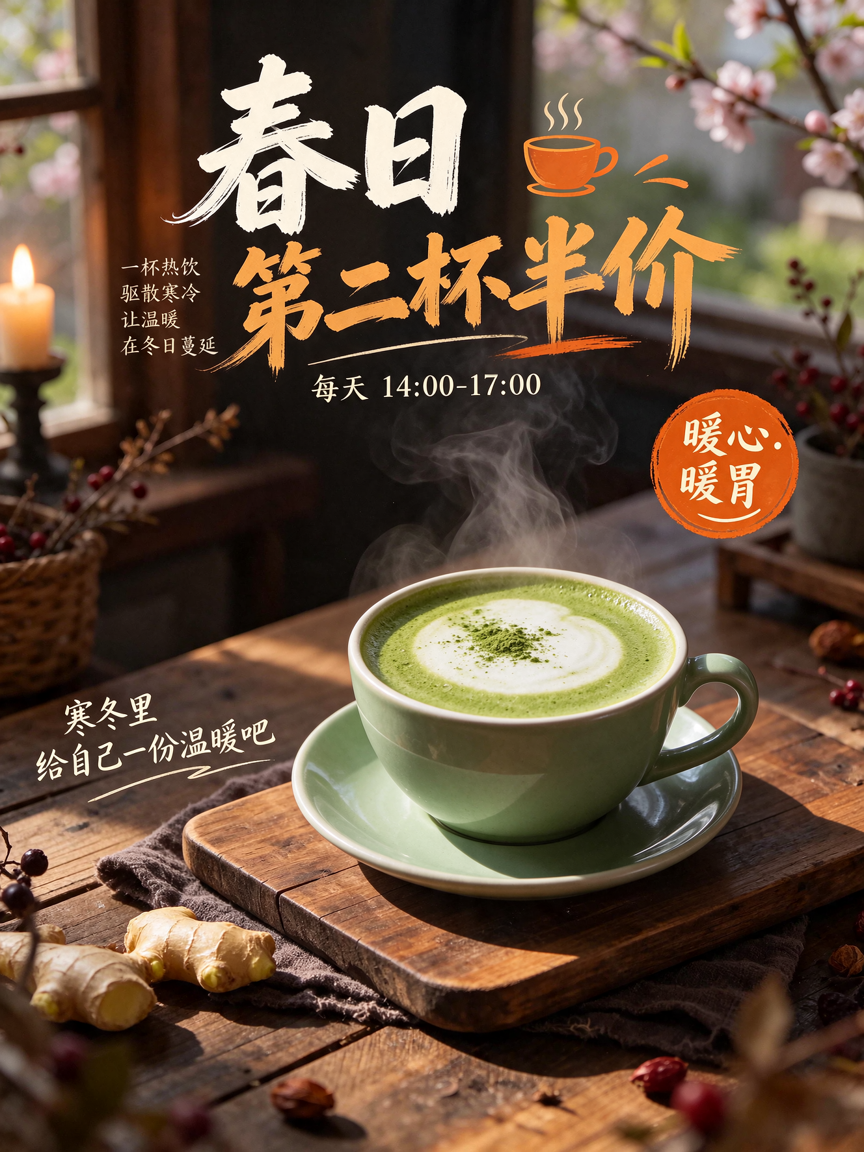
All three requested changes were made. The brush-calligraphy title effect, small-text placement, round seal, and wooden table were left untouched. And because the prompt said “keep other text unchanged,” the two winter lines “spread through winter” and “in the cold winter,” as well as the ginger on the table, are still there. When editing, list every piece of text and every object you want changed; anything you don't list will be kept as is.
After generating: split layers and edit text
If the text in a Seedream 5.5 poster is wrong or the event time changes, you don't have to redraw the whole image. Select the image and click Split layers; the text will be split into separate layers. Then select a text layer and click Edit text, and use “AI Redraw” to redraw that layer with the original font and color. It costs 12 credits each time.
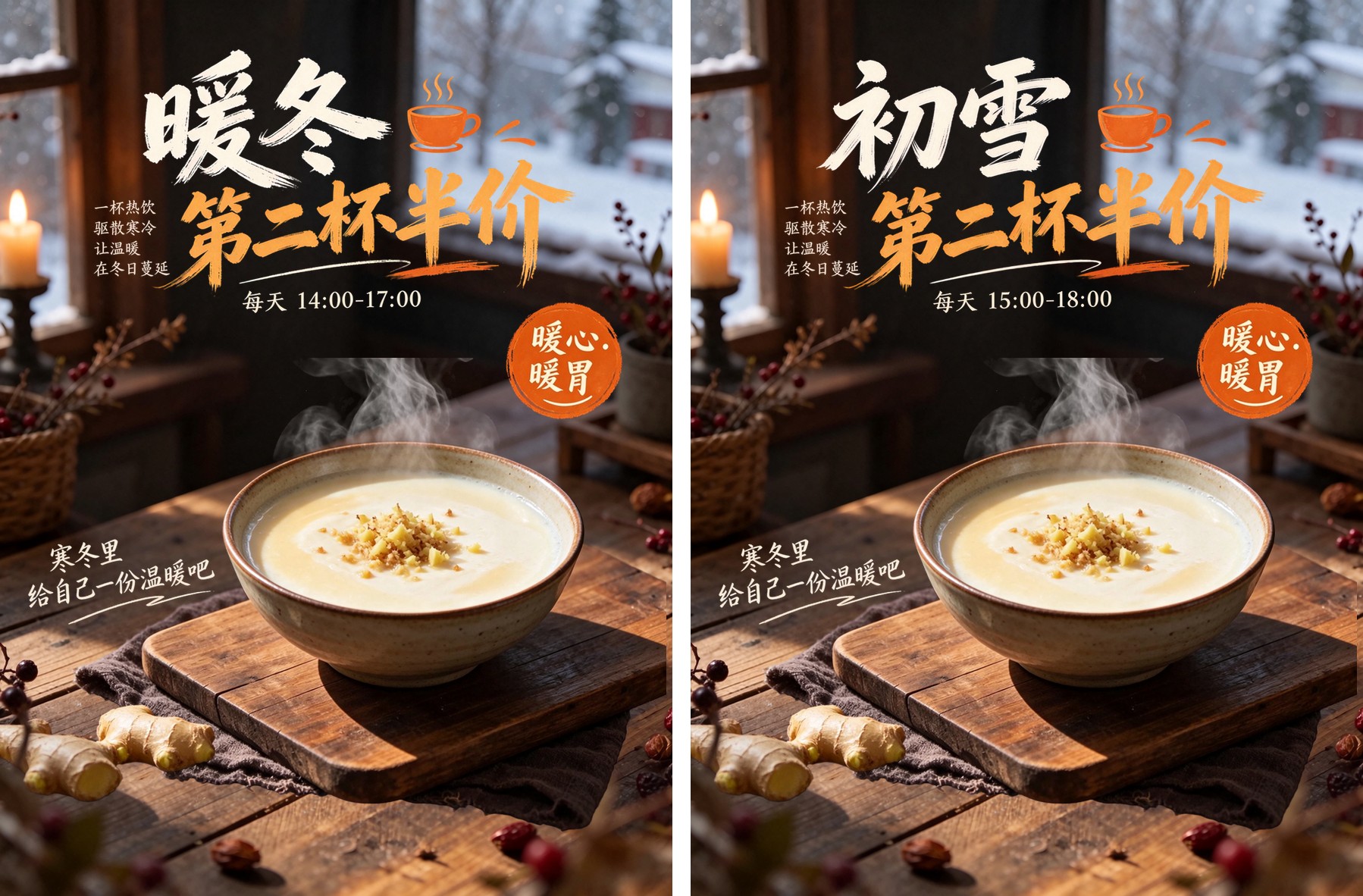
For the full steps, see How to edit text in an image. For the number of layers created by splitting and the pricing, see Split layers and export to PSD.
Seedream 5.5 or 5.0?
| Seedream 5.5 | Seedream 5.0 Pro | Seedream 5.0 Flash | |
|---|---|---|---|
| 1K / 1.5K | 12 credits | 23 credits | 9 credits |
| 2K | 20 credits | 46 credits | 9 credits |
| Reference images | Up to 10 | Up to 10 | Up to 10 |
| Aspect ratios | 8 | 8 | 8 |
For trying out compositions and styles in batches, 5.0 Flash is the most economical; for final artwork and posters or labels with lots of text, use 5.5. For how to use the two 5.0 versions, see How to use Seedream 5.0.
What it can't do
- 4K: The maximum is 2K. To go larger, select the result and use “Upscale.”
- Transparent background: There is no toggle for this. For a transparent background, select the result and click “Remove background,” or split the layers and download that layer separately.
- Custom width and height: You can only choose from 8 aspect ratios and 3 resolution tiers.
- Outpainting: Seedream 5.5 cannot outpaint. To outpaint, select the image, click “Outpaint,” and switch to 笔画 Image to do it.
How to write prompts
- Put the text you want to appear in quotation marks, and state where each piece of text should go: “top title,” “line below the title,” “bottom line.”
- Add “Do not add any other text besides this” at the end. This can greatly reduce the copy the model adds on its own, but you still need to check line by line after generating.
- Check simplified Chinese characters one by one, especially characters whose simplified and traditional forms look similar.
Go to 笔画AI, create a new canvas, select Seedream 5.5, and try generating a poster with small text.