Need to change the date or price on a poster? You don't need to regenerate the image or open Photoshop. On the 笔画AI canvas, it takes two steps: first Split Layers to separate the text into its own layers; then select the text layer and click Edit Text. After changing the text, click AI Redraw to redraw that layer in the original font and color for 12 credits each time. If you want to set the type yourself, click Direct Edit to turn the layer into editable text at no credit cost.
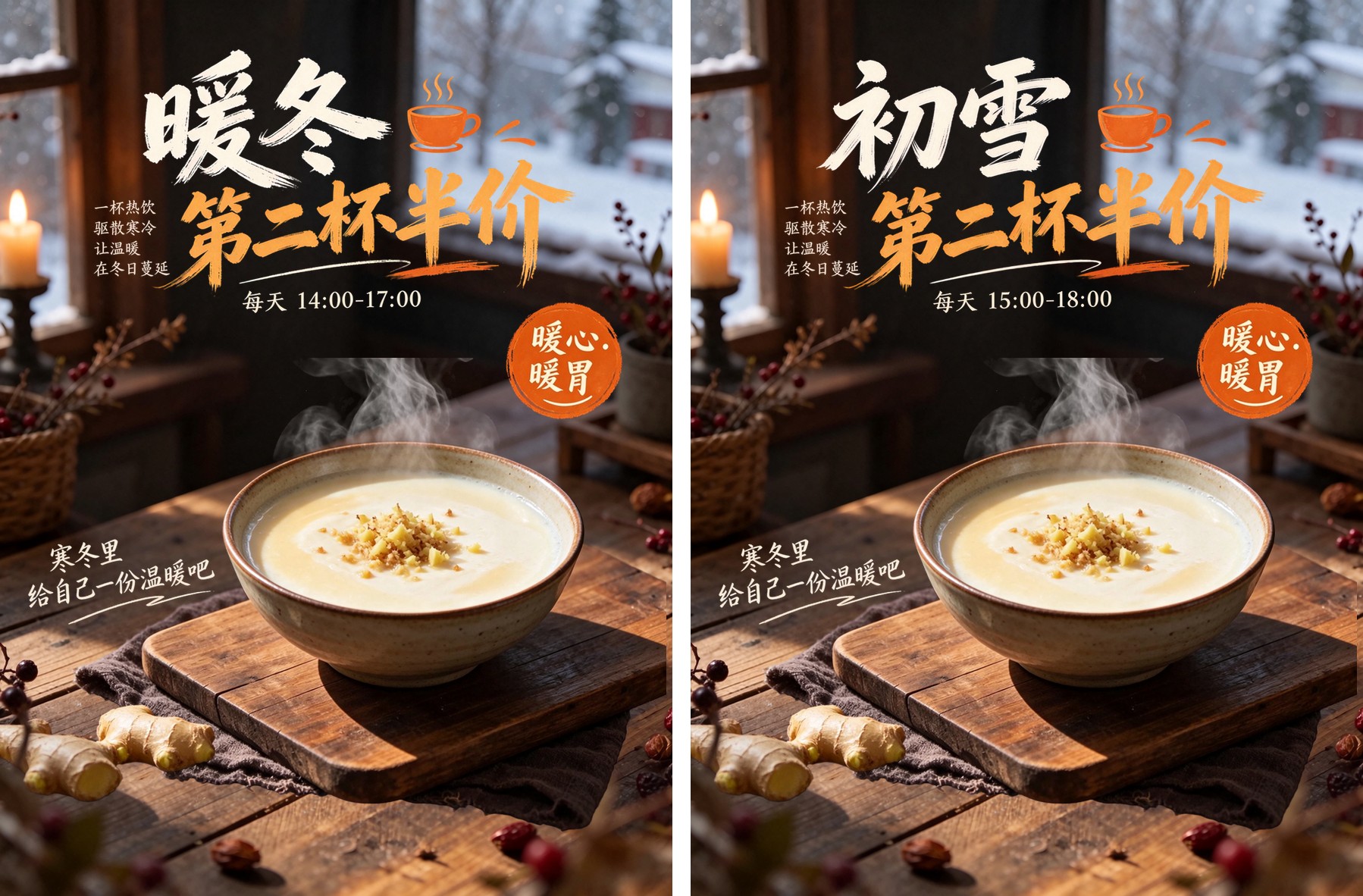
The image on the right above was made this way: one split for 96 credits and two AI redraws for 24 credits.
Step 1: Split Layers
- Put the image on the canvas: it can be newly generated, uploaded from your device, or dragged in—it doesn't have to have been created here.
- Select the image and click Split Layers.
- You can describe what to split in one sentence, for example, “separate the title, each line of small text, the product, and the background.” If you leave it blank, the main elements will be split automatically.
- For the number of layers, choose “Auto” or specify 2–30 layers (including the background image), then confirm to start.
This poster was set to 8 layers and finished splitting in just over 20 seconds: one layer for the background, one each for the title, vertical small text, time, round badge, and handwritten copy in the lower left, and one each for the hot drink and ginger.
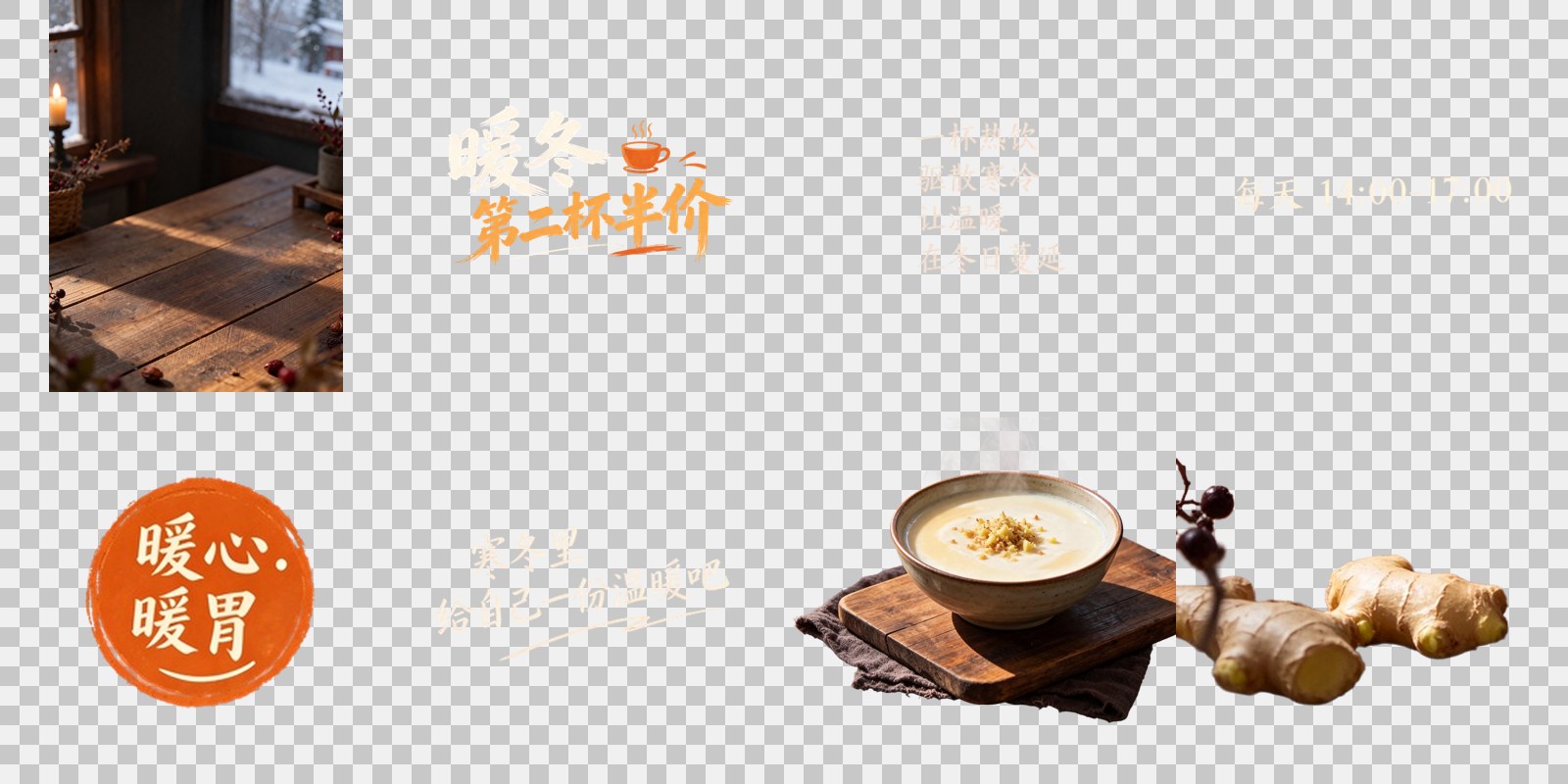
For how splitting is billed and how to choose the number of layers, see Split Layers and Export PSD.
Step 2: Find the layers where text was recognized
After splitting, select this group of layers, and the Layers panel on the right lists each layer. Layers where text was recognized have a “Text Layer” tag after their name, the recognized text appears on the second line, and there is a one-click copy button next to it. Only layers with this tag show Edit Text in the toolbar when selected.
In this poster, all five blocks of text were recognized, including the large brush-script title and “Warm Heart, Warm Stomach” in the round badge. Layers such as the hot drink and ginger contain no text, so they have no Edit Text option.
Step 3: Select a text layer and click “Edit Text”
Select the text layer and click Edit Text in the toolbar. In the panel that opens, each line has its own input field, pre-filled with the recognized original text:
- Change only the lines you need to change; leave a line blank to delete it.
- If the new text is much longer than the original, the panel will warn: “The text is much longer than the original and may be squeezed to fit the original space.”
- When you're done, click AI Redraw or Direct Edit.
AI Redraw: change the text, not the look (12 credits)
AI redraws this layer using the original font, size, color, and brushstrokes. In testing it took less than ten seconds, and the new layer replaces the old one in place.
The two changes in the image above were made with AI Redraw: the time line “Daily 14:00–17:00” was changed to “Daily 15:00–18:00,” with the font and outline unchanged; the large brush-script title “Warm Winter” was changed to “First Snow,” and the two new characters are in the same dry-brush style. The coffee cup icon next to it and “Half Price on the Second Cup” below remain unchanged.
If you don't like the result, undo one step to restore the old layer.
Direct Edit: type it yourself (free)
Click Direct Edit, and this layer becomes text on the canvas, with one text box per line:
- Double-click a text box to edit the text.
- When selected, use the toolbar to adjust the font category, color, bold, and font size.
- To go back to the original image, click Revert to Image in the toolbar; any edits you made will be lost.
The font is an approximation found among system fonts based on the recognition result, so it may look slightly different from the original. If the layer contains graphics in addition to text (such as a color block behind the text), Direct Edit will discard the graphics, while AI Redraw preserves them. The advantage is that text edited this way becomes an editable text layer in Photoshop when you export a PSD.
AI Redraw or Direct Edit?
| AI Redraw | Direct Edit | |
|---|---|---|
| Credits | 12 | Free |
| Font and color | Match the original | Approximate font |
| Graphics in the same layer | Preserved | Discarded |
| Wait time | A few to a dozen seconds | No wait; edit directly on the canvas |
| PSD export | Image layer | Editable text layer |
| Changed your mind? | Undo one step | Revert to Image |
To change the date, price, or store name on a finished poster and keep it looking exactly like the original, use AI Redraw. If you're handing it off to a designer to continue setting type in a PSD, use Direct Edit.
Which text doesn't edit well
- Artistic text can only be AI-redrawn: Brush-script and seal-script text usually can't be recognized line by line, so the Edit Text panel only offers AI Redraw, not Direct Edit. That's the case for this poster's brush-script title and round badge.
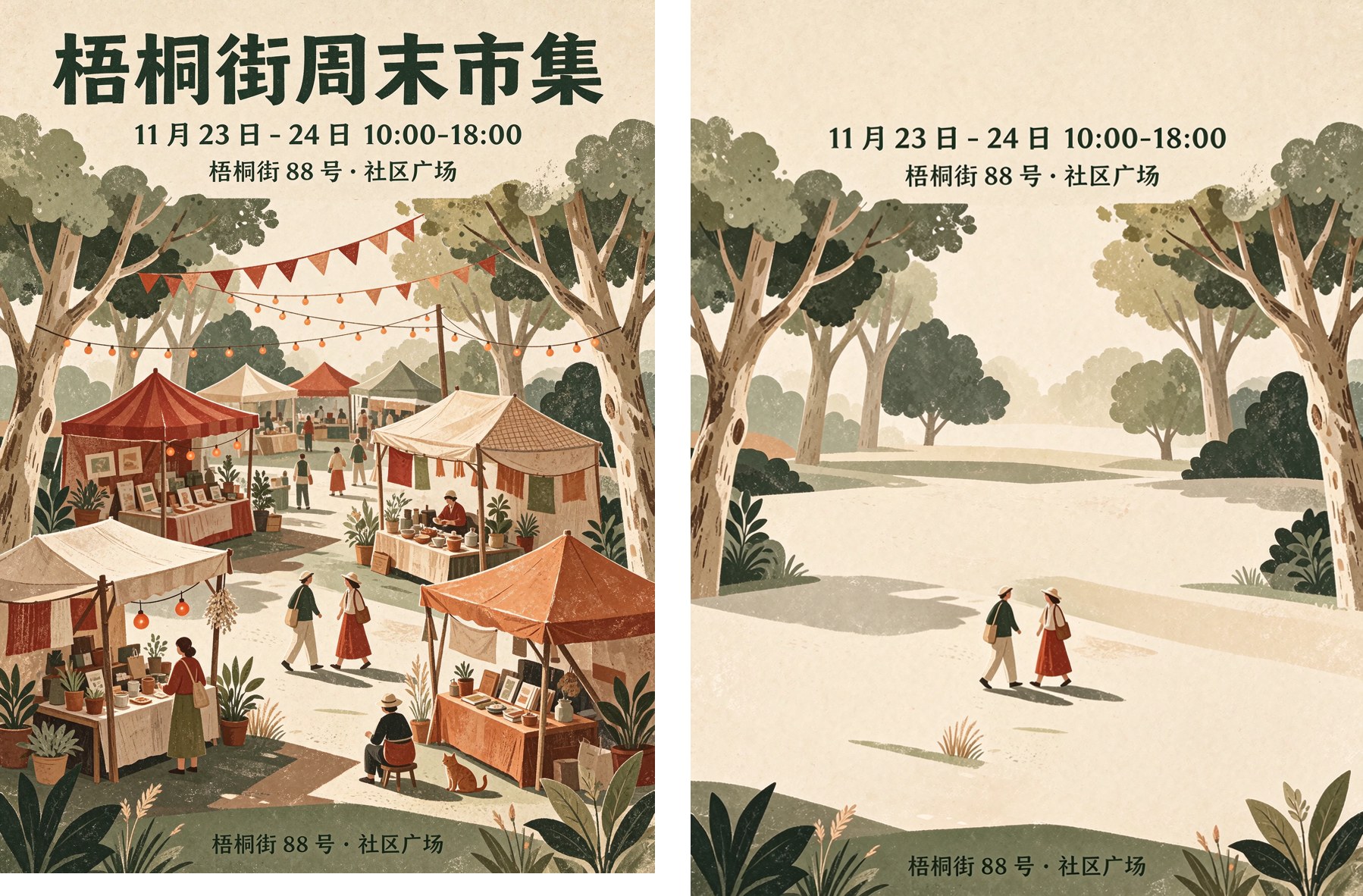
- The original text may still be in the background image: In another market poster, after splitting, the title, date, and address became one text layer, but the date and address lines were still present in the background image. If you edit only the text layer, the old text will show through from underneath. Before editing text, hide the text layer in the Layers panel and check whether the background image is clean.
- Text printed on objects: Text on product packaging and signs is often split into the same layer as the object and won't become a separate text layer.
- New text is too long: AI Redraw fits new text into the original space, so text that is much longer than the original will be squeezed narrower. Try to keep the character count similar.
- Recognition results may differ: The order of multiple lines of text may differ from the image, and the font name is only an approximation. Double-check the original text in the input fields before editing.
How Many Credits It Costs
| Step | Credits |
|---|---|
| Split Layers | 12 per layer; 20 for layers over about 2.61 megapixels |
| AI Redraw | 12 each time |
| Direct Edit | Free |
| PSD export | Free |
Before splitting starts, credits are held based on the selected number of layers at 20 credits per layer. After splitting, the charge is settled based on the actual number and size of layers, and any excess is refunded. The 8-layer example above had 160 credits held and was actually charged 96. If splitting fails, all credits are refunded.
Editing text on mobile
Open the split image in the mobile creation workspace, click Edit Text, select a text layer, edit the lines one by one, and click AI Redraw. The result replaces that layer in place. Direct Edit is not available on mobile.
Have the Agent edit it
In Agent mode, just say, “Change the time on the poster to 15:00–18:00,” and the Agent will split the layers, find that layer, and use AI Redraw to change the text. For how to use the Agent, see How to use the AI Design Agent.
Posters generated with Seedream 5.5 have clean, well-formed text and are the most reliable to recognize. Open 笔画AI, drag a poster onto the canvas, and try Split Layers.