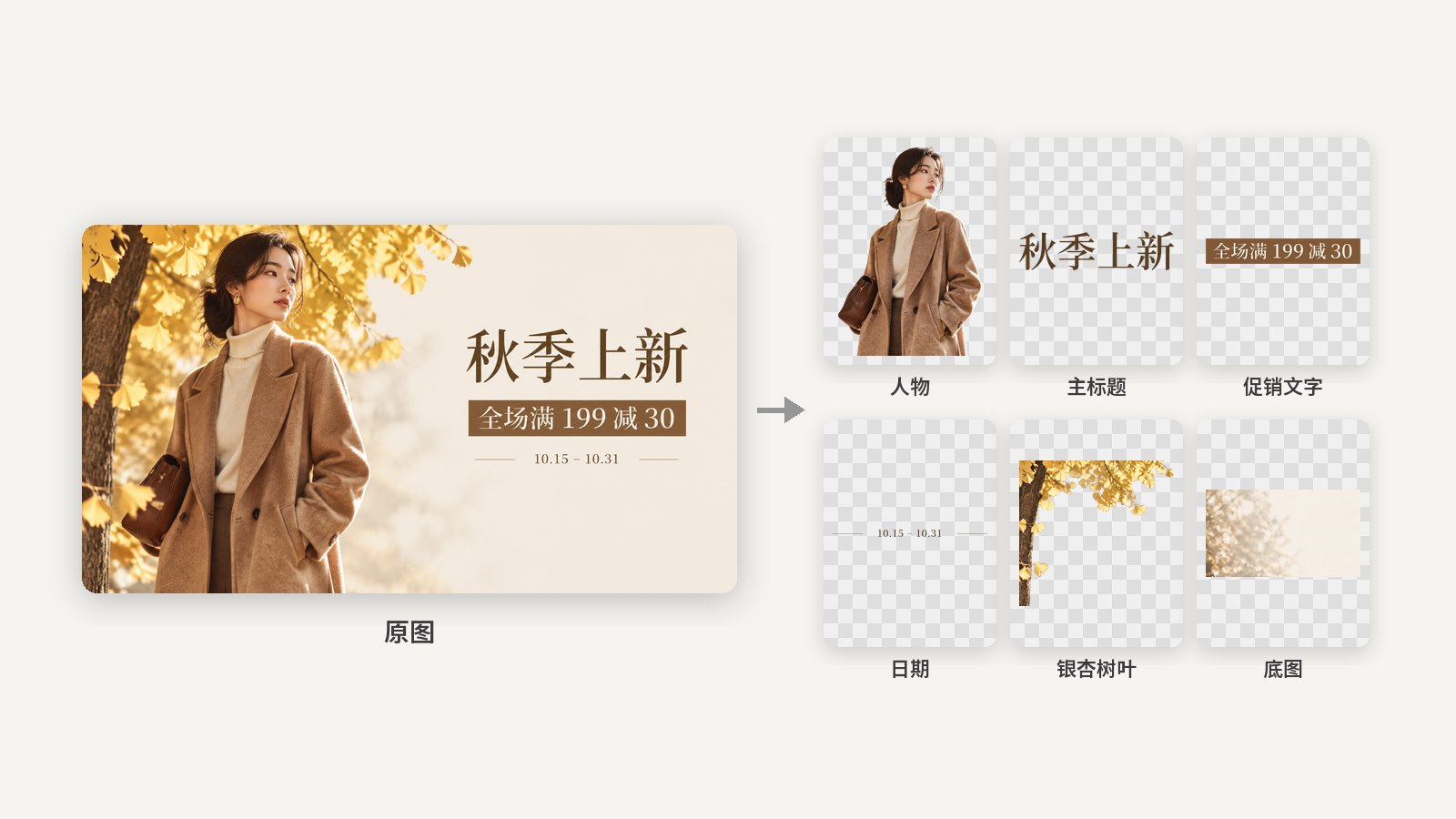
An AI-generated image is one flat file, so changing a single element usually means redrawing the whole thing. On the 笔画AI canvas, you can use "Split Layers" to automatically break an image into separate layers for people, products, text, background, and more — then "Export PSD" and edit each layer in Photoshop.
Full walkthrough
- Put the image on the canvas: use one you just generated, or upload from your computer or drag it straight onto the canvas.
- Select the image and click "Split Layers".
- Describe what to split (optional): leave it blank to split the main elements automatically, or write something like "separate the person, the product, and the title text."
- Choose how many layers: "Auto" lets the AI estimate and shows "N layers recommended"; or pick "Specify" for anywhere from 2 to 30 layers (including the base image).
- Confirm the credit hold and start: complex images can take a few minutes, and you can keep working on other things while it runs.

- Check the result: the split layers are placed on the canvas automatically, stacked to look exactly like the original. Select them and the layers panel lists each layer, which you can show or hide individually to check the split. Printed text gets recognized: those layers carry a "text layer" tag after the name, with the recognized text on the second line that you can copy in one click.
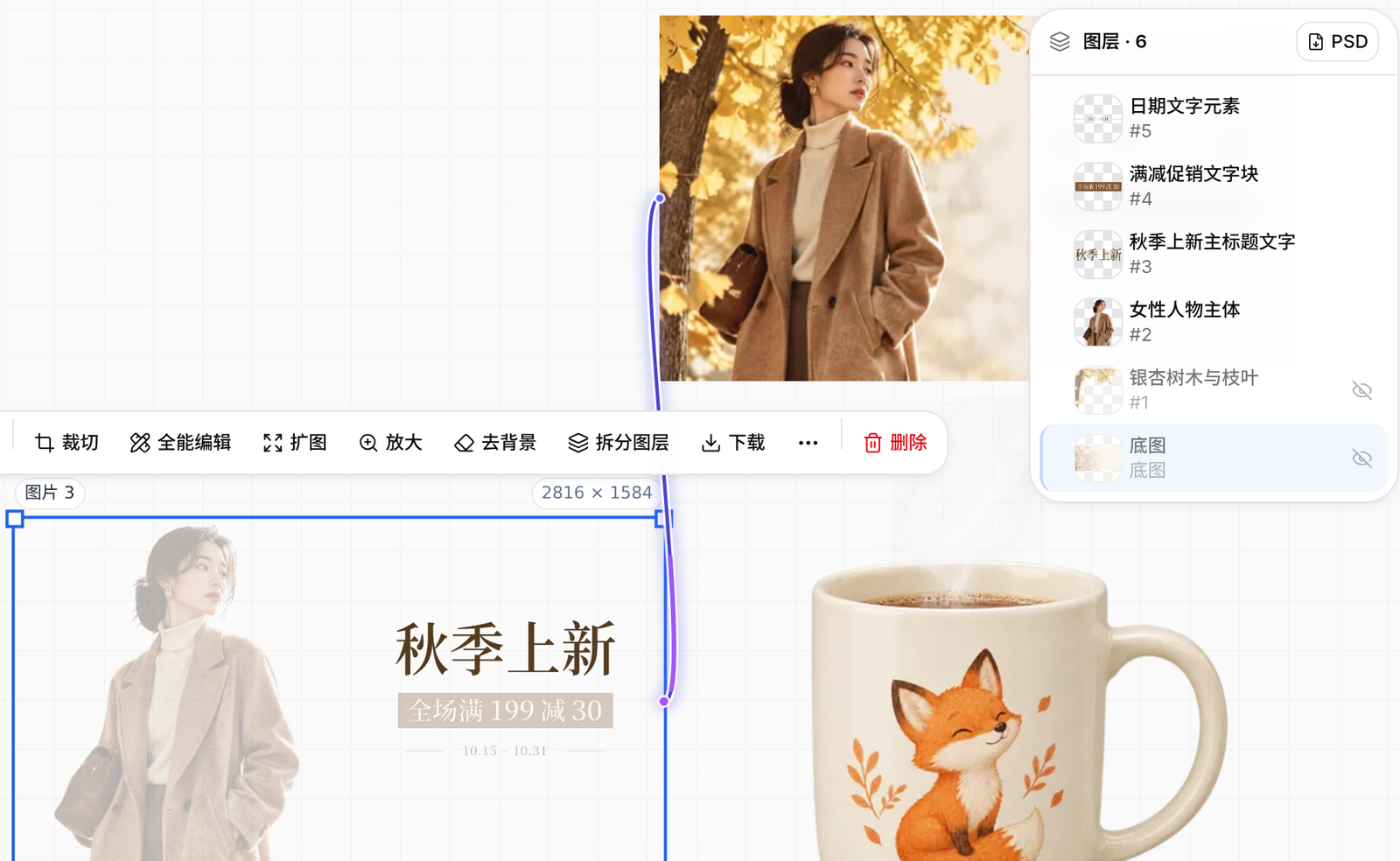
- Export PSD: click "PSD" in the top right of the layers panel and your browser downloads a PSD file with each image as a layer; hidden layers are not exported.
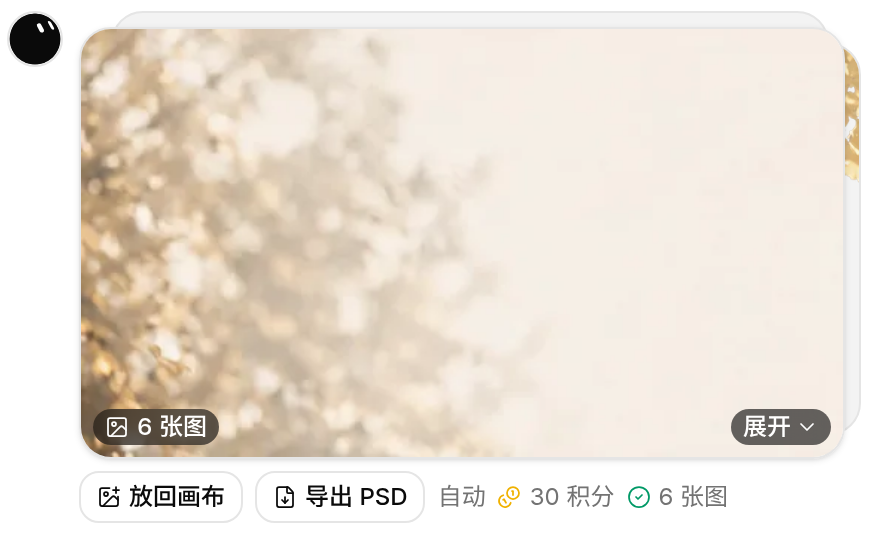
- Don't worry if you've dragged layers around: click "Put back on canvas" in the chat history on the right and everything is laid out in its original position again, with no credits charged.
How to choose the number of layers
| Image type | Suggested layers |
|---|---|
| Single product + solid background | 2–3 layers |
| People poster (person, text, background) | 4–6 layers |
| Complex scenes, multi-element collages | Use "Auto", or 8+ layers |
More layers isn't always better: with too many, one element can get chopped into pieces, and you pay per layer; with too few, several elements end up stuck on the same layer. On complex images, "Auto" may suggest a lot of layers — on one illustrated poster it recommended 25 in our test, which holds 500 credits up front. If you want to control the cost, use "Specify".
What you can do after splitting
- Change the background: hide the original background layer and drop in a newly generated background.
- Edit text: select a layer with recognized text and click "Edit text". "AI redraw" keeps the original font, while "Direct edit" converts it to canvas text for free — see How to change text in an image.
- Recompose: move and scale the product and the person separately to make posters and hero images in different sizes.
- Build motion assets: the layered PSD imports straight into After Effects and similar apps for parallax animation.
Pricing rules
- You're charged by the number of layers actually produced and the size of each layer: 12 credits per layer, or 20 credits for a layer over about 2.61 million pixels. Most layers fall in the 12-credit tier.
- When you start, credits are held at 20 per layer: the number you chose with "Specify," or the AI's recommended count with "Auto." When the split finishes, you're billed for what was actually produced and any extra hold is refunded automatically — you can see the refund in your credit history. For example, specify 8 layers and 160 credits are held; if all 8 layers are in the small tier, you're actually charged 96.
- If the split fails, you get a full refund.
- "Put back on canvas" and "Export PSD" cost no credits.
- Editing text afterward is billed separately: 12 credits per "AI redraw," and nothing for "Direct edit."
Tips for exporting PSD
- Exporting from the layers panel exports the whole group; when you marquee-select images on the canvas and use "Export PSD" in the toolbar, you need to select at least 2 images.
- With many layers, the export takes a moment — wait for the download to finish.
- If you don't need a PSD and just want one element, select that layer and click "Download" — it's already a transparent PNG.
- Text layers edited with "Direct edit" export as editable text layers in Photoshop.
For more ways to edit images, see AI image editing: all-in-one editing, outpainting, background removal, upscaling. New to the canvas? Start with What is an infinite canvas.
Open 笔画AI, drag an image onto the canvas, and try Split Layers for yourself.