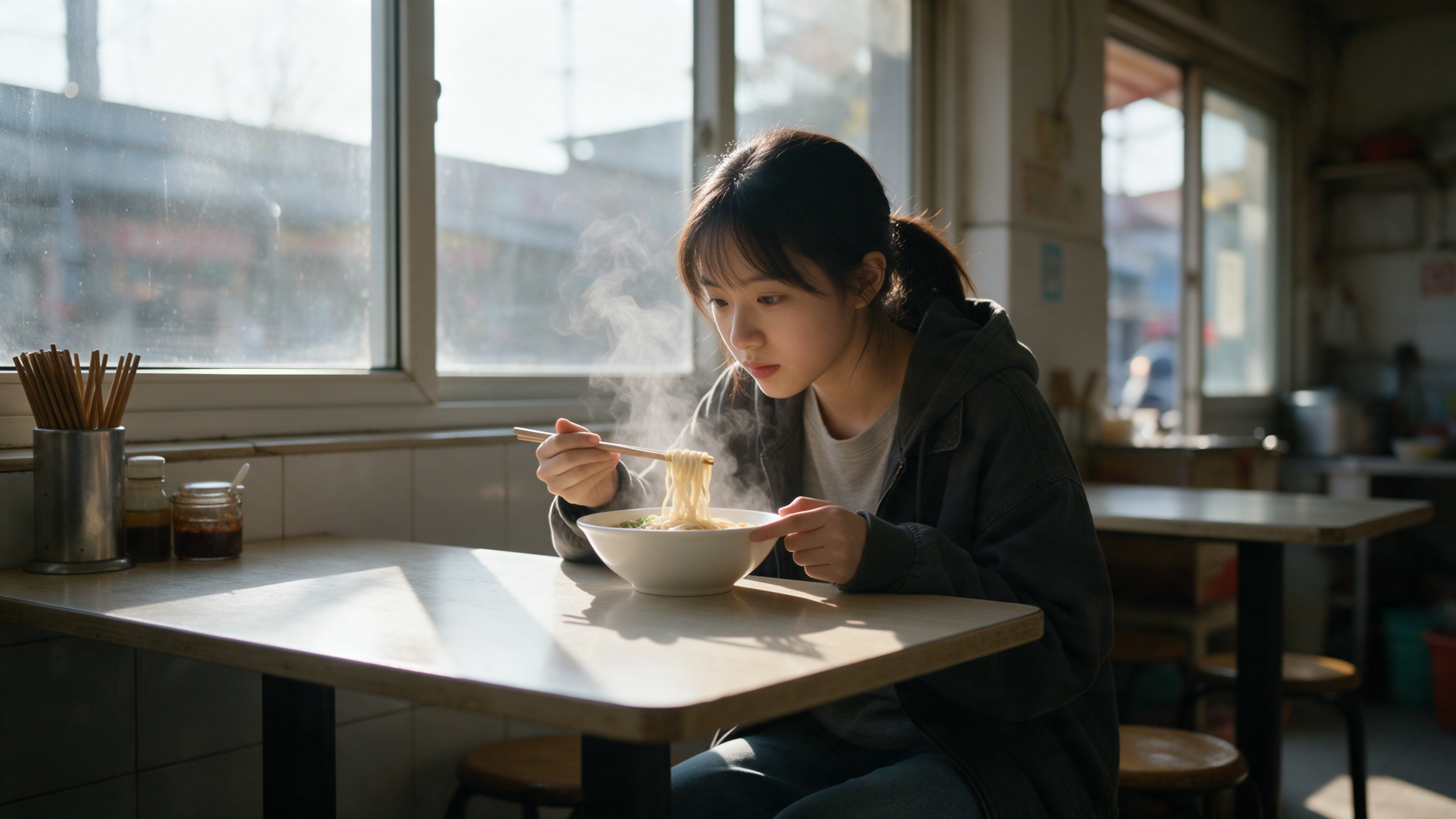
Seedream 5.0 is ByteDance's image generation model, strong at posters, infographics, and realistic portraits, with a good grasp of Chinese. 笔画AI offers two versions, Seedream 5.0 Pro and Seedream 5.0 Flash, and you can use either right in your browser in mainland China.
The newer Seedream 5.5 is also live. Its model description reads "steadier multi-turn edits, clear small text and multilingual text," at 12 credits per image for 1K / 1.5K and 20 credits for 2K — cheaper than 5.0 Pro. For how to use it, see How to use Seedream 5.5.
How to choose between the two
| Version | Strengths | Credits per image | Best for |
|---|---|---|---|
| Seedream 5.0 Pro | Fine detail, steadier text and portraits | 1K / 1.5K: 23, 2K: 46 | Posters, infographics, realistic portraits, final images |
| Seedream 5.0 Flash | Fast and inexpensive | 9 for all three sizes | Batch generation, repeated drafts |
Nail down the composition and style with Flash first, then generate the final version. Flash's 2K output costs just 9 credits too, so it's a great choice when you want a large image without spending much. If the final version has lots of small text, switch to Seedream 5.5.
Your first image
- After signing in, click New canvas to open the workspace.
- In the bottom left of the creation box on the right, switch the creation mode to Image.
- Choose Seedream 5.0 Pro or Flash under models, then pick your aspect ratio and resolution.
- Write a prompt and hit send. The generated image goes straight onto the canvas.
Aspect ratios include 1:1, 4:3, 3:4, 16:9, 9:16, 3:2, 2:3, and 21:9; resolution options are 1K, 1.5K, and 2K.
Using reference images
Click "Add reference image" to upload from your device or pick from the canvas — up to 10 images. Type @ in your prompt to specify what each image is for:
- Outfit swap: "@Image 1's model wears the jacket from @Image 2, standing on the street, natural light"
- Style transfer: "Paint a city night scene using the palette and brushwork of @Image 1"
- Product poster: "@Image 1's perfume bottle on a marble countertop with soft morning light in the background, with the title "Morning Light" at the top"
Writing prompts for posters and infographics
- Describe the layout first, then the content: "Vertical poster, large title at the top, product shot in the middle, three lines of small text at the bottom."
- Put any text you want to appear in quotation marks, and keep it short — the fewer words, the more reliable. For long passages, lay out the text in another tool after generating.
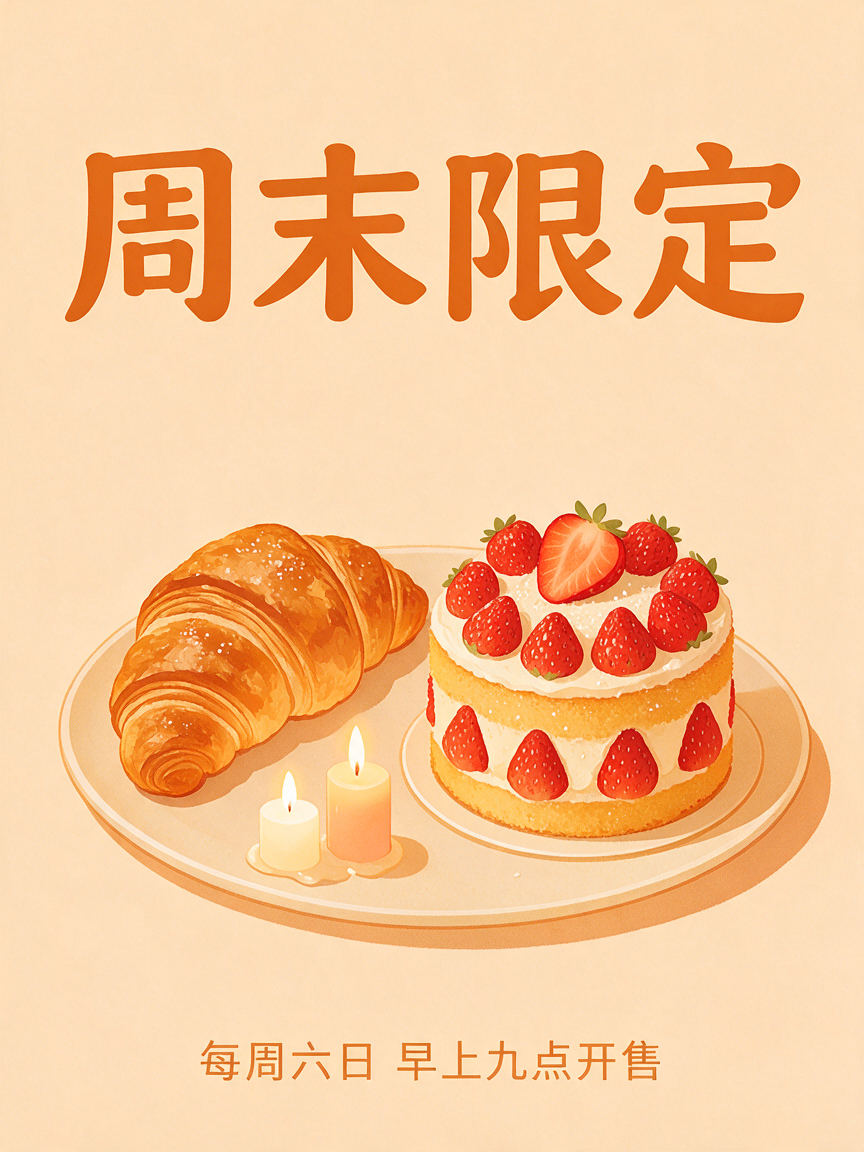
- Be specific about color and style: "Warm orange tones, flat illustration style, plenty of negative space" works far better than "make it prettier."
After generating
You can keep editing the generated image right on the canvas: local edits, outpainting, background removal, upscaling — or select the image and click "Generate video" to bring it to life with Seedance. To change text on a poster, select the image, click "Split layers," then use "Edit text" on the text layer. See How to change text in an image.
Open 笔画AI, create a new canvas, switch to "Image," and select Seedream 5.0 to start generating.