Agent is the creative assistant in 笔画AI. You don’t have to pick models yourself or write prompts image by image—just describe what you need in plain language. Agent will plan the steps first, ask a quick question if key details are missing, then choose models, generate images, and place them on the canvas. Chatting with Agent doesn’t cost credits; the images and videos it generates are billed by the model used, just like when you create them yourself.
Start a conversation
- After signing in, create a new canvas, then switch the creation mode to Agent in the lower-left corner of the creation box on the right.
- To edit an existing image, click add reference image and choose “Upload from device” or “Select from canvas.” Up to 8 images per message.
- Write your request and send it. Each step is listed in the conversation, and generated images are automatically placed on the canvas.
You can click Stop at any time; any image generation already underway will finish and be saved.
A real conversation
We sent this:
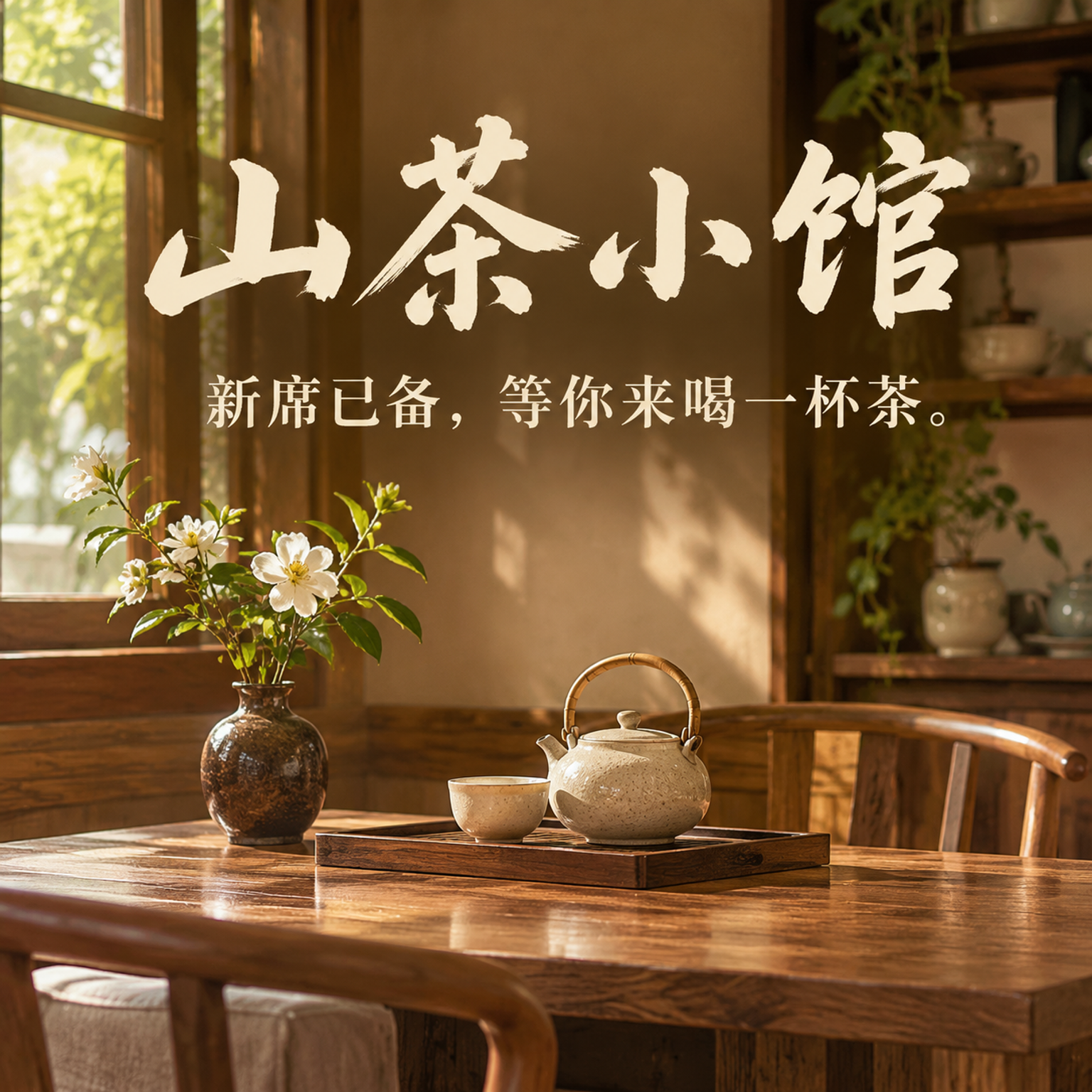
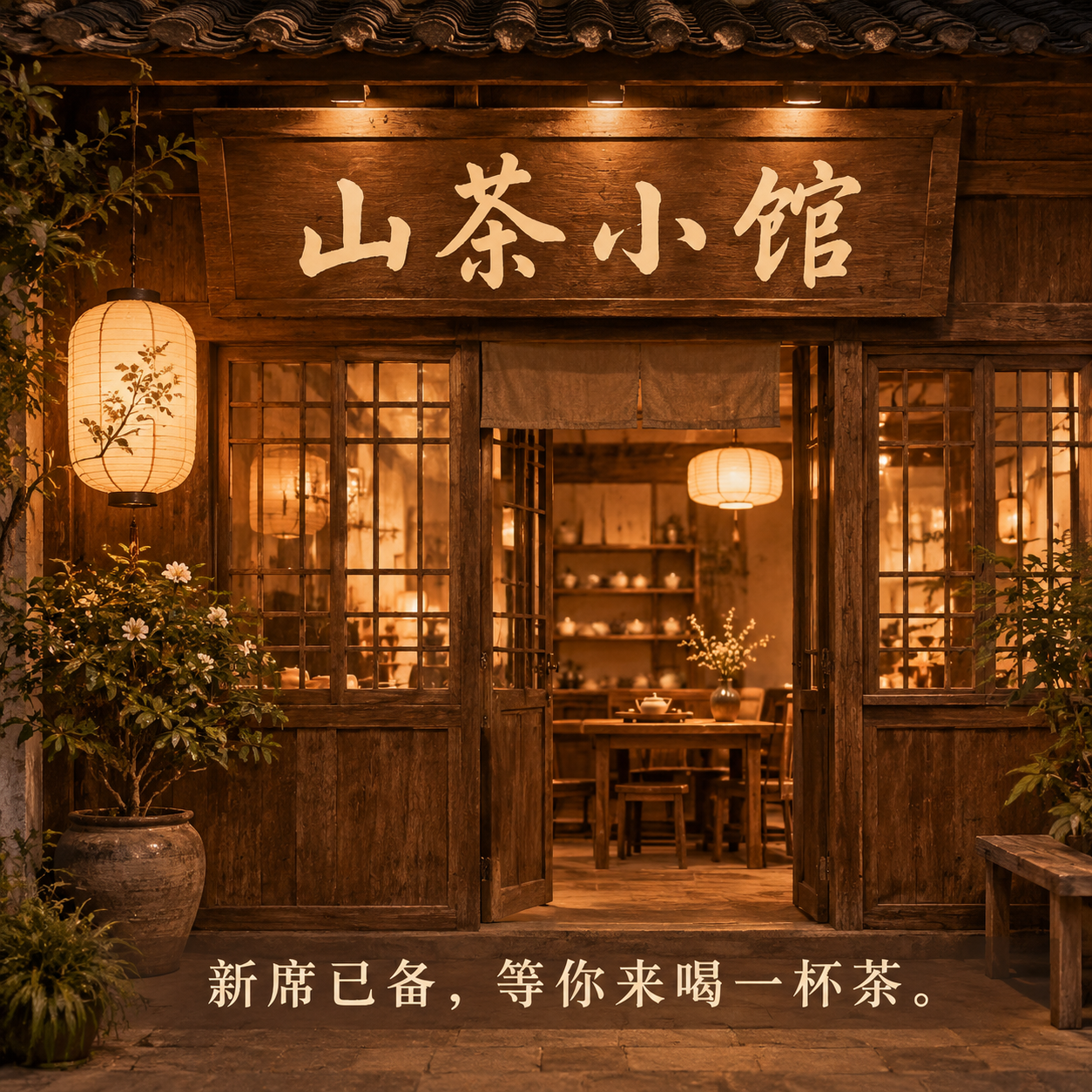
I run a small tea house called “Camellia Tea House,” opening next week. First help me come up with an opening slogan, then create 3 1:1 images for a WeChat Moments post: one close-up of a tea setting, one window seat, and one storefront at night. Put the shop name and the slogan on all three.
Agent first gives the slogan “A new table is ready—come have a cup of tea.” Then it says “I’ll create 3 images; the cost will be about 3 times that of a single image,” and then generates them one by one while announcing “Image 1/3: tea setting close-up.” The three images share a consistent color palette and typography, and the shop name and slogan are rendered correctly. This time we limited it to 笔画 Image 2.6 特惠 only, at 3 credits per image, for a total of 9 credits.
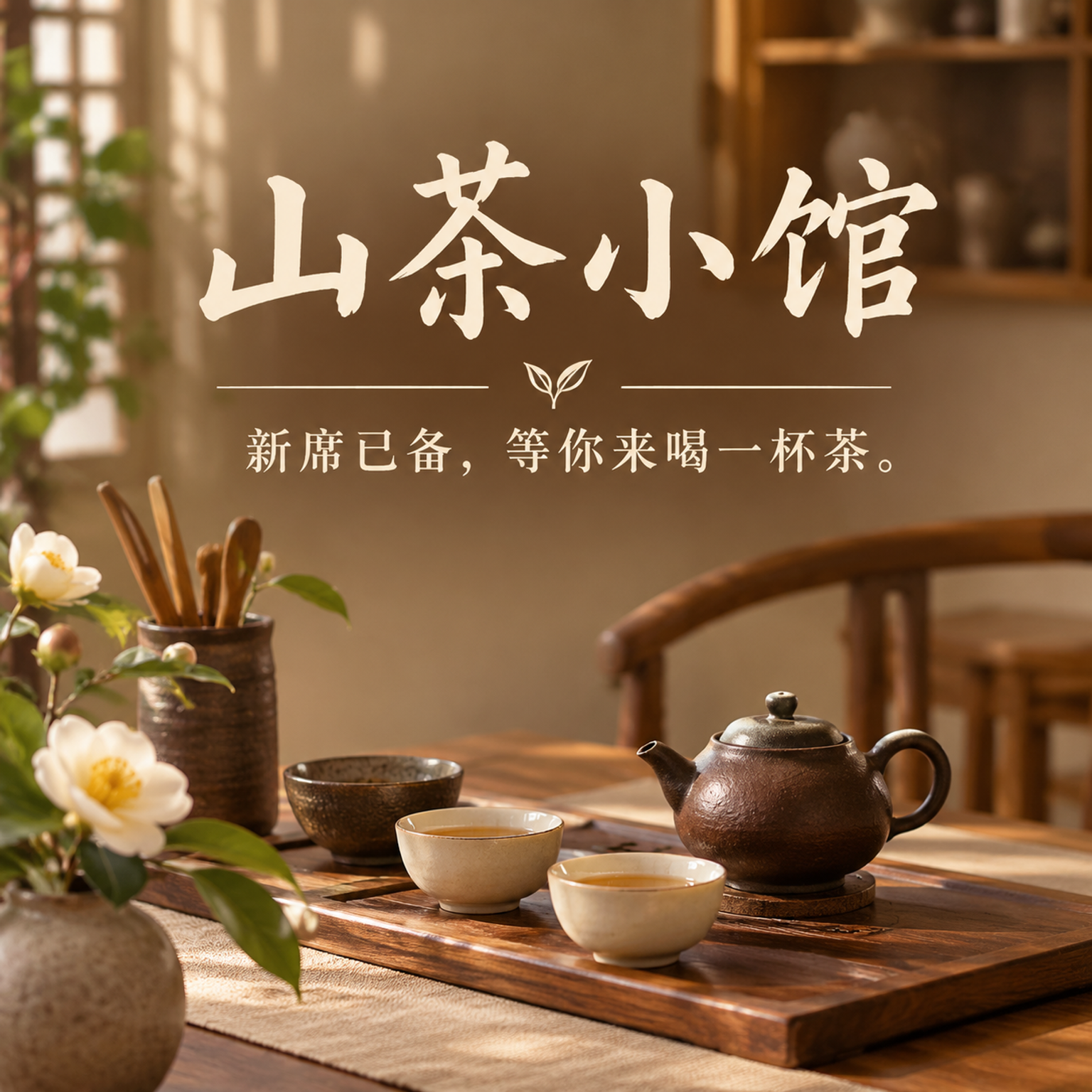
Then we said, “Use the first tea setting image to make a 5-second short video: tea pours from the teapot into the cup and steam slowly rises. Use the cheapest video model.” Agent first looked at the image, wrote a time-coded script, and brought up a confirmation card: MiniMax H3, 5 seconds, 768P, 1:1, 25 credits total, with three options below: “Confirm generation,” “I want to edit the script,” and “Don’t generate yet.” If you don’t confirm, nothing is generated and no credits are charged.
What Agent can do
| Capability | Description | Credits |
|---|---|---|
| Generate images | Generate images from text or reference images; can plan a set of images at once | Billed per image by the model used |
| Upscale, expand | Upscale a final image to a higher resolution, or extend the frame to a new aspect ratio | Billed by the model used |
| Split layers | Split an image into separately editable layers | 12 credits per layer, 20 per layer for large images; billed by the number of layers actually created |
| Reverse-engineer prompt | Look at an image and write a prompt that can reproduce it | No charge |
| Generate video | Create video from text, a first frame, or reference assets; provides a script and quote first | Billed per second at the video model’s rate |
| Web search, find reference images | Look up the latest information and include sources; search online for reference images before drawing specific real-world objects | No charge |
| View images | See the images you provide and the ones it just generated, and decide the next step based on them | No charge |
| Ask you to confirm | Offer 2–4 options when there’s genuine ambiguity, or write your own answer | No charge |
For precise edits to just one part of an image, it’s still more accurate to select the image on the canvas yourself and use All-in-One Edit.
How to write a request
Write it like you’re briefing a designer. The more clearly you cover these points, the more reliable the result:
- Purpose and audience: “images for an opening WeChat Moments post,” “a new product poster for young runners.”
- Format: aspect ratio, number of images, and whether you need high resolution.
- Text that should appear, in quotation marks: shop name “Camellia Tea House,” slogan “A new table is ready—come have a cup of tea.”
- Style: “realistic photography,” “flat illustration,” “warm film.”
- What to preserve from reference images: “Keep the shoes exactly as they are in the photo; only change the setting.”
- Budget: “Use the cheapest model,” “Don’t go over 50 credits.”
For tasks that need copy first (slogans, ad copy, stories), you can simply tell it to “write first, then create images.” It will send you the text first, then generate the images.
Choosing models and credit preferences
Click Model in the creation box:
- Model preference: With “Auto” on, Agent picks image and video models from all available models for each task. If you check models in the “Image” and “Video” columns, it will only choose from the ones you’ve checked.
- Credit preference: “Save credits,” “Balanced,” and “High quality” determine the default resolution when you don’t specify one; any preference you state in the conversation takes priority.
- Web search: When this is on, Agent will search the web first for questions that need the latest information; saved copies of reference images are kept for 30 days.
With the Thinking toggle on, Agent will think things through before acting, which is more reliable for complex, multi-step requests.
How credits are charged
The conversation itself doesn’t cost credits. You only pay for generated content, at the same prices as when you create it yourself:
| What you asked Agent to do | Credits |
|---|---|
| 3 images for a WeChat Moments post, 笔画 Image 2.6 特惠 | 3 × 3 = 9 |
| Same 3 images with 笔画 Image 2.6 Pro | 3 × 20 = 60 |
| 5-second MiniMax H3 video | 25 |
When generating 3 or more images at once, it will first state the number of images and the approximate cost. If it thinks a generated image isn’t good enough, it won’t regenerate it on its own—it will first ask whether you want to regenerate. Videos are always confirmed first. Credits for failed generations are automatically refunded.
Skills and limits
Click Skills in the creation box to choose a ready-made approach (Xiaohongshu cover, infographic, character sheet, etc.), and Agent will generate images accordingly. You can also save your own approach as a skill; see How to use skills.
- Each reply can take at most 8 steps and make 12 tool calls; when it reaches the limit, it will let you know—just reply “Continue.”
- One account can run up to 3 Agent tasks at the same time.
Go to 笔画AI, create a new canvas, switch the creation mode to Agent, and describe what you want to make.