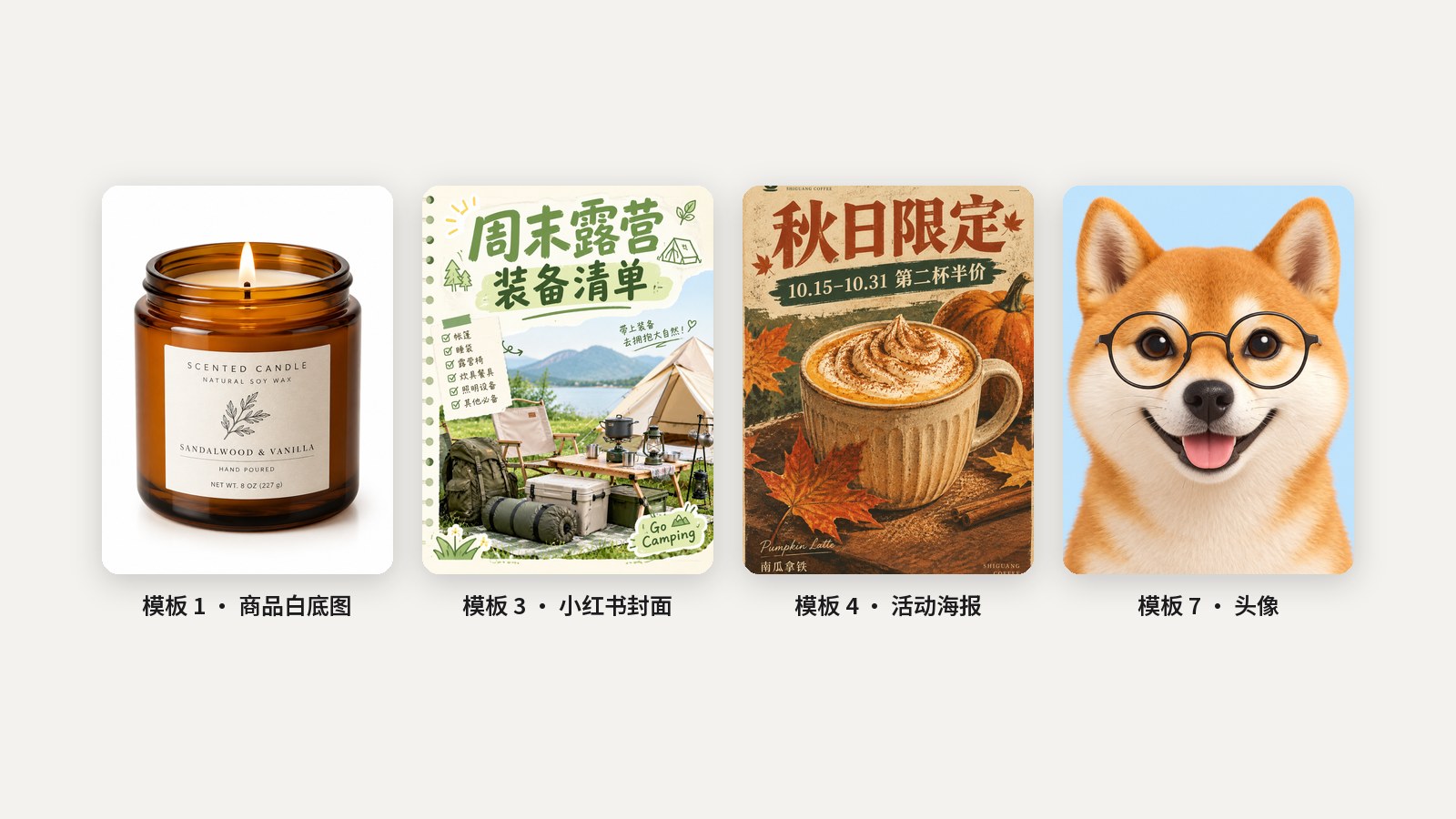
For the same idea, a specific prompt will produce more consistent images, while a vague one leaves the results to chance. Here’s a commonly used approach for generating images on 笔画AI: a six-part formula, plus 10 templates you can copy and customize.
The All-Purpose Formula: Six Parts
| Part | What to Include | Example |
|---|---|---|
| Subject | The most important element in the image | A glass of iced Americano |
| Setting | Where it is and what surrounds it | A wooden bar counter with a street view outside the window |
| Composition | Camera distance, angle, and placement | Close-up, shot from a 45-degree overhead angle, subject centered |
| Lighting | Time of day and type of light | Soft morning window light with gentle shadows |
| Style | Photo, illustration, or 3D, and the overall look | Japanese magazine photography, low saturation |
| Use | What it’s for and the desired aspect ratio | Xiaohongshu cover, 3:4 portrait |
You don’t need to include all six parts every time, but it’s best to always specify the subject, style, and use.
How to Get Text Right in Images
Posters and covers often need text:
- Put the exact text in quotation marks: Title “Fall New Arrivals,” subtitle “Save 30 on Orders Over 199.”
- Specify the position and size: Place the title in the upper third in large, bold type.
- Less text produces more accurate results: Keep text within two or three lines per image. Add longer copy later during layout.
- For text-heavy images or complex layouts, use 笔画 Image 2.5 Pro or 智能香蕉 Pro.
Reference Images Are More Accurate Than Long Descriptions
If you want “the same style as this image” or “this product placed in that setting,” upload reference images directly:
- After adding reference images to the creation box, enter @ in the prompt to select an image. For example: “Place the product from @Image 1 in the setting from @Image 2 without changing the product’s appearance.”
- Clearly state the purpose of each reference image: style, character, or composition.
- When creating multiple images of the same character, always use the same set of reference images and only change the pose and setting.
10 Ready-to-Use Templates
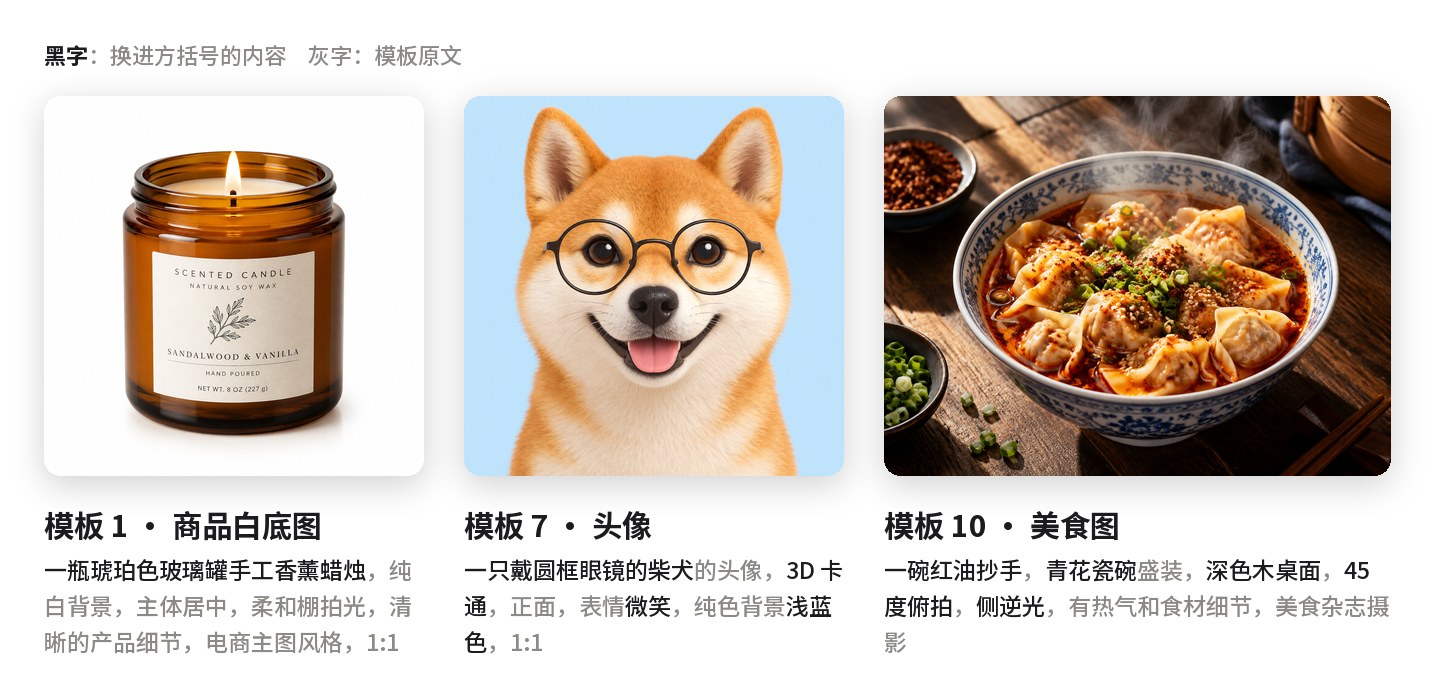
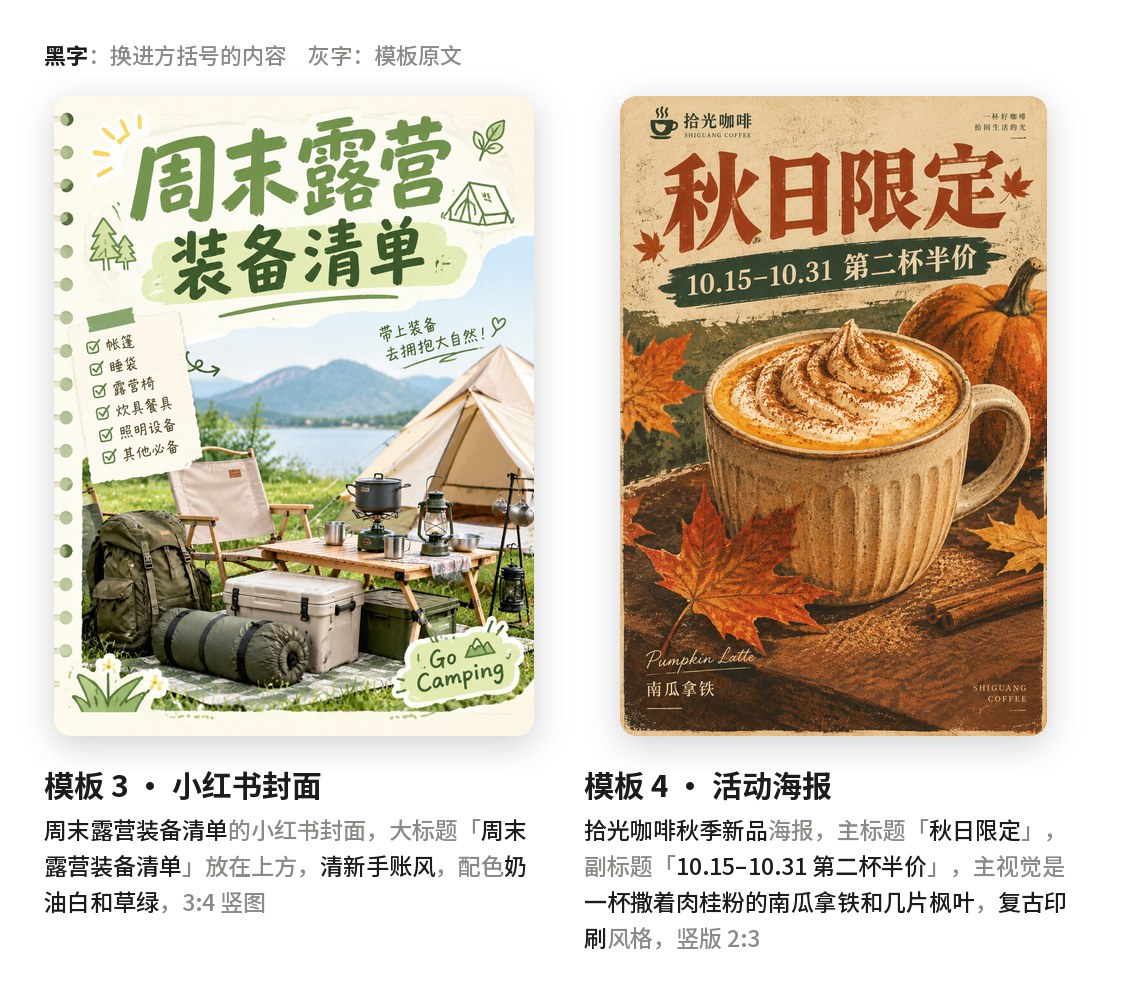
Replace the content in square brackets with your own:
- Product on white background: “[Product name], pure white background, subject centered, soft studio lighting, clear product details, e-commerce product image style, 1:1”
- Product lifestyle image: “[Product name] placed on [setting, such as a marble countertop], accented with [props], natural light at [time of day], lifestyle photography, leave blank space on the right for text”
- Xiaohongshu cover: “Xiaohongshu cover about [topic], large title “[title text]” at the top, [style, such as a fresh scrapbook aesthetic], [color] color palette, 3:4 portrait”
- Event poster: “[Brand/store name] [event name] poster, main title “[title],” subtitle “[date or promotion],” main visual featuring [image], [style] aesthetic, vertical 2:3”
- WeChat Official Account header: “WeChat Official Account cover for [article topic], horizontal 21:9, title “[title]” slightly left of center, [visual element] on the right, clean flat illustration”
- Portrait: “Portrait of a [age, gender] person wearing [clothing], standing in [setting], [lighting], shallow depth of field, [style, such as a film look] portrait photography”
- Profile picture: “Profile picture of [person or animal], [style, such as 3D cartoon / watercolor], front view, [expression] expression, solid [color] background, 1:1”
- Logo concept: “Logo for [brand name], [industry], incorporating [elements], flat vector style, monochrome [color], pure white background, no additional text” (When using 笔画 Image 2.5, you can enable “Transparent Background” under “Generation Settings”)
- Interior rendering: “Interior design rendering of [layout or space], [style, such as warm cream tones with natural wood], [main furniture], natural light at [time of day], wide-angle, photorealistic rendering”
- Food photography: “[Dish] served in [tableware], [tabletop material], overhead or 45-degree angle, [lighting], visible steam and ingredient details, food magazine photography”
Two Buttons to Use When You’re Stuck
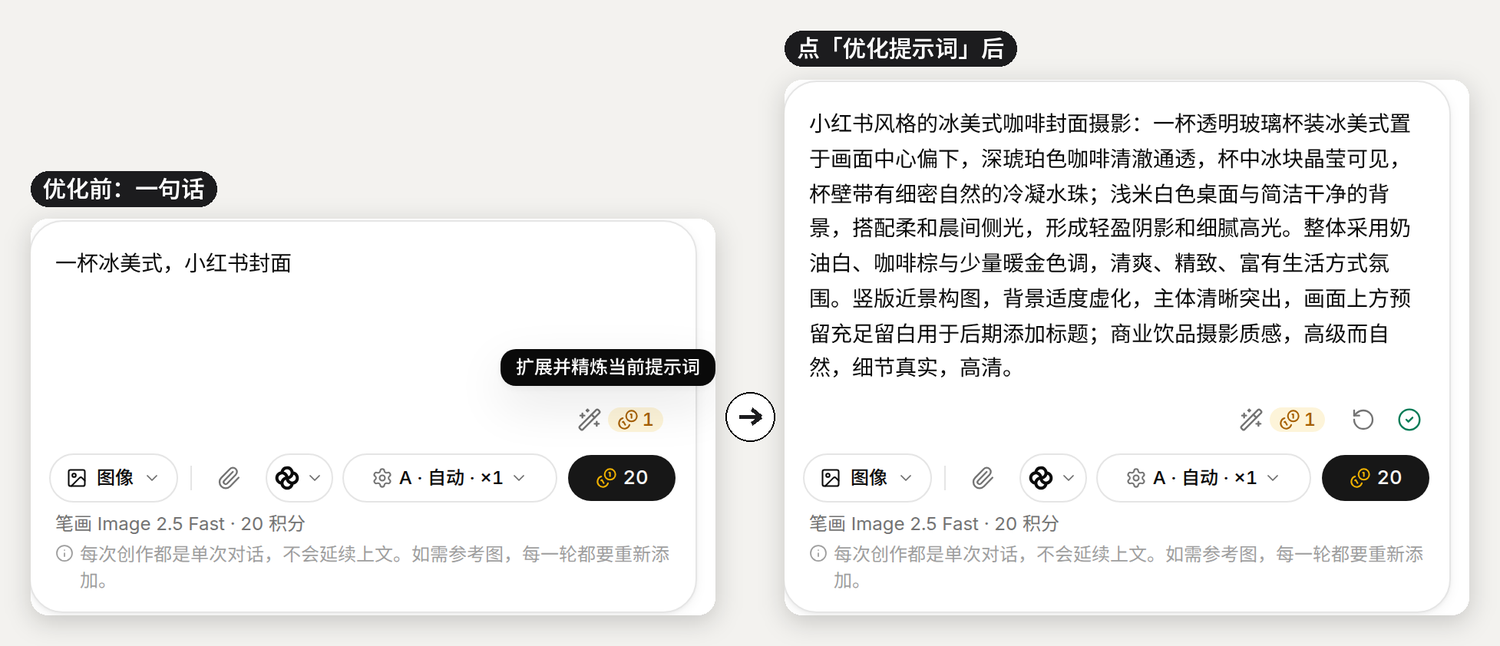
- Optimize Prompt: Start with a simple idea, then click the “Optimize Prompt” magic wand in the creation box. AI will expand it into a more complete description in the current interface language. This may use a small number of credits, and you can restore the original text if you’re not satisfied.
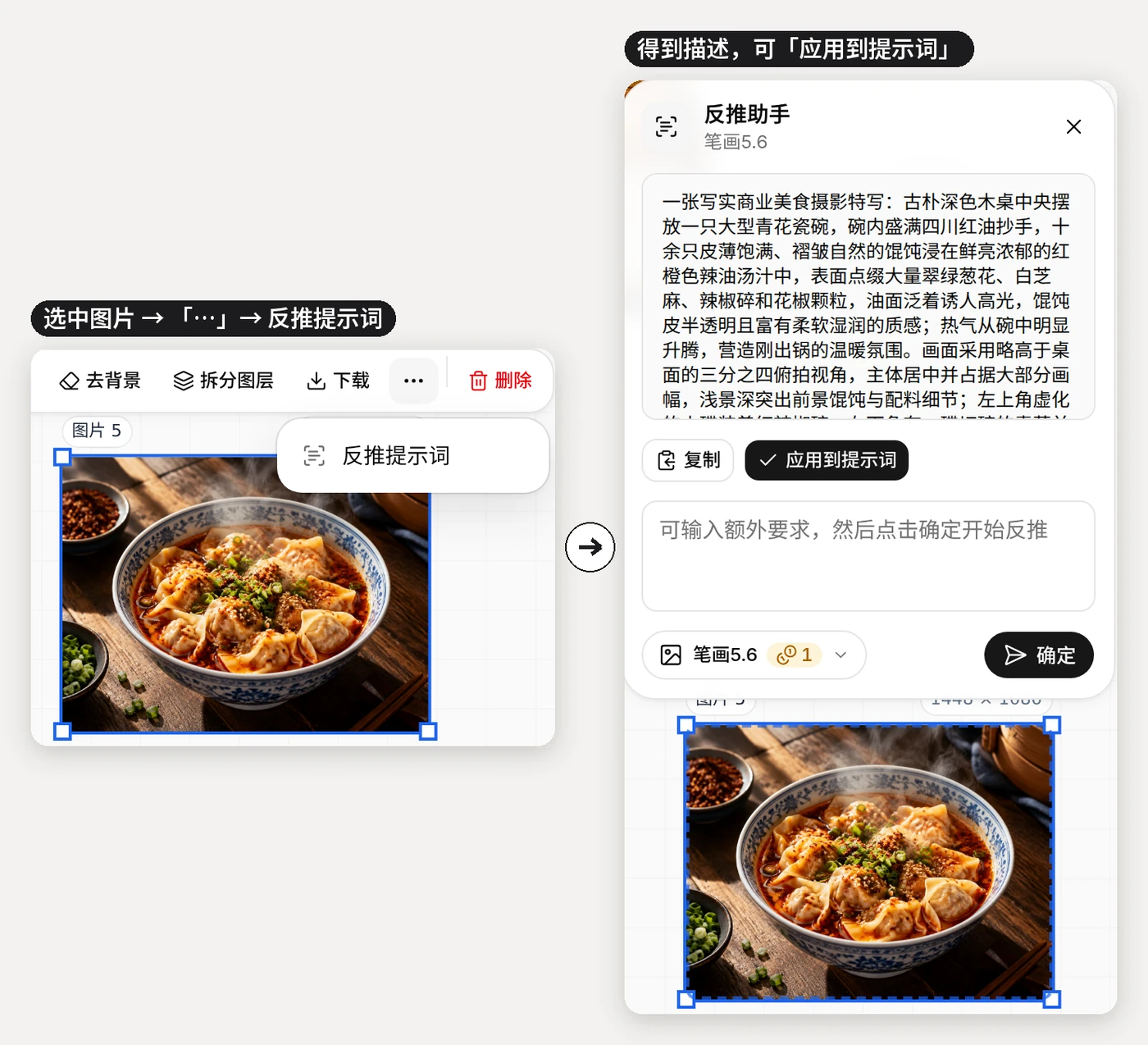
- Reverse-Engineer Prompt: When you find an image you like, place it on the canvas and select it. Click “Reverse-Engineer Prompt” under “…” in the toolbar, then click “Confirm” to generate a description. Click “Apply to Prompt,” change a few words, and you can create a new image in the same style.
Common Mistakes
- Using too many adjectives: Words like “superb,” “ultra-HD,” “masterpiece,” and “stunning” have little effect. Specific lighting, materials, and composition work better.
- Including conflicting instructions in one sentence: If you ask for both a “minimalist style” and “rich detail,” the model can only choose one.
- Putting the aspect ratio in the prompt: Set the aspect ratio and resolution using the options in the creation box. This is more accurate than including them in the prompt.
- Rewriting the entire prompt when editing an image: If you only want to change one area, select it and edit it with “Universal Edit.” See the AI Image Editing Tutorial.
To learn what each model series does best, see How to Choose Between 笔画 Image 2.5 and 智能香蕉. Open 笔画AI, create a new canvas, and try one of the templates.