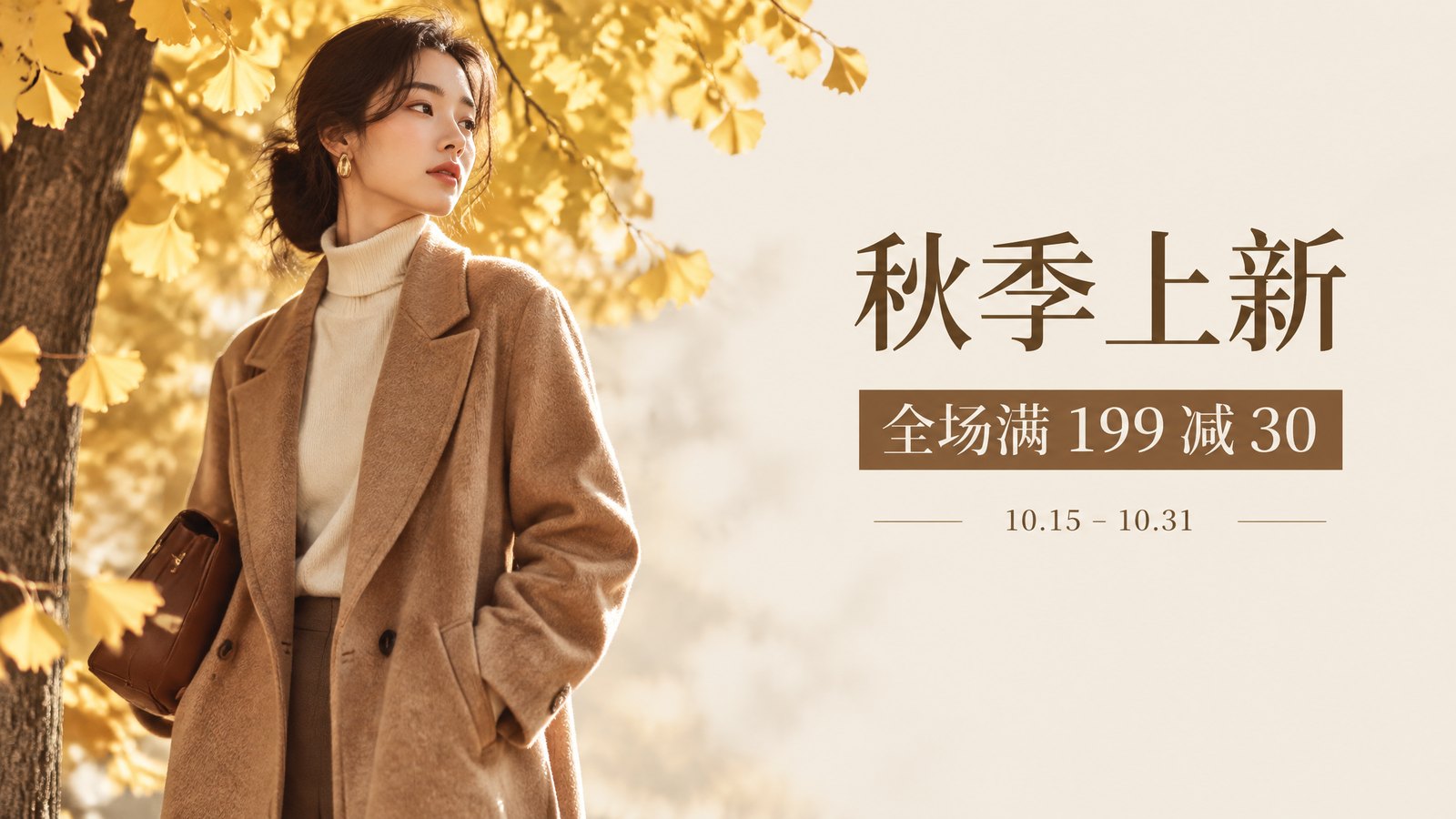
笔画 Image 2.5 is the flagship image model on 笔画AI. It offers accurate text rendering, highly realistic visuals, and excellent understanding of long prompts, with Fast and Pro versions. It is also the most feature-rich model on the site: only 笔画 Image 2.5 supports transparent backgrounds, custom dimensions, and outpainting.
How to Choose Between Fast and Pro
| Version | Positioning | Best for |
|---|---|---|
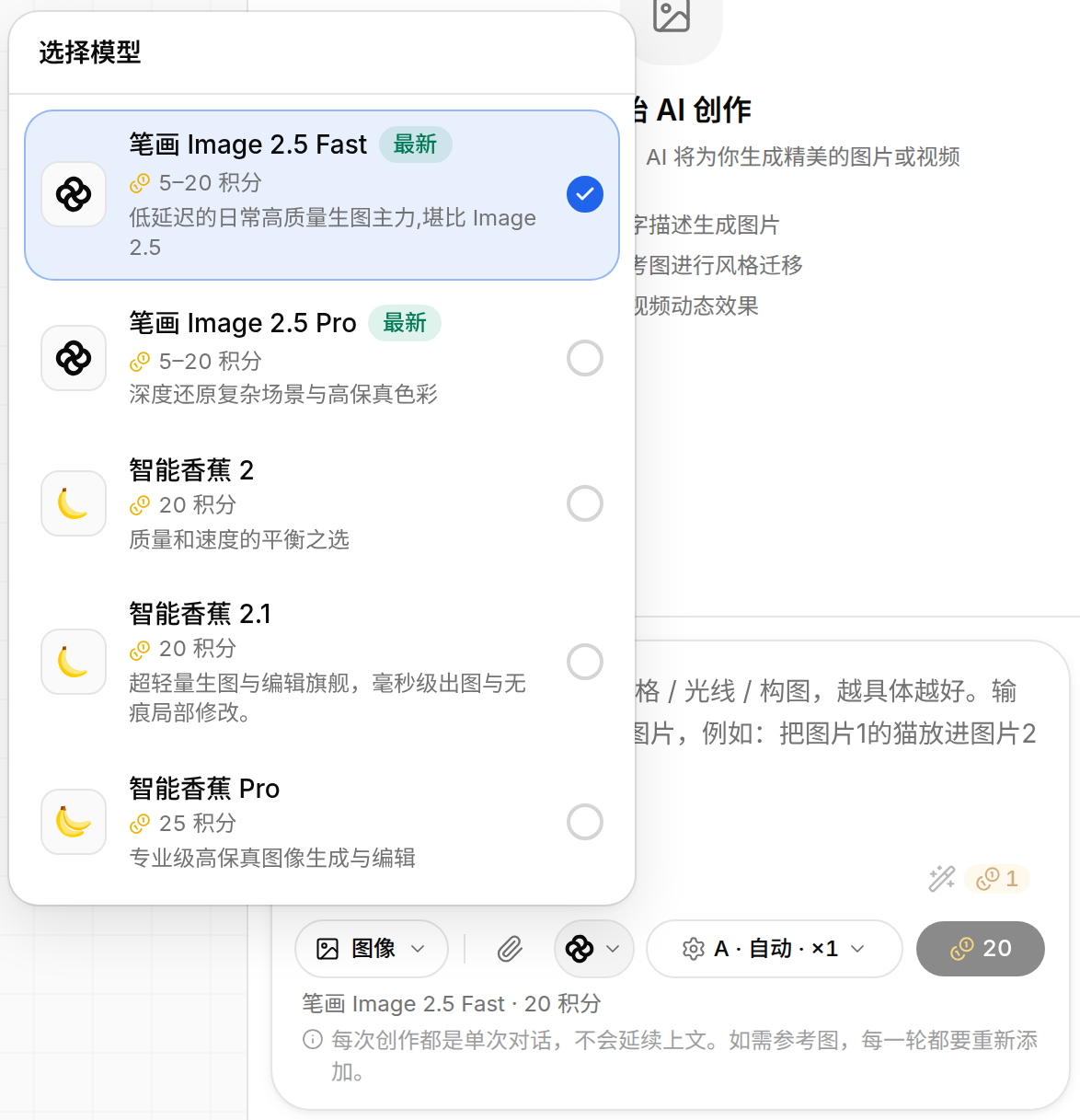
| 笔画 Image 2.5 Fast | A low-latency everyday workhorse | Most image generation, batch concept testing, and asset creation |
| 笔画 Image 2.5 Pro | Detailed reproduction of complex scenes and high-fidelity color | Production-ready commercial work, complex compositions, and images with demanding color requirements |
Both versions have the same capabilities: up to 16 reference images, transparent backgrounds, custom dimensions, 1K / 2K / 4K, and outpainting. The difference is in quality and speed.
Generate Your First Image
- After signing up and logging in, click New Canvas to open the workspace, then select Image as the creation mode.
- Under “Select Model,” choose 笔画 Image 2.5 Fast.
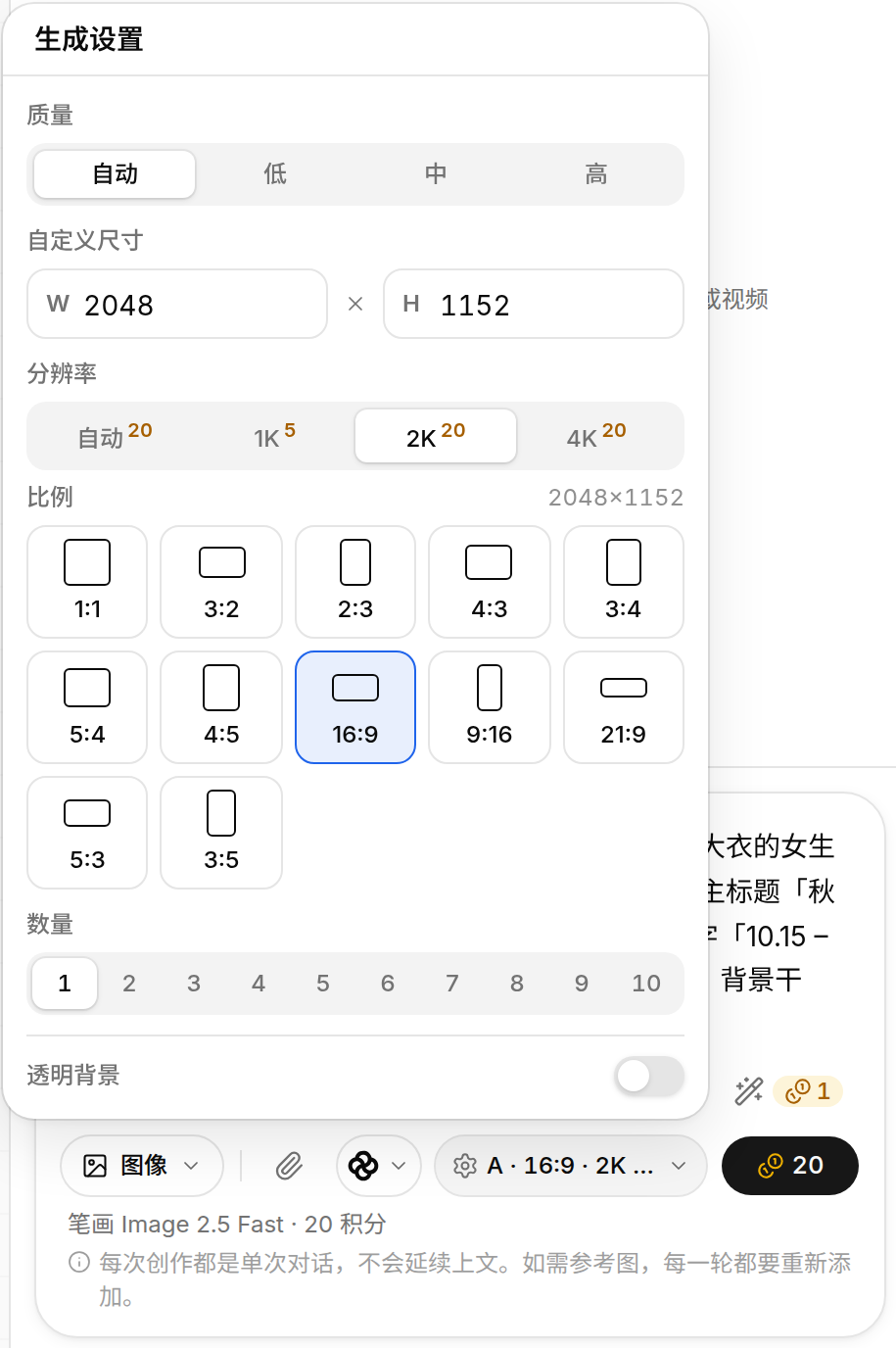
- Enter your prompt, then choose the aspect ratio, resolution, and “Quality.”
- Check the estimated credit charge shown in the creation panel, then click “Generate.”
For “Quality,” you can choose Auto, Low, Medium, or High. To save the most credits, start at 1K to refine the composition, then switch to 2K / 4K for the final image.
How to Write Prompts
笔画 Image 2.5 excels at understanding long sentences and precise requirements:
- Break the image down into parts: Write one sentence each for the subject, composition, lighting, style, and intended use.
- Put text in quotation marks: For example, Title “New Fall Arrivals,” subtitle “Save 30 on Orders Over 199.” It can render Chinese text in the image with relatively high accuracy.
- Clearly state what you do not want: “Clean background, with no unnecessary decorations or text.”
Transparent Background PNGs
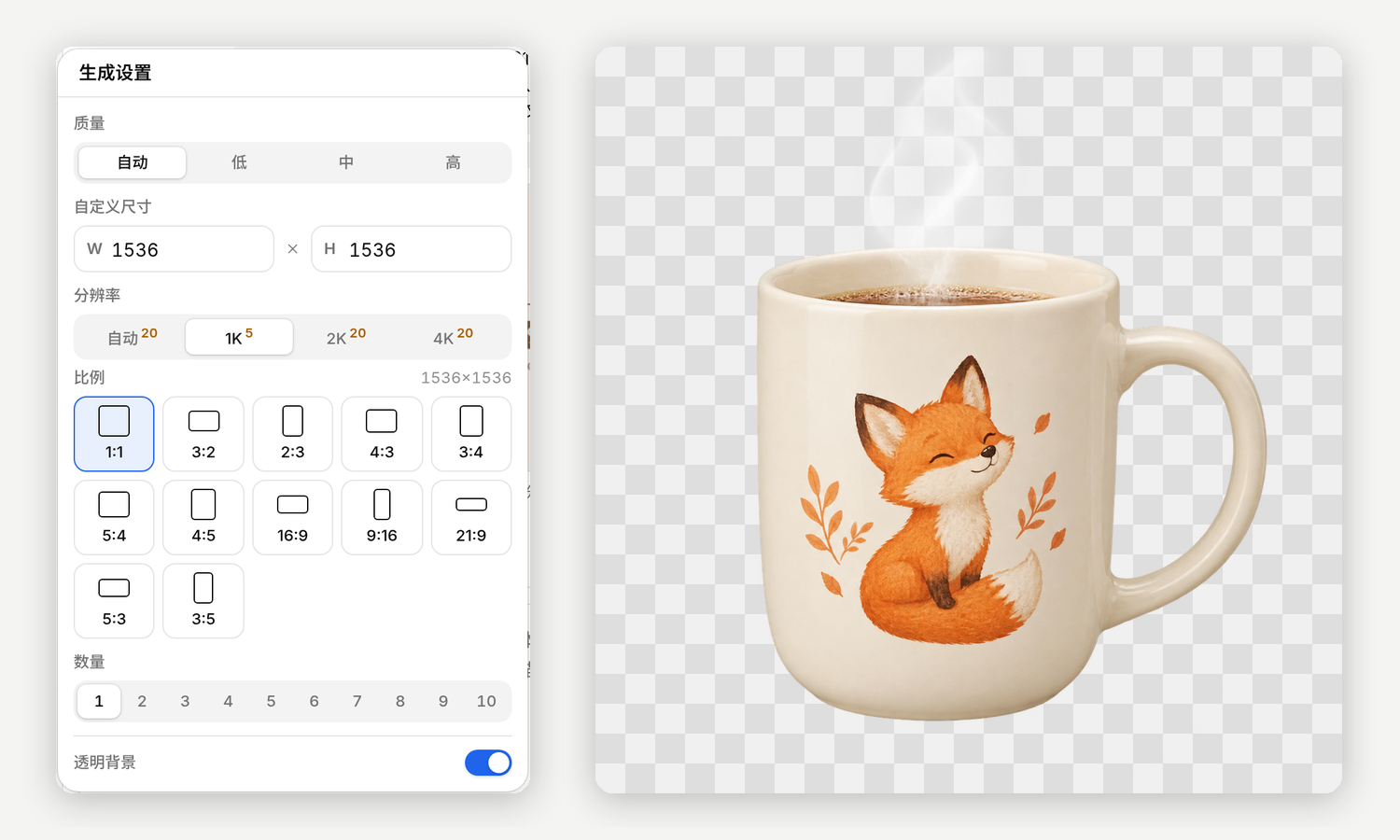
Transparent backgrounds are often needed for logos, stickers, and product assets:
- Select 笔画 Image 2.5 Fast or Pro.
- Turn on the “Transparent Background” toggle under “Generation Settings” in the creation panel.
- Include “centered subject, transparent background” in the prompt.
For an image you have already generated, select it and click “Remove Background” to create a new version with a transparent background.
Custom Dimensions and 4K
In addition to preset aspect ratios such as 1:1, 3:2, 4:3, 16:9, 21:9, and 5:3, 笔画 Image 2.5 also supports “Custom Dimensions”: the width and height must be multiples of 16, either side can be up to 3,840 pixels, and the aspect ratio cannot exceed 3:1. For images requiring fixed pixel dimensions, such as WeChat article headers and banner ads, enter the target dimensions directly to avoid cropping afterward.
Use Reference Images for Matching Styles and Consistency
You can use up to 16 reference images at once, either uploaded from your device or selected directly from the canvas:
- Style reference: “Use the colors and layout of @Image 1 to create a new product poster.”
- Maintain product consistency: “@Image 1 is the product. Place it in the setting shown in @Image 2 without changing the product’s appearance.”
- Combine multiple elements: Use separate reference images for the person, clothing, and setting, then match them with @ mentions in the prompt.
Keep Refining After Generation: Outpaint, Edit, and Upscale
Select an image on the canvas:
- Outpaint: Extend the image on all sides, turn a portrait image into a landscape image, or expand it by 1.5× or 2×.
- 万能 Edit: Draw a box on the image and add a note to change only the specified area.
- Upscale: Improve image clarity.
For instructions on these features, see AI Image Editing: 万能 Edit, Outpainting, Background Removal, and Upscaling. For a comparison with the 智能香蕉 series, see How to Choose Between 笔画 Image 2.5 and 智能香蕉.
You can now open 笔画AI, create a new canvas, and select “笔画 Image 2.5 Fast” to start generating images.