First and last frames are the most controllable kind of image-to-video: you give the video's first frame and last frame, and the model fills in the change between them. What the opening looks like, where the ending stops, what style the shot is in — all locked down by the two images, so the prompt only has to describe how things move in between. On the 笔画AI canvas, five video models support first frame plus last frame.
Which models support it, and what it costs
| Model | Duration | Resolution and credits per second | Credits for 5 seconds |
|---|---|---|---|
| MiniMax H3 | 1–15 sec | 768P: 5 | 25 |
| Seedance 2.0 Mini | 4–15 sec | 480p: 12; 720p: 26 | 60 / 130 |
| Seedance 2.0 Fast | 4–15 sec | 480p: 23; 720p: 48 | 115 / 240 |
| Seedance 2.0 | 4–15 sec | 480p: 30; 720p: 64; 1080p: 159 | 150 / 320 / 795 |
| Seedance 2.5 | 4–30 sec | 480p: 47; 720p: 101; 1080p: 249 | 235 / 505 / 1245 |
Credits = per-second price × duration. Before you submit, the creation panel shows the total for that run. If generation fails, is rejected, or you cancel, the credits held in advance are refunded.
The full workflow for one video
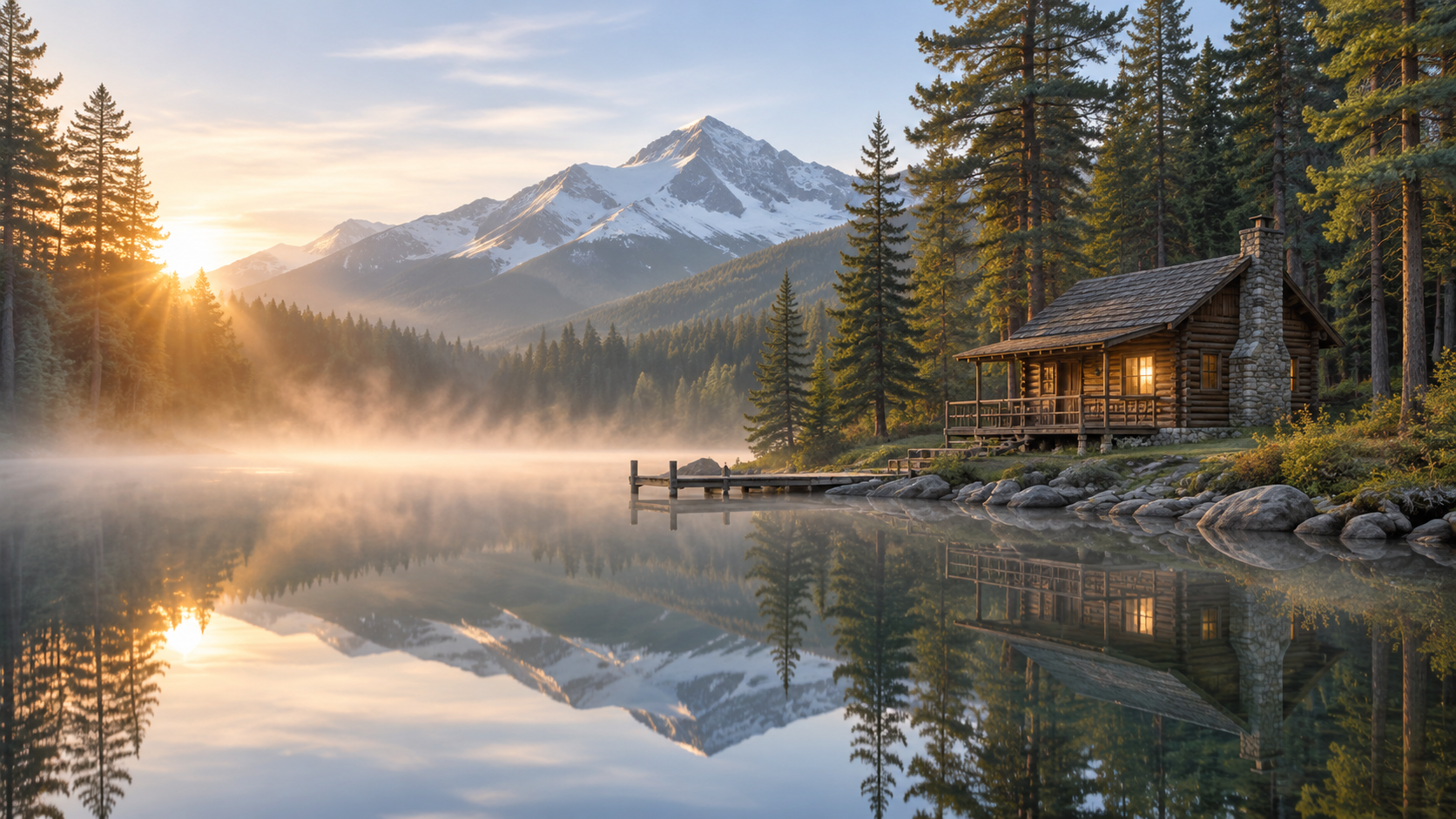
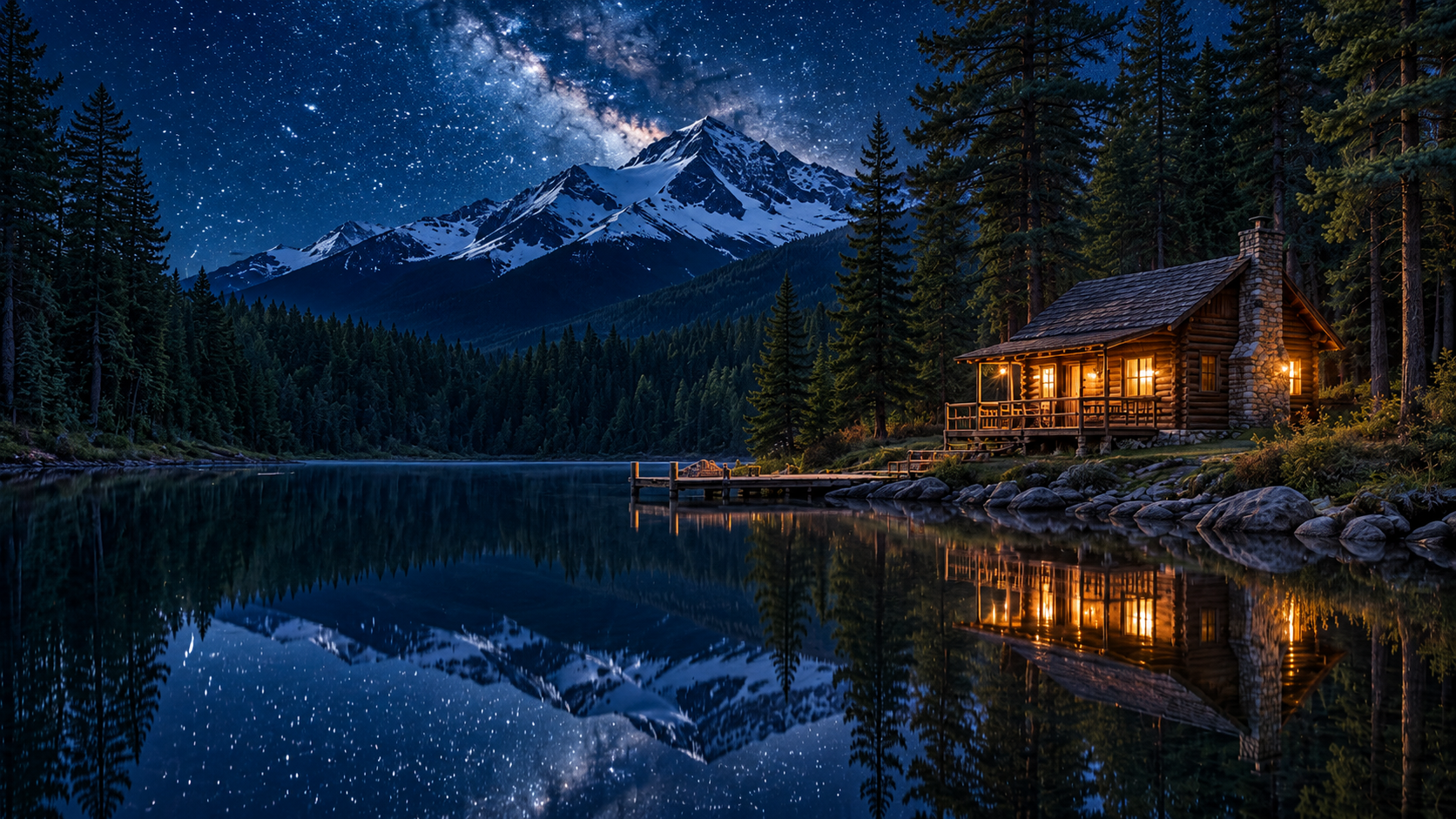
The example below uses a single pair of frames: the first frame is a lakeside cabin in morning mist, the last frame is a starry night from the same camera position.
- Prepare the first frame. Generate or upload an image on the canvas. This first frame was generated with 笔画 Image 2.6 at its discounted rate, for 3 credits.
- Turn the first frame into the last frame. Add the first frame as a reference image and spell out in the prompt exactly what changes and what stays: "Using @Image 1 as the base, change only the time of day to late night: starry sky and the Milky Way, lights on in the cabin windows and on the porch, lights and stars reflected in the lake. The positions of the cabin, the pier, the rocks, the pine trees and the snow-capped mountains, along with the camera position and composition, stay the same." The resulting last frame lines up almost exactly with the first — only the time of day has changed.
- Start the video. Select the first frame on the canvas and click Generate video; the creation panel switches to video and sets that image as the first frame. You can also switch the creation mode to Video at the lower left of the creation panel, set Generation method to First and last frames, then click the First frame and Last frame slots to upload images or pick them from the canvas; drag in two images at once and they fill the first and last frame slots in that order.
- Choose the model, quality and duration, then write the prompt. The model can already see both images, so the prompt only needs to say what happens in between and how the camera moves.
- Check the total credits and click Generate video. You can keep working on other things while the video generates; click Notify me when done and your browser will alert you when it's finished.
We ran this pair of frames through MiniMax H3 (5 seconds, 25 credits) and Seedance 2.0 Mini (480p, 5 seconds, 60 credits). Both go from early morning to night: the mist clears, the sky darkens, the Milky Way appears, the cabin lights come on, and the video ends on the last frame. Below is the final frame of the MiniMax H3 video. Click here to watch the video MiniMax H3 generated.
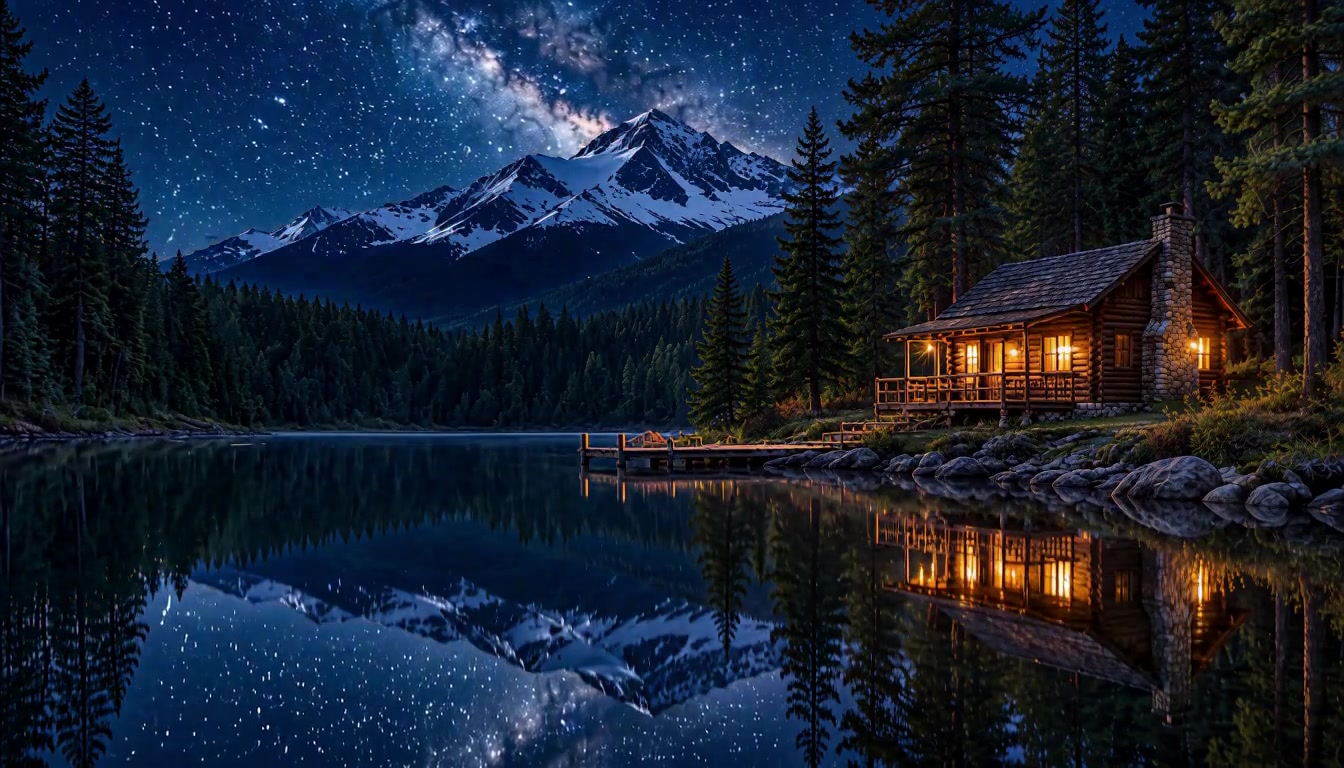
The prompt asked for a slow forward camera push, but the push isn't obvious in either video: the first and last frames frame exactly the same shot, so the model can only change things in place. If you want a clear push, pull, pan or tilt, the last frame needs to be composed for the framing the camera ends up with.
Rules to know first
- A last frame needs a first frame. A first frame alone is fine; a last frame alone is not.
- First and last frames or reference material — pick one. A video uses either first and last frames or Omni reference; if you set both, the creation panel prompts you to remove one.
- Aspect ratio follows the first frame. With a first frame, MiniMax H3 and Seedance 2.5 follow the aspect ratio of the first-frame image; Seedance 2.0, 2.0 Fast and 2.0 Mini let you choose Auto to follow the first frame or pick a fixed ratio. The two images should ideally have the same ratio.
- Real faces. The Seedance series doesn't accept material containing real human faces — use landscapes, products, animals, cartoon or 3D characters instead; for real people, use MiniMax H3.
How to make the transition smoother
- Derive the last frame from the first. Use reference-image editing or Omni edit to change only what has to change (time of day, pose, color); two unrelated images make the transition very hard for the model.
- Give big changes enough time. A day-to-night shift or a major transition plays more naturally over 8–10 seconds than over 4.
- Describe the camera explicitly. "Locked-off camera, only the lighting changes" and "orbit half a turn to the left around the product" work better than "camera movement"; if the camera moves, the framing in the last frame has to move with it.
- Test cheap, then render the final. Get the motion right with MiniMax H3 or Seedance 2.0 Mini at 480p, then switch to Seedance 2.0 or 2.5 for 1080p.
- Keep shooting. Select a finished video and click Continue from last frame; the next clip starts where this one ended.
For other things each model can do, see How to use Seedance and How to use MiniMax H3; to get the same character into both the first and last frame, see How to keep AI characters consistent.
Open 笔画AI, select an image on the canvas, and click Generate video to get started.