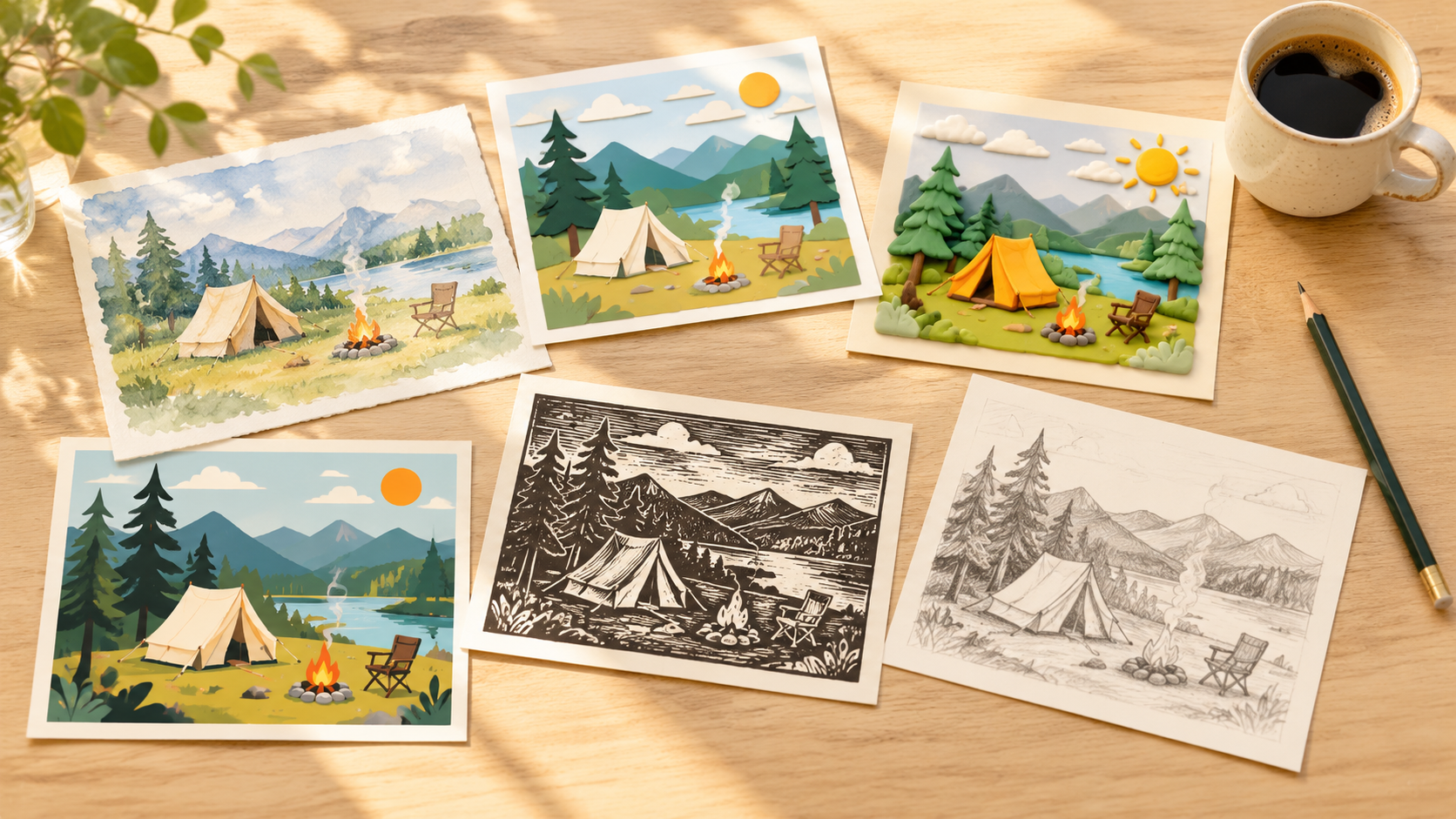
In an image generation project, most of the credits are spent on directions you never end up using. On 笔画AI, 笔画 Image 2.6 特惠 costs only 3 credits per image. For the same credits, 笔画 Image 2.6 Pro gives you only 1 image, while 特惠 lets you try 6. Use 特惠 to find the direction first, then pay full price only for the one you finally choose.
What 笔画 Image 2.6 特惠 can do
| 笔画 Image 2.6 特惠 | 笔画 Image 2.6 Fast / Pro | |
|---|---|---|
| Credits per image | 3 | 20 |
| Resolution | 1.5K only (3:4 is 1152×1536) | 1K / 2K / 4K, custom sizes |
| Generation settings | Aspect ratio only | Aspect ratio, resolution, quality, thinking effort |
| Aspect ratios | 1:1, 3:2, 2:3, 4:3, 3:4, 5:4, 4:5, 16:9, 9:16 | All of the above, plus 21:9, 5:3, 3:5, etc. |
| Reference images | Up to 16 | Up to 16 |
| Transparent background | Yes | Yes |
| GIF animation, outpainting | No | Yes |
| Appears in the "Upscale" model list | No | Yes |
1.5K is enough to see whether the composition, color palette, layout, and text are correct—exactly what you need to judge when choosing a direction.
Draft first, then create the final
- Create drafts with 特惠. In the creation panel, select "Image"; under "Select model," choose 笔画 Image 2.6 特惠; pick an aspect ratio; set "Count" to up to 10 at a time—10 images cost 30 credits.
- Change only one variable at a time. Keep a base prompt fixed and change just one thing each round: style, color palette, viewpoint, or headline. That way you can see what each change contributed.
- Compare side by side on the canvas. All drafts land on the infinite canvas; line them up and pick the best one.
- Turn the chosen image into a final, in one of two ways:
- Upscale: Select the draft, click Upscale, and choose 笔画 Image 2.6 Pro (20 credits). It upscales to 4K at the original aspect ratio, keeping the composition and content unchanged while making details clearer.
- Re-run with another model: Double-click the draft to add it as a reference image, choose 笔画 Image 2.6 Pro, and write a complete prompt, for example: "Generate a new image based on @图片1: keep the composition, color palette, and text unchanged, but make the details more refined." Choose quality and resolution as needed; the price is the same.
- Fix details last. If something is wrong, use Omni Edit to draw a box around it and change just that area.
A real test: 6 styles, 38 credits
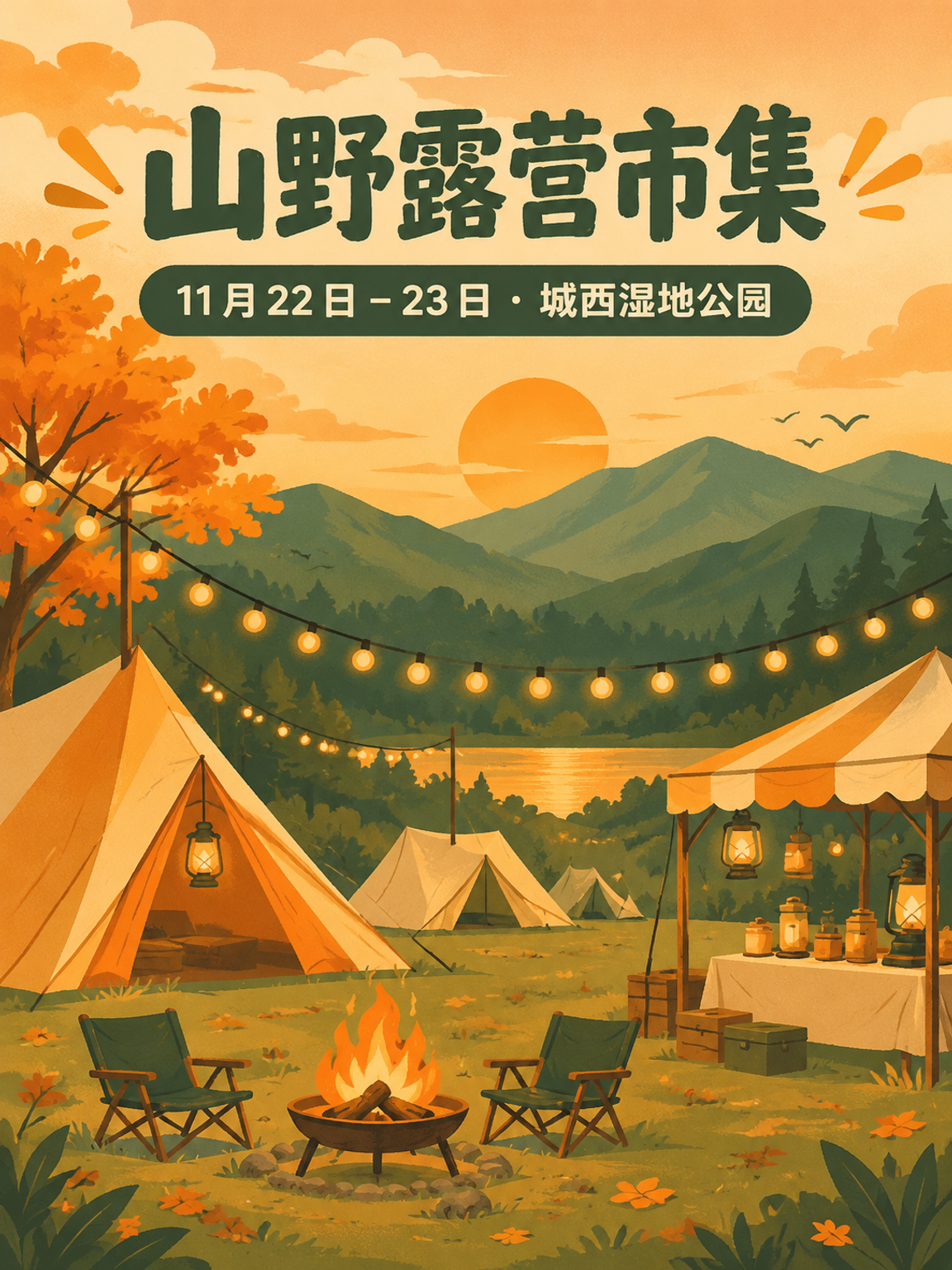
We wrote a base prompt for an autumn camping market poster: headline "Mountain Camping Market," subtitle "November 22–23 · Westside Wetland Park," with tents, a campfire, string lights, and distant mountains in the scene. Then we changed only the style and made one image each in flat illustration, paper-cut collage, vintage screen printing, watercolor, realistic photography, and 3D clay—6 images for 18 credits total. All six got the headline and subtitle right. Three of them are below.
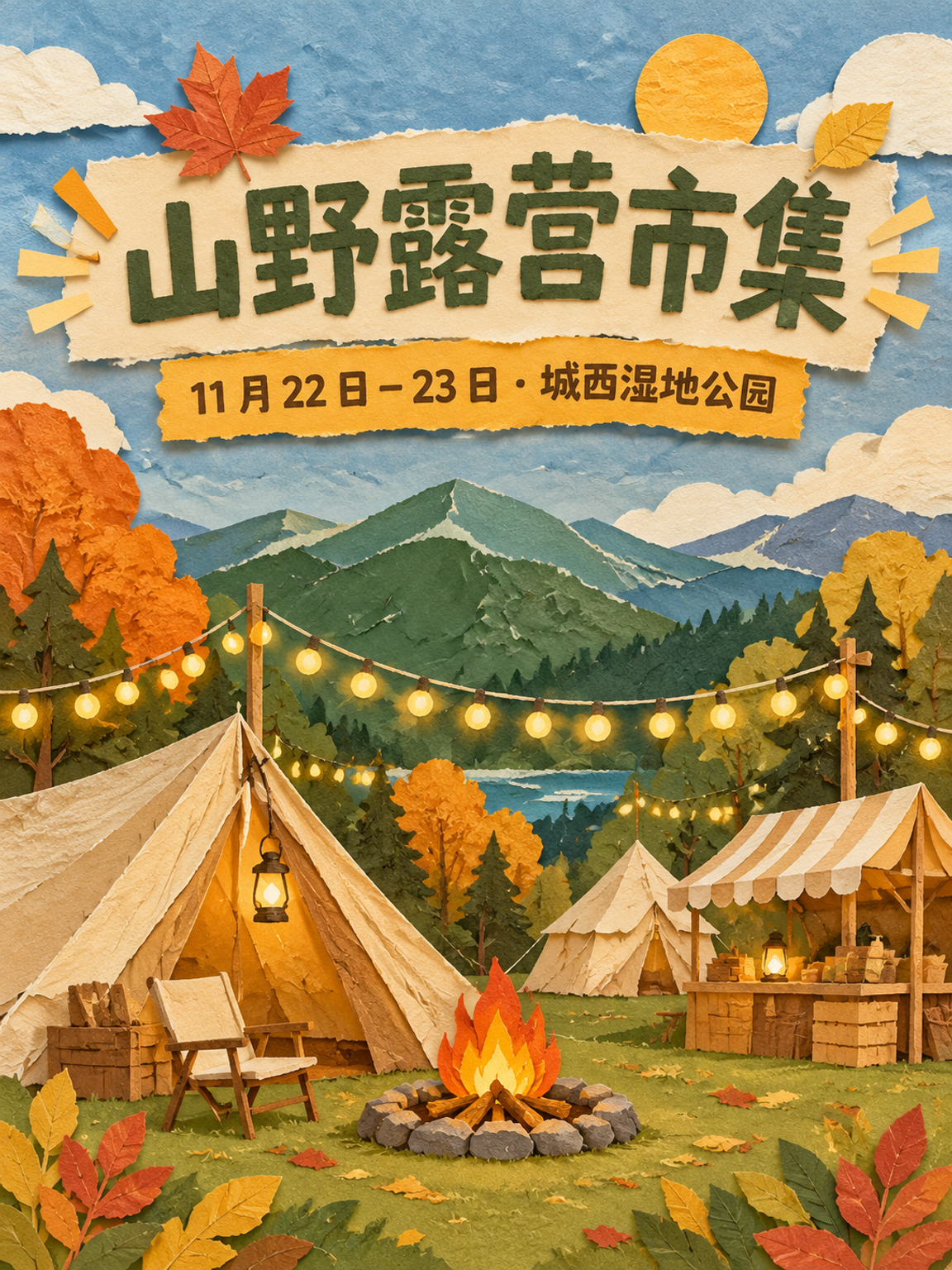

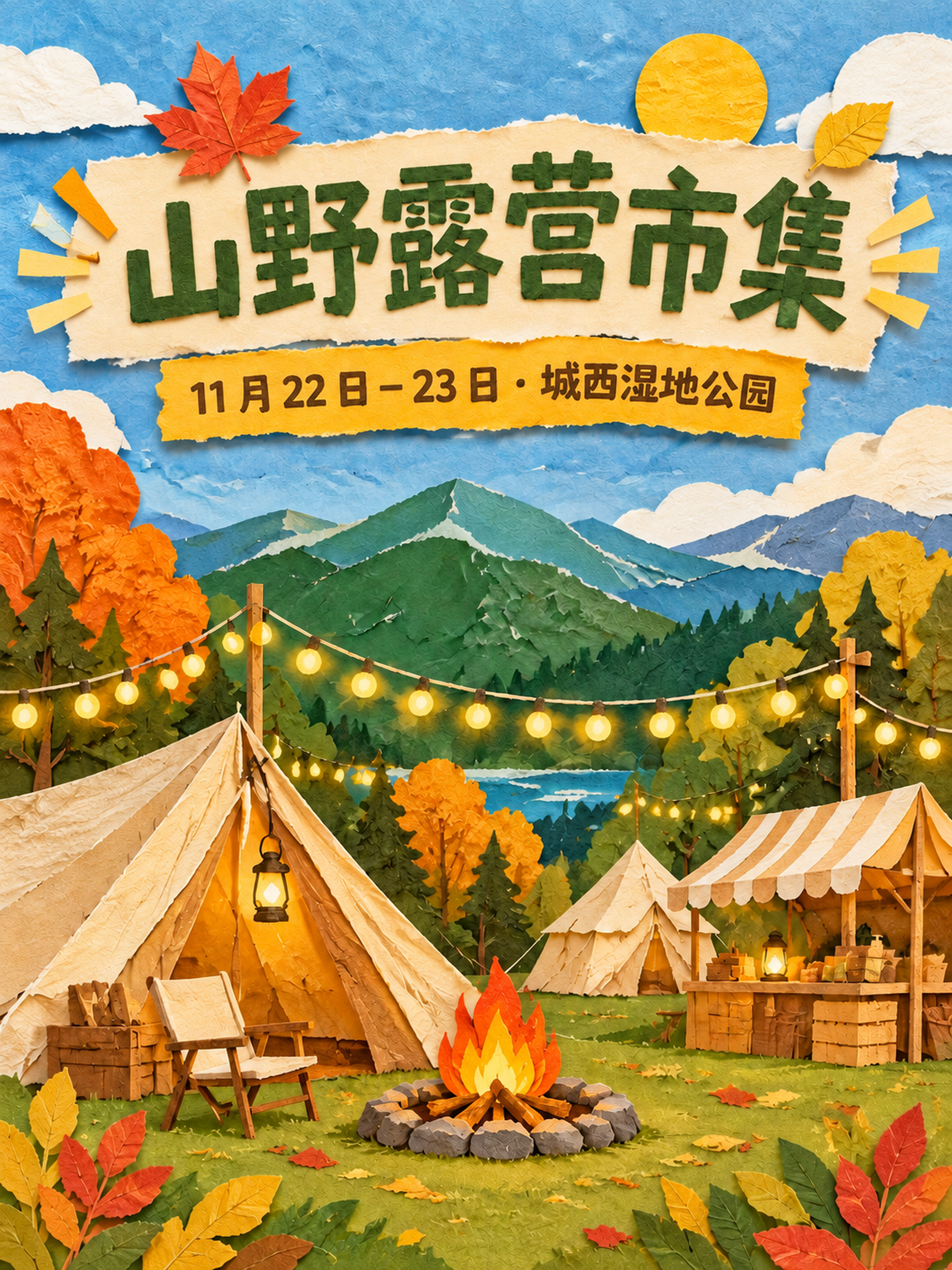
We chose the paper-cut one and upscaled it with 笔画 Image 2.6 Pro, from 1152×1536 to 2880×3840, for 20 credits. The layout, text, and position of every piece of paper stayed the same, while the paper texture and the edges of the lettering became much clearer. From exploring directions to the final image: 38 credits total.
How much can you save?
Test 40 directions and choose 4 for finals:
| Approach | Drafts | Finals | Total |
|---|---|---|---|
| All with 笔画 Image 2.6 Pro | 40 × 20 = 800 | 4 × 20 = 80 | 880 |
| Drafts with Seedream 5.0 Flash, finals upscaled with 2.6 Pro | 40 × 9 = 360 | 80 | 440 |
| Drafts with 2.6 特惠, finals upscaled with 2.6 Pro | 40 × 3 = 120 | 80 | 200 |
Using 特惠 for drafts costs less than a quarter of using Pro throughout.
When to go straight to full-price models
- You need 4K, a specific pixel size, outpainting, or GIF animation from the start: Use 笔画 Image 2.6 Fast or Pro directly.
- Posters and infographics have a lot of text, and you need to plan the layout first: 2.6 Fast / Pro have "thinking effort"; 特惠 does not. For the differences, see How to choose between 笔画 Image 2.6 and 2.5.
- You need to restore an old or blurry image in high definition: See AI image upscaling.
A few tips
- Write draft prompts to final-quality standards. A prompt that works well with 特惠 will work just as well with Pro.
- Add reference images at the draft stage. 特惠 supports 16 reference images, so you can use real product shots and logos to test placement directly.
- You can also test transparent backgrounds with 特惠. Turn on "Transparent background," and drafts of stickers and icons still cost 3 credits each.
Open 笔画AI, create a new canvas, and choose 笔画 Image 2.6 特惠 from the model list to start drafting.