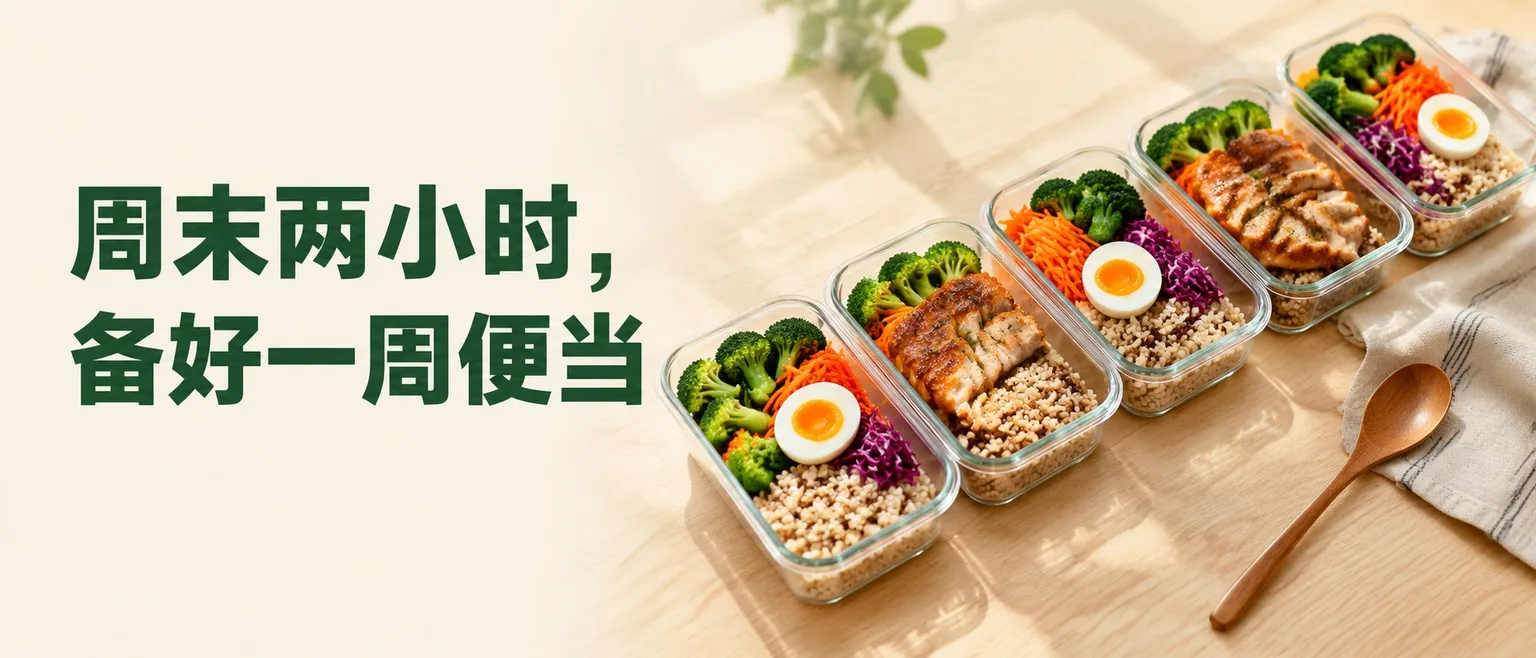
A skill is a ready-made design workflow: how to choose a layout, which aspect ratio to use, how to arrange text, and what pitfalls to avoid. Select a skill in Agent, then describe what you need in a sentence. Agent will follow that workflow to generate an image, so you don’t have to write a long prompt.
Using a Skill for the First Time
- After logging in, click New Canvas, then switch the creation mode to Agent in the bottom-left corner of the creation box on the right.
- Click the Skills button in the creation box to browse by category or search. Open a skill to see sample images.
- Click Use This Skill. A sample request will appear in the input box. Edit it to fit your needs, then send it.
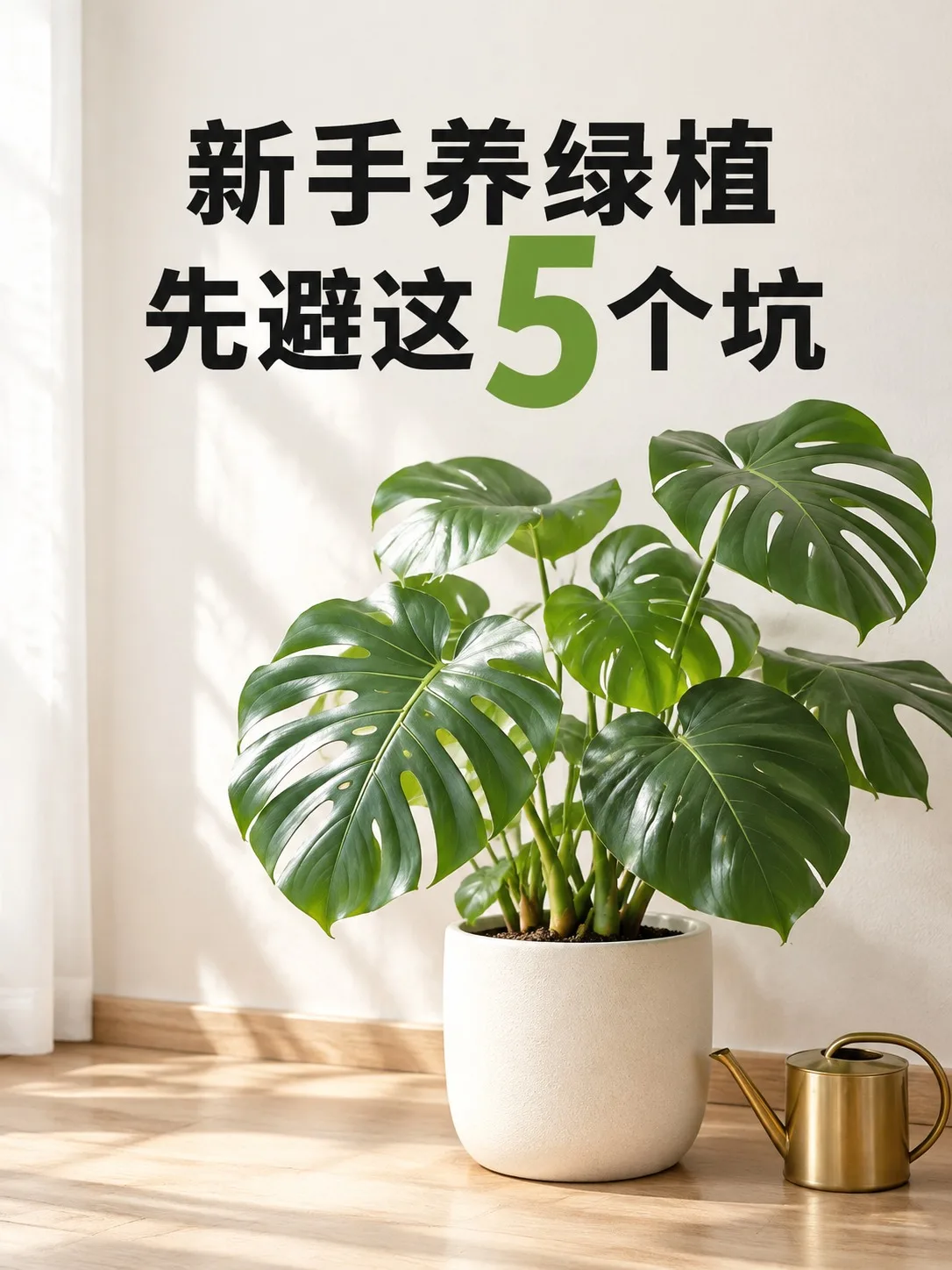
For example, select “小红书 Cover” and say, “New to houseplants? Avoid these 5 mistakes first.” Agent will confirm the title and style, then generate a 3:4 cover.
You can also describe what you need without selecting a skill. Agent will decide whether to use one.
Available Built-in Skills
| Category | Skills | Best For |
|---|---|---|
| Social Media | 小红书 Cover, WeChat Official Account Cover | 3:4 小红书 covers; 21:9 main covers plus 1:1 sharing images for WeChat Official Accounts |
| E-commerce | Product Commercial Visuals | Creating main product images, lifestyle images, and packaging visuals from a product photo or a brief description |
| Graphic Design | Infographic, One-Line Poster, Movie Poster, Cinematic Triptych, Monochrome Print Poster, Anime Character Poster | Explaining concepts visually, text-based posters, cinematic imagery |
| Graphic Design | Photo Magazine Page, Travel Memory Card, Real-World Collage, Image Distillation, Photo-to-Print Fade, Abstract Memory Page, Surreal Pop Art Collage | Turning an everyday photo into a polished design |
| Graphic Design | Character Sheet, Series Asset Design | Character turnaround views, costume and makeup portraits, and scene and prop designs to guide subsequent images |
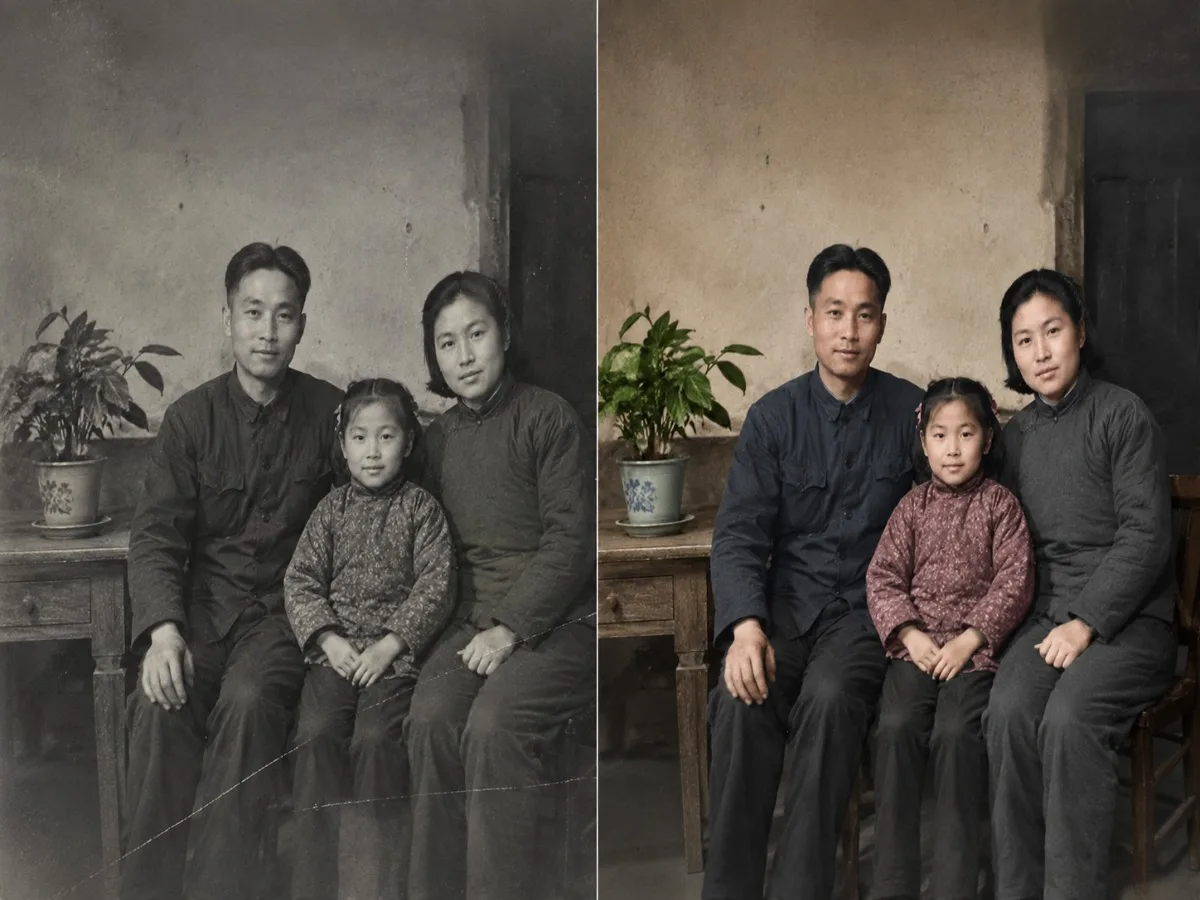
| Graphic Design | Old Photo Restoration | Removing scratches and creases, restoring faded or blurry photos, with optional colorization and upscaling |
| Academic Research | Scientific Illustration | Turning a methods section into a mechanism diagram, flowchart, or architecture diagram |
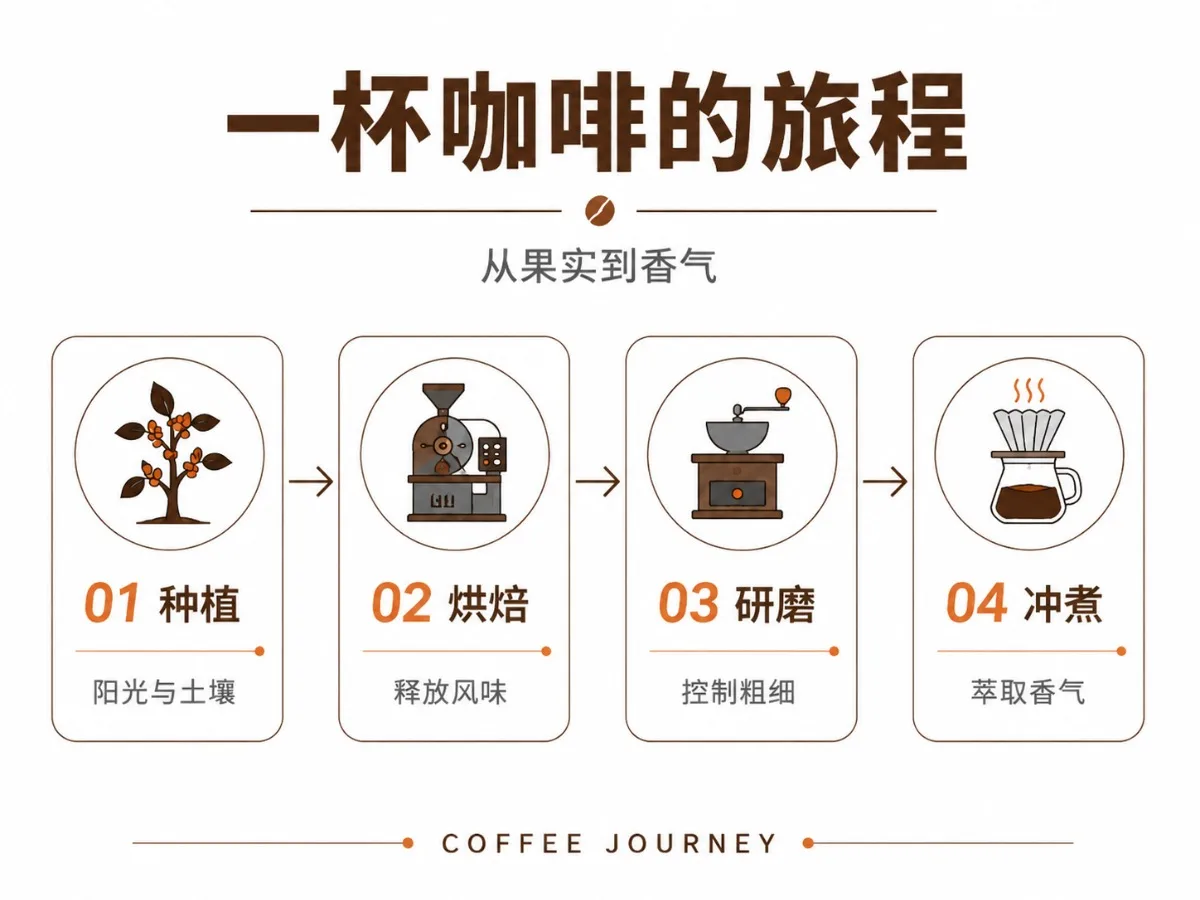
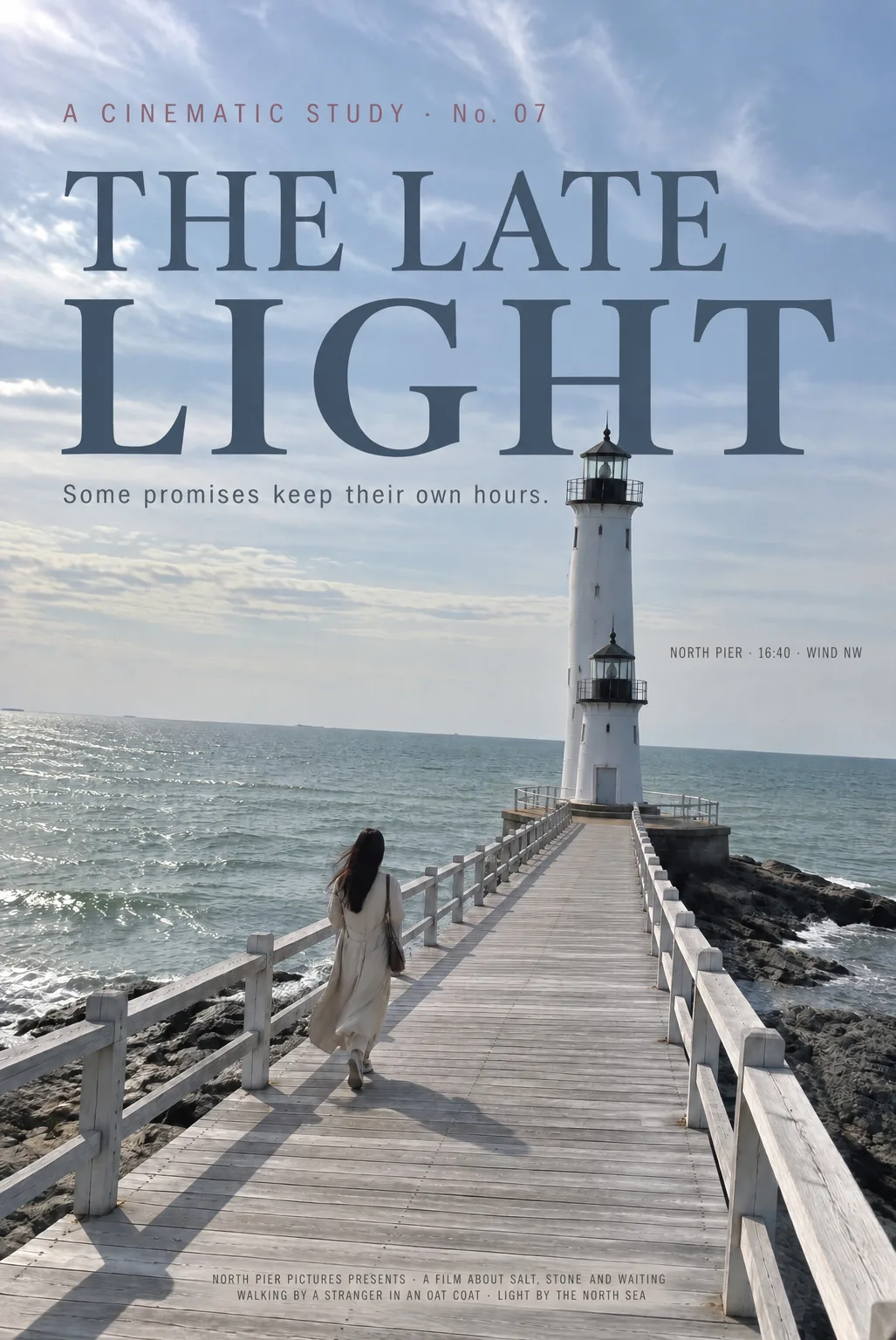
For skills that use your own photos (Movie Poster, Photo Magazine Page, Old Photo Restoration, and others), upload a photo or select it on the canvas first, then tell Agent what you need.
Save Your Own Workflow as a Skill
If you often create the same type of image, you can create your own skill and select it whenever you want to reuse it:
- Tell Agent, “Help me create a skill.” The AI will ask about its purpose, style, and rules, then save it after you confirm;
- Or, after a creation you’re happy with, say, “Save that workflow as a skill.” Agent will turn the approach it just used into a skill.
Your saved skills appear under Created by Me on the Skills page. You can edit their names, descriptions, and sample requests. The description should clearly state what the skill does and when to use it, since Agent uses it to decide when to apply the skill. You can also add two types of images:
- Sample images: Show what the skill produces. The first image is the cover;
- Reference images: Agent refers to these when generating images with the skill. Below each image, specify what to borrow from it, such as colors, layout, or brushwork.
Skill Marketplace
The Discover tab on the Skills page features skills shared by other users. Click Add to My Skills to add one to Agent’s skill list. To adapt someone else’s skill, click Clone to create your own copy.
You can share your own skills, too: under Created by Me, click Share to Marketplace. The skill must have at least one sample image and will be listed after approval. Any later changes must be submitted for review again before they appear in the marketplace.
Open 笔画AI, create a new canvas, switch to Agent, and click Skills to get started.