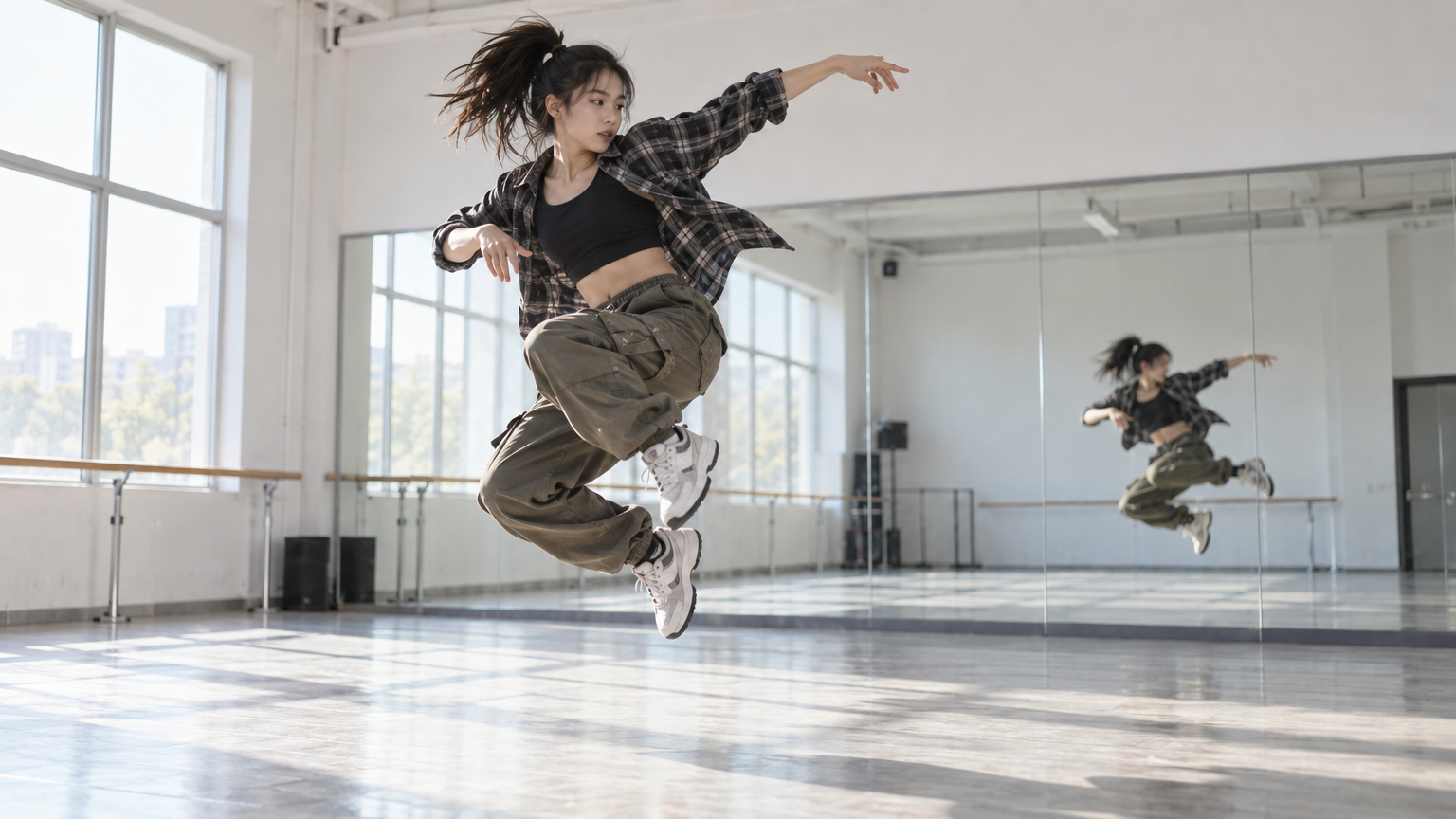
MiniMax H3 is MiniMax’s video generation model, built to match the motion and camera work in a reference video. It can also use just an audio clip as a reference. Use it directly on 笔画AI, right in your browser in China.
When to Use H3
- Match the motion in a video: Upload a dance, blocking, or camera movement video to have your character or product follow the same motion and camera work.
- Use references with real people: H3 accepts reference images and videos containing real faces (Seedance rejects them).
- Generate to music: Upload just an audio clip and describe the visuals in your prompt. The pacing follows the music.
For longer shots or higher resolution, choose Seedance.
Specs and Pricing
| Item | MiniMax H3 |
|---|---|
| Video length | 1–15 seconds, in one-second increments |
| Resolution | 768P |
| Aspect ratios | 16:9, 9:16, 1:1, 4:3, 3:4, 21:9 |
| Reference materials | Up to 9 images, 3 videos, and 3 audio clips, with 12 items total; each clip must be at least 2 seconds. Reference videos and reference audio can each total up to 15 seconds (only the beginning is used if they exceed the limit) |
| Pricing | 5 credits per second |
Two Generation Modes
In the lower-left corner of the creation box, switch the creation mode to “Video” and select MiniMax H3 as the model.
First and Last Frames: Upload a first-frame image and optionally add a last-frame image. The model fills in the motion between them. Select an image on the canvas and click “Generate Video” to use it directly as the first frame. In this mode, the aspect ratio follows the first-frame image.
All-in-One Reference: Add images, videos, and audio. Type @ in your prompt to select a reference and explain how to use it, for example: “The girl in @Image1 dances using the moves from @Video1, with the camera following @Video1.”
First and Last Frames and All-in-One Reference cannot be used together. Choose one mode at a time. You can also write a prompt without adding any references.
How to Write Prompts
- Make each reference’s role clear: Specify the main subject (@Image1), the source of the motion (@Video1), and the source of the rhythm (@Audio1). Keep each sentence focused on one thing.
- Describe the visuals and motion, not the aspect ratio or duration: Set those using the options below the creation box.
- Use “Camera Movement” to insert common phrases, or click the magic wand to turn a sentence into a storyboard script while keeping @ references unchanged.
After Generation
Download the finished video, use “Extract Frame” to get an image, “Continue from Last Frame” to shoot the next segment, or “Try Another Model” to compare results. Once you submit, you can close the page and return to the conversation later to view the result.
Open 笔画AI, create a new canvas, switch the creation mode to “Video,” and select MiniMax H3 to get started.