Midjourney images have a rich, cinematic quality; the biggest difference from other models is that it generates four images at once. On the 笔画AI canvas, they are combined into a single four-image grid. Pick whichever one you want and use “Select image” for free to pull it out on its own, then make variations or upscale it. A generation costs 17 credits; a 2K generation on V8 costs 34 credits.
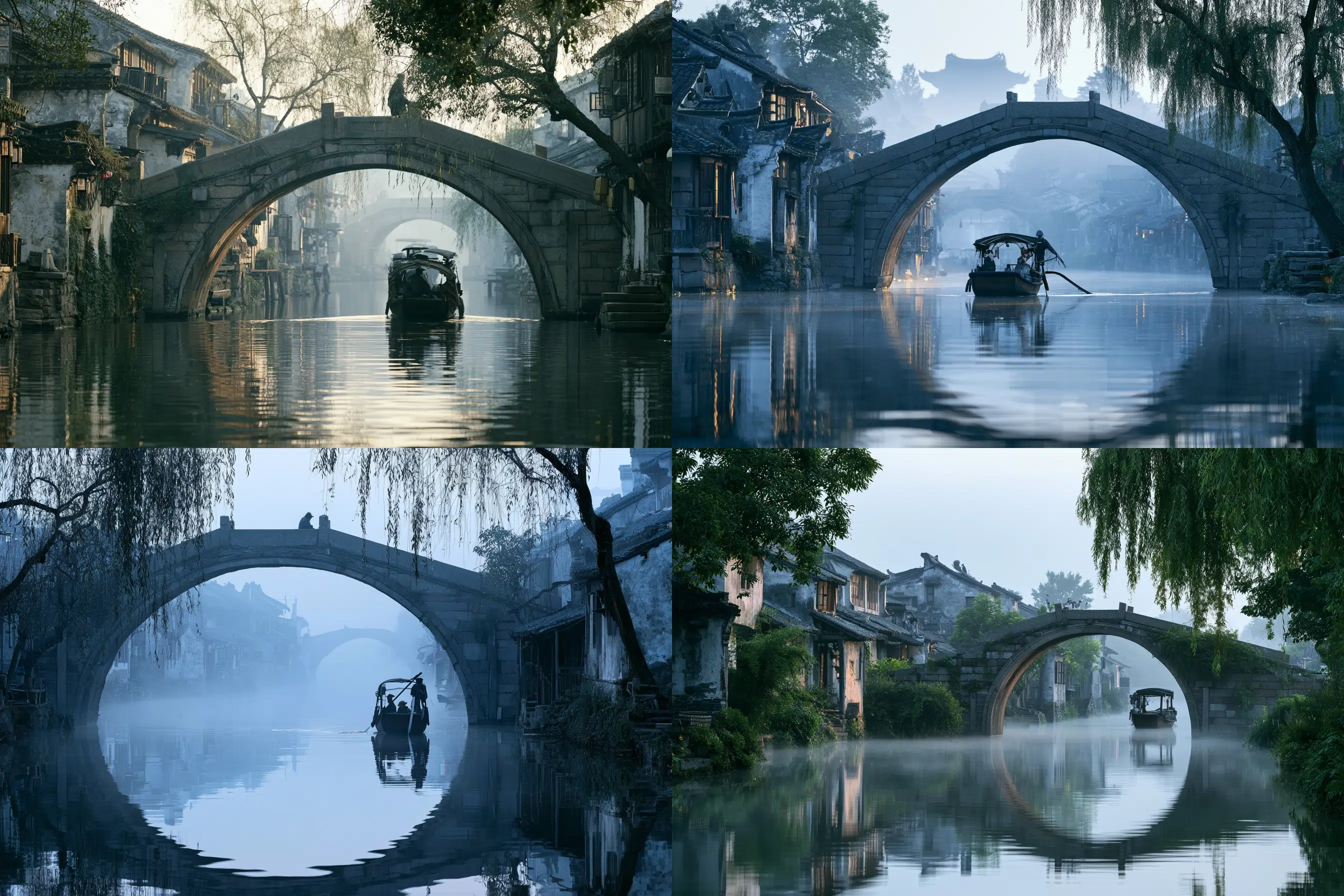
First generation
- After signing in, click New canvas, then in the lower-left corner of the creation panel on the right, switch the creation mode to Image.
- Select Midjourney as the model.
- Open Generation settings and choose the version, aspect ratio, and resolution.
- Write a prompt and send it. In testing, the four-image grid appeared on the canvas after one to two minutes.
The image above used the Chinese prompt “Early morning in a Jiangnan water town, a stone bridge reflected in the calm river, light mist, a black-canopied boat, cinematic lighting,” at a 3:2 aspect ratio; the full four-image grid is 2688×1792.
There are ten aspect ratios: 1:1, 4:3, 3:4, 3:2, 2:3, 16:9, 9:16, 4:5, 5:4, and 21:9. Custom width and height are not available, and transparent backgrounds cannot be generated.
How to choose a version
| Version | Best for | 2K |
|---|---|---|
| V8.2 (default) | Realistic photos, cinematic images | Yes |
| V8.1 | Same as above, previous version | Yes |
| V7 | When you want to adjust detail with the “quality” parameter | No |
| Niji 7 | Anime, illustrations, and anime characters | No |
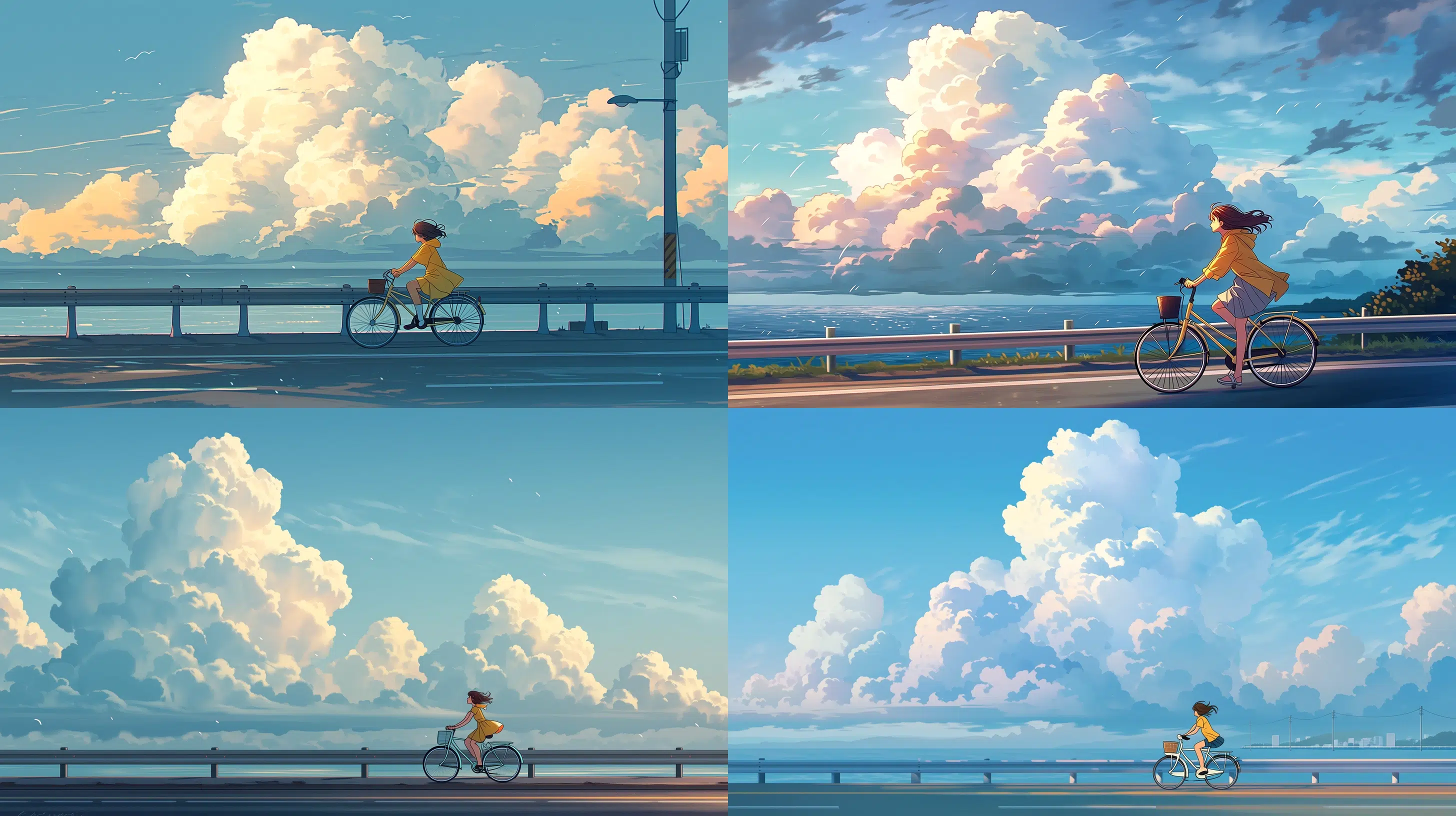
If you're unsure, use V8.2. For anime style, switch straight to Niji 7—no need to repeatedly emphasize “anime style” in the prompt. The image below was generated with Niji 7; the prompt only mentioned a seaside road, a girl riding a bike, and cumulonimbus clouds:
Select image: pull one of the four out for free
Select the four-image grid; the four cells will be numbered 1–4, and an extra set of Midjourney actions appears in the toolbar:
- Select image: Click Select image, then click the cell you want; it will be placed next to the four-image grid as a single image. No credits are deducted.
- Variations: Use a cell as the base to generate a new four-image grid, 17 credits.
The selected single image is the size of one cell in the four-image grid; for the 3:2 grid above, the selected image is 1344×896.
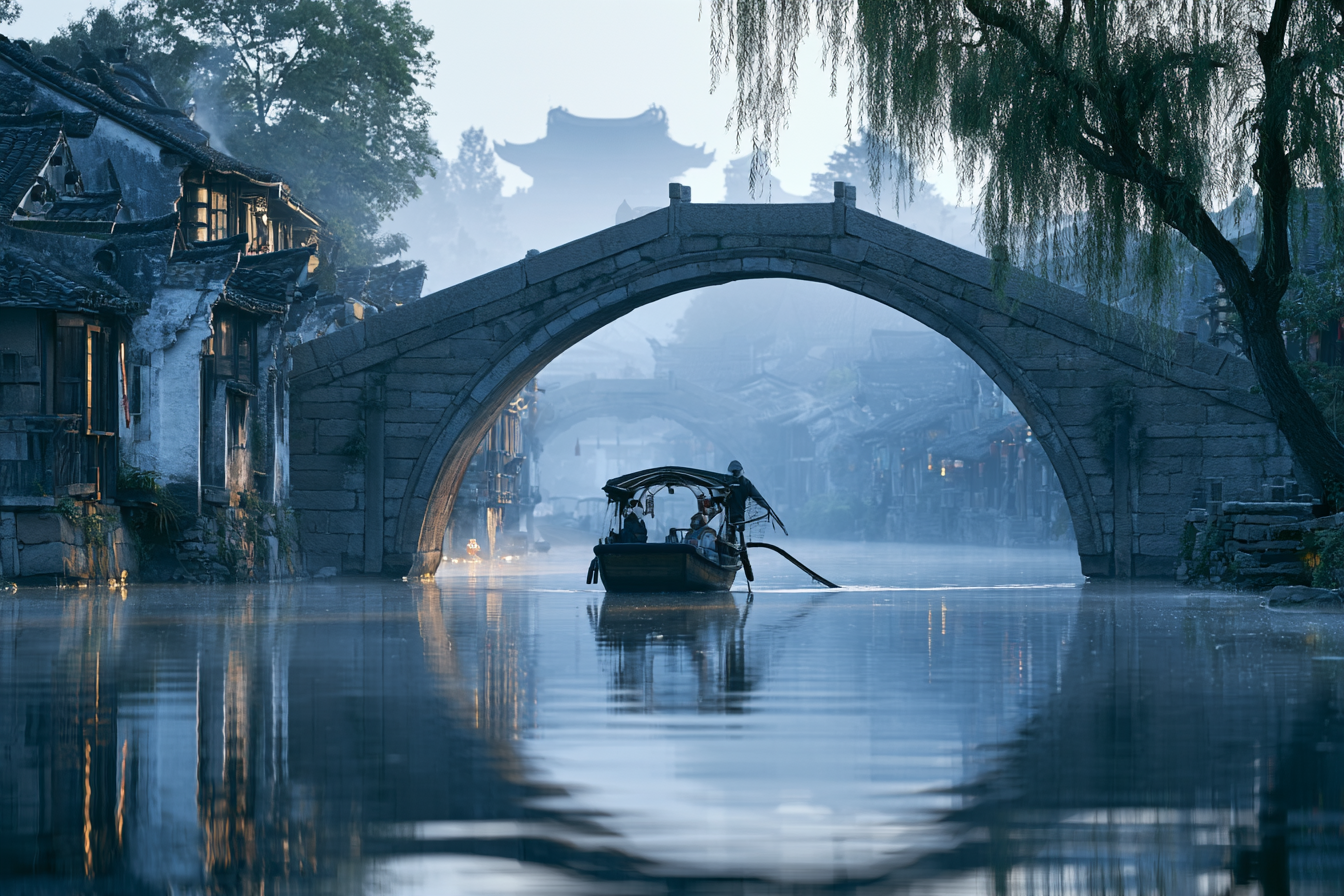
Variations on a single image: Subtle and Strong
Select the single image you pulled out and click Variations. There are two types:
| Description | Credits | |
|---|---|---|
| Subtle variation | Composition stays the same; details change | 17 |
| Strong variation | Bigger changes, including composition | 17 |
Both generate a new four-image grid. In testing with the single image above, the four subtle variations kept the original's cool blue tones, stone bridge, and black-canopied boat, but the bridge and boat still shifted position in each—so not just the details changed; the strong variations switched to golden morning light, with bigger changes to the layout of the bridge and houses. If you want a version that looks almost exactly like the original, subtle variations are more reliable than strong variations, but you still need to choose from the four.
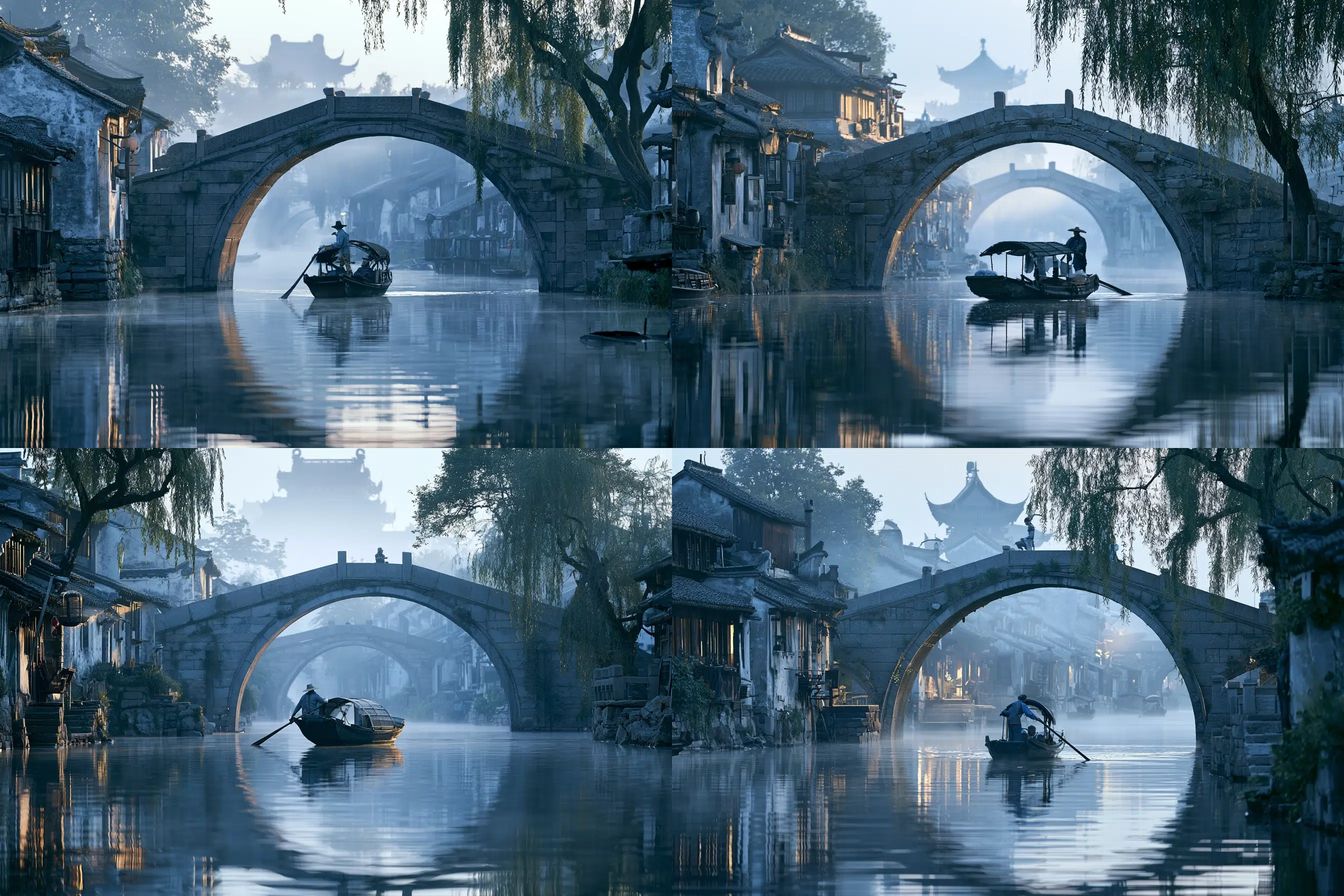
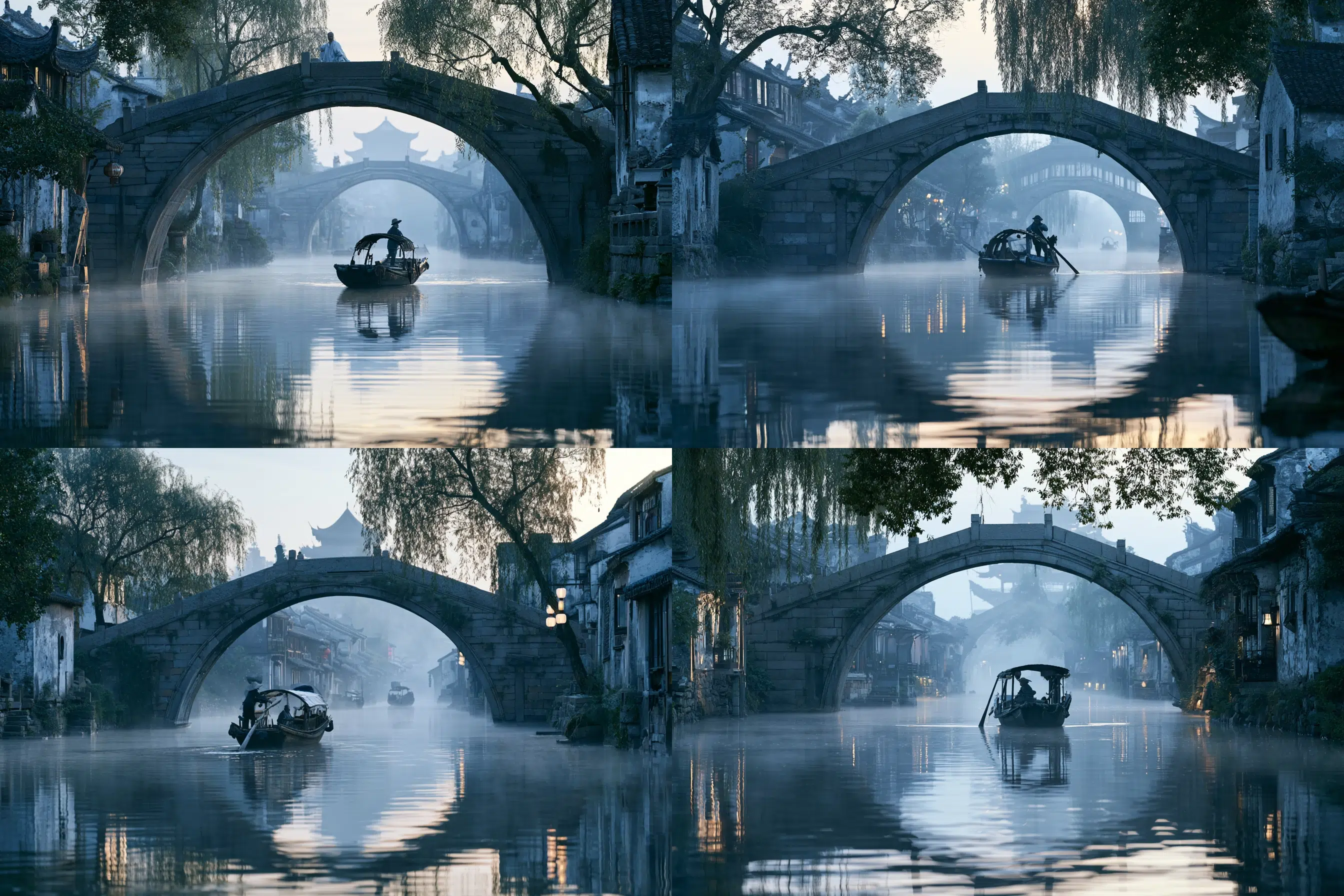
Each variation result is placed next to the original image, with a connecting line showing which image it came from; you can keep selecting images and making variations.
Upscaling and 2K
There are two ways to get a larger image, depending on the version:
- Upscale (on a single image): upscales to 2×, with Detail (largely leaves the original unchanged) and Creative (adds new details while upscaling) options, 17 credits each. It only appears in some versions: in testing, single images selected from Niji 7 had this button, while V8.2 did not.
- Choose 2K when generating (V8.1 / V8.2): 34 credits; the full four-image grid is 5376×3584, and each selected cell is 2688×1792. 2K generation is slower—about 6 minutes per run in testing, while 1K generally takes just over a minute. Variations from a 2K image also cost 34 credits each; selecting images is still free.
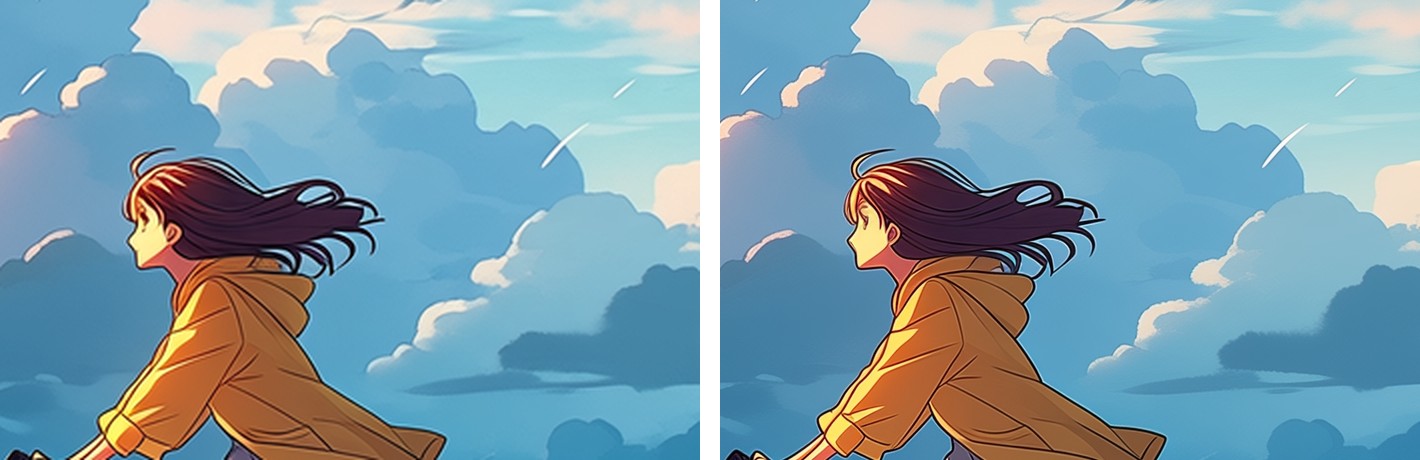
In the image below, the left side is a crop of a single image selected from Niji 7 (1456×816), and the right side is the same area after Upscale (Detail) (2912×1632); lines and hair strands are cleaner, and the image content is unchanged:
Chinese Prompts and “Optimize Prompt”
Chinese prompts are sent to Midjourney as-is and are not translated automatically; the water town example above was generated directly from Chinese. Midjourney understands English better, though: when a prompt contains Chinese, the prompt box shows “Midjourney understands English better and will convert the prompt to English when optimizing it.” Click Optimize Prompt to rewrite it as an English phrase, and the optimization summary will explain in Chinese what was changed. Optimizing doesn't use credits.
The same water town prompt becomes this after optimization:
An arched stone bridge reflected in a still canal, cinematic scene of a Jiangnan water town at dawn, a traditional black-canopied wooden boat beneath the bridge, whitewashed houses with grey tiled roofs, thin mist over the water, soft golden light from the side, muted grey and blue tones, tranquil atmosphere, wide composition
A few habits for writing prompts:
- Use phrases separated by commas: subject, scene, lighting, color tone, camera.
- Put things you don't want to see in Negative prompts under “Advanced parameters”; don't write “no...” in the main prompt.
- If you know Midjourney, you can write
--parameters by hand at the end of the prompt, and they'll still work; however,{a, b}permutation syntax and--repeataren't supported, so generate multiple sets separately.
Reference Images: Image Prompts, Style References, and Blending
Midjourney supports up to 4 reference images. Each reference image has a small label; click it to switch between “Image prompt” and “Style”:
- Image prompt (default): references the image's content and composition.
- Style reference: borrows only the reference image's art style, color palette, and brushwork.
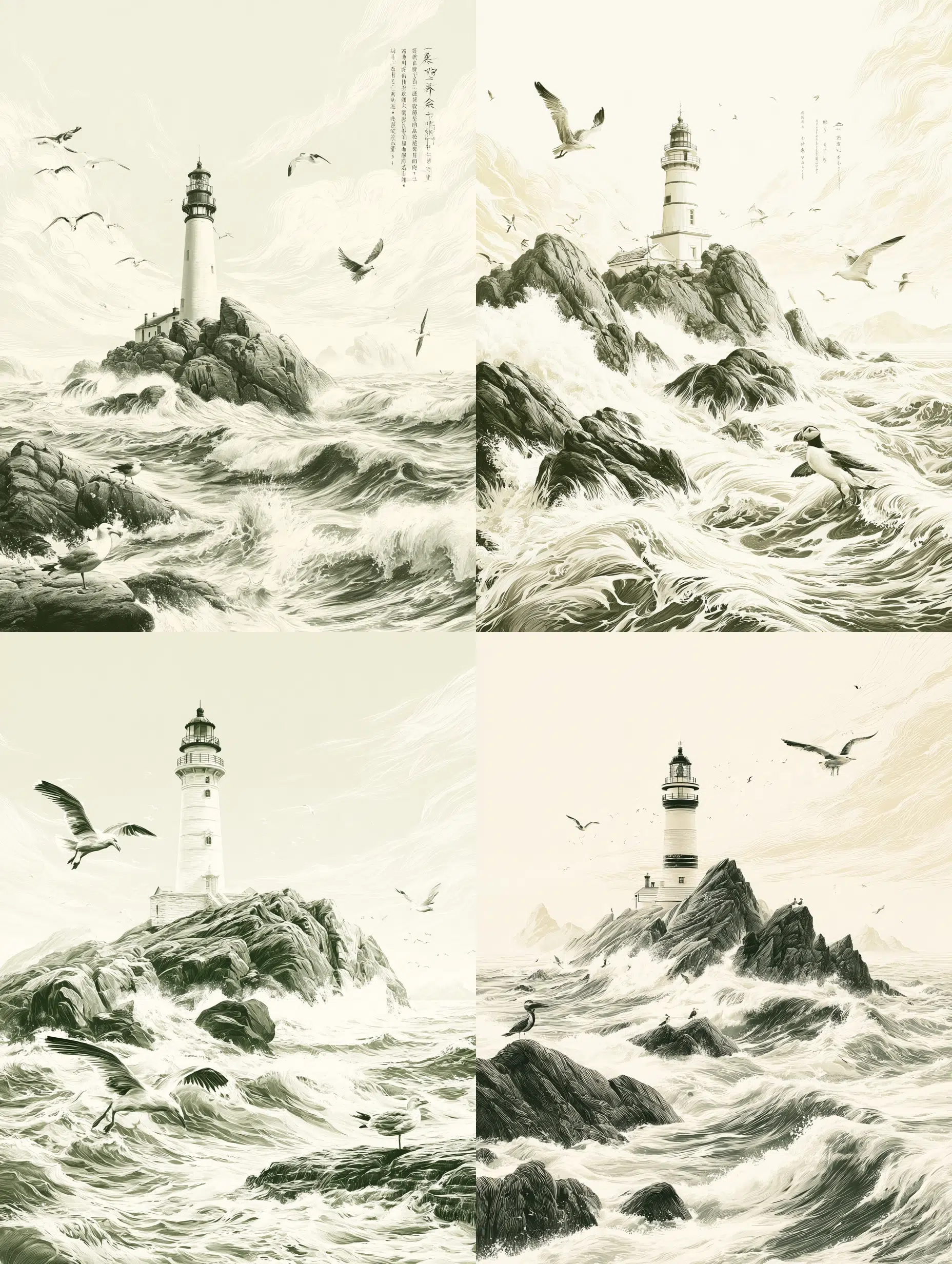
In the set below, a line-art tea canister label generated with Seedream 5.5 is set as the style reference, and the prompt only says “a lighthouse on a rocky coast, seagulls, waves.” All four images take on the label's off-white background and dark green line art. The top two panels have an unrecognizable patch of “text” drawn in the corner; crop it out or use a different image when using them:
Multi-image blend: leave the prompt blank and add 2–4 reference images, all set as image prompts; Midjourney will blend them into one image. Below is the result of blending the earlier single water town image with a girl on a bicycle from Niji 7; all four panels have the stone arch bridge and the girl on the bicycle:
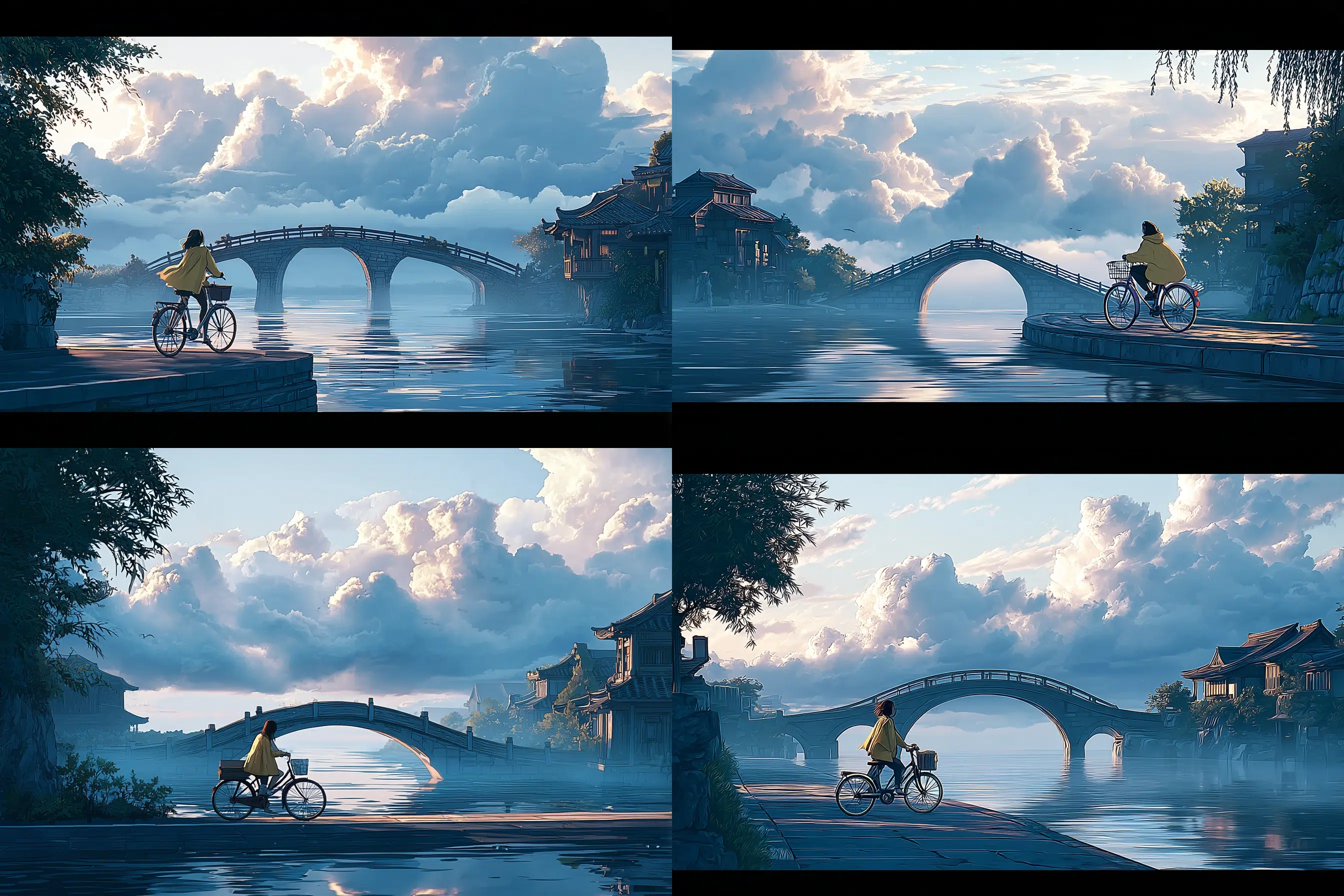
Blending only comes in three aspect ratios—landscape, portrait, and square. This time 16:9 was selected, so the four panels have black bars at the top and bottom.
Advanced Parameters
Advanced parameters in “Generation settings” map to Midjourney's own parameters. Each one has a description; if you don't set it, the default is used:
| Parameter | Effect |
|---|---|
| Stylize | Higher values give more of Midjourney's own style; lower values stay closer to the prompt |
| Raw mode | Turns off default beautification for a more realistic look, suited to photos and product shots |
| Chaos | Higher values create more variation among the four candidates |
| Weirdness / Experimental aesthetics | More unexpected imagery / more detail and texture |
| Quality | Only available in V7; higher values add more detail and take longer |
| Seamless tiling | Produces a seamless repeatable texture; can't be used with reference images |
| Negative prompts | Content you don't want to appear, separated by commas |
| Style code | Enter Midjourney style codes (numbers, up to 5) to apply a fixed art style |
| Style weight / Image prompt weight | How much influence style references and image prompts have |
Niji 7 does not have Weirdness, Experimental aesthetics, Raw mode, or Seamless tiling.
What Midjourney Can't Do
- Outpainting, panning, inpainting, rerolling, remixing, image-to-text, and video: none of these built-in Midjourney features are integrated.
- Transparent backgrounds, custom sizes, and 4K: none are available. The maximum is 2K with V8.
Midjourney outputs are regular images on the canvas. For these needs, use another tool: select the image and use Outpaint, the All-in-One Editor to change specific areas, or Remove Background, or click Generate Video to animate it. See the AI image editing tutorial.
Two Things to Know Before You Start
- 3-day limit: Midjourney keeps jobs for only 3 days. After 3 days, variations and upscales turn gray. Selecting an image still works. It now crops that panel directly from the image, and no credits are charged. To keep iterating, use the image as a reference image and generate again.
- Check the corners: Midjourney occasionally draws fake stock-photo watermarks. In one 2K four-panel grid we generated, one panel had a fake stock agency byline in the bottom-left corner. Before commercial use, zoom in on every panel. If you see text like this, use a different image or crop it out.
Using It on Mobile and in Agent
- On mobile, open a Midjourney image in the creation studio. Under Tools, you'll find Midjourney, where you can select images, make variations, and upscale.
- In Agent mode, say "Use Midjourney to generate a set of..." and Agent will generate a four-panel grid. You can also tell it which image to pick or make variations.
Open 笔画AI, create a new canvas, select Midjourney as the model, and try a four-panel grid.