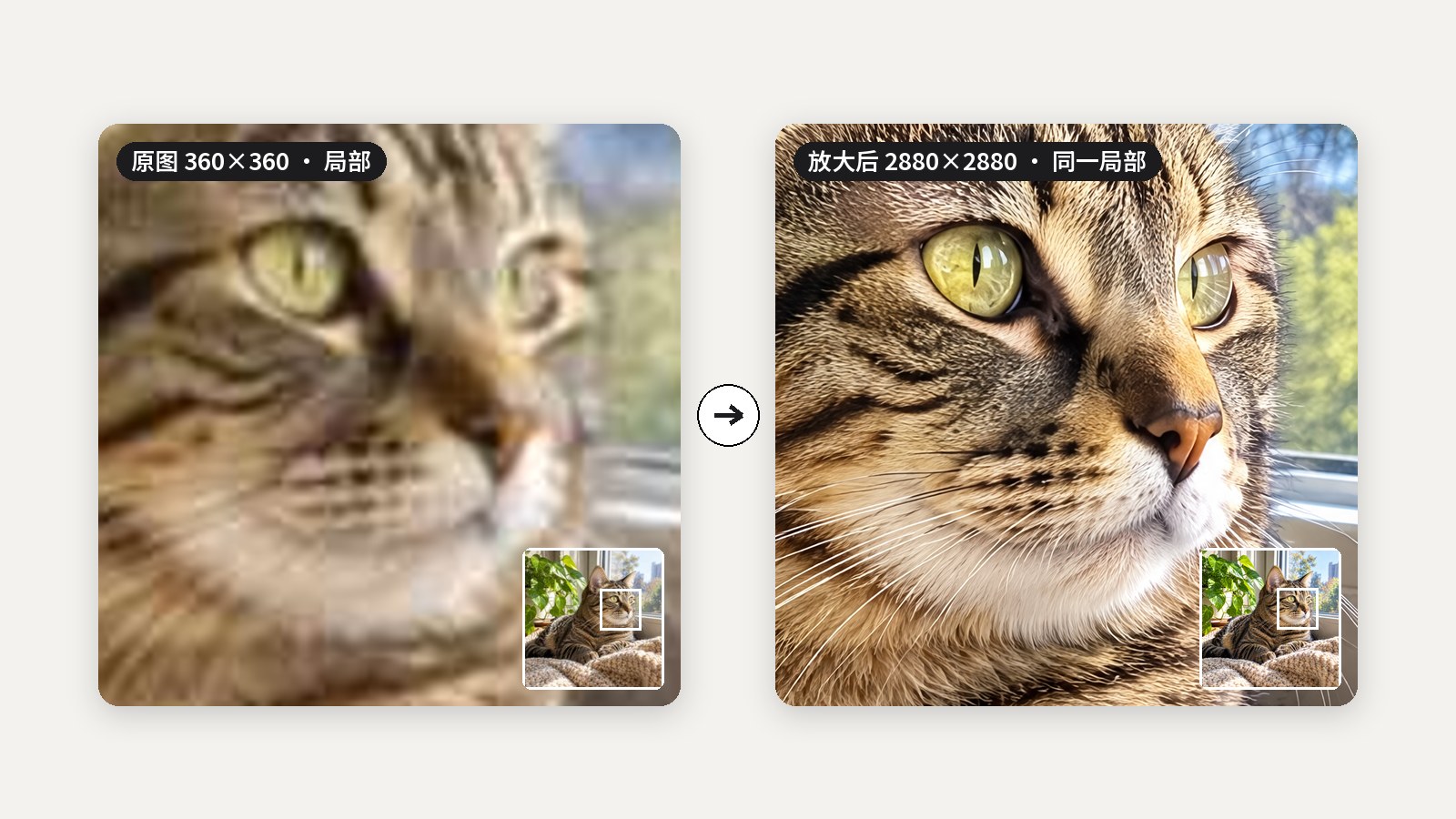
Small images, screenshots, and early 1K drafts can look blurry on posters or large displays. On the 笔画AI canvas, select an image and click “Upscale” to create a clearer, higher-resolution version, up to 4K.
Upscale in Three Steps
- Drag an image onto the canvas or upload one from your device. You can also use an image already on the canvas.
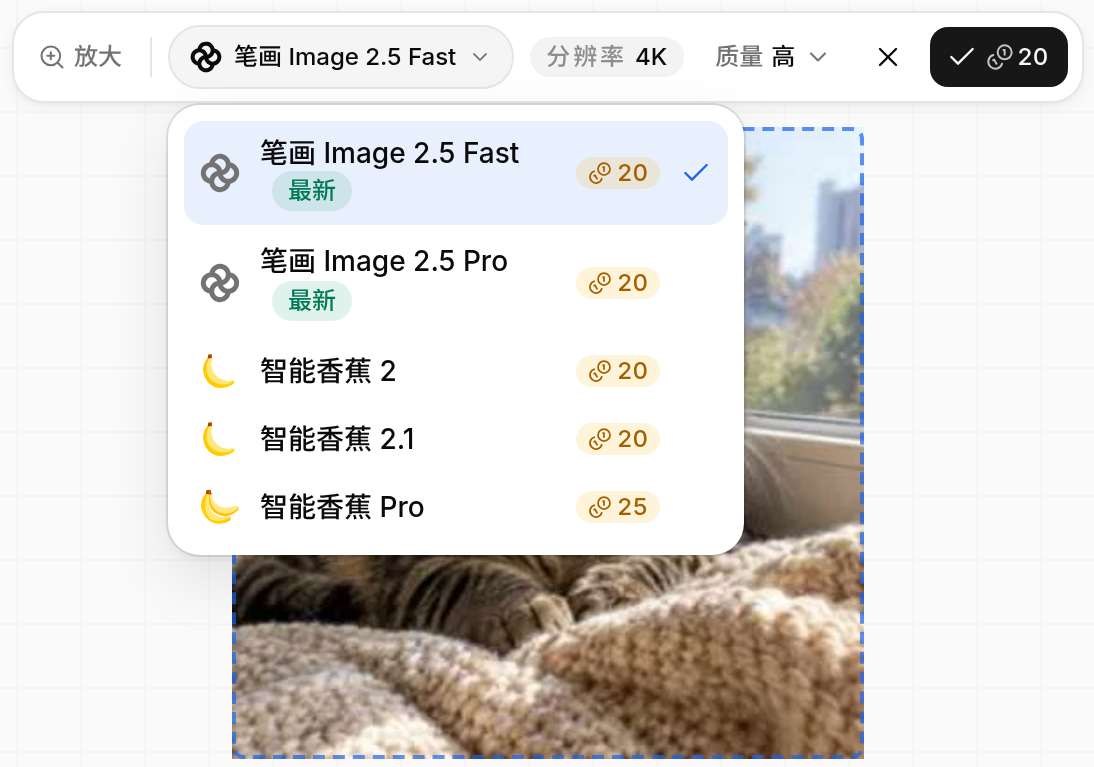
- Select the image and click “Upscale” in the toolbar.
- Choose a model. You’ll see how many credits it will use before confirming. Click Confirm to generate the image.
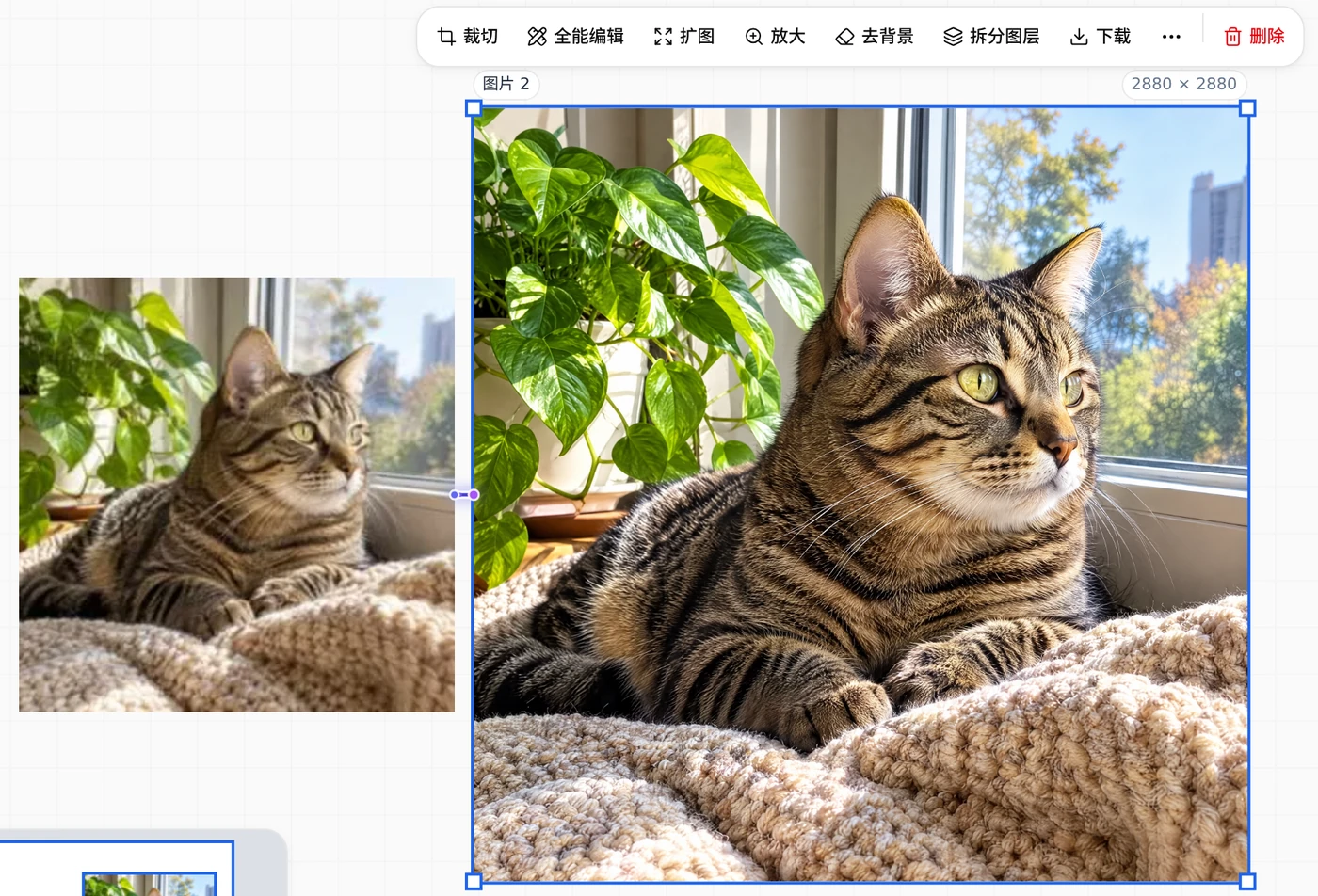
The upscaled image appears next to the original, which remains unchanged for easy comparison.
What’s the Difference Between the Two Upscaling Models?
| Model | Upscaling size | Best for |
|---|---|---|
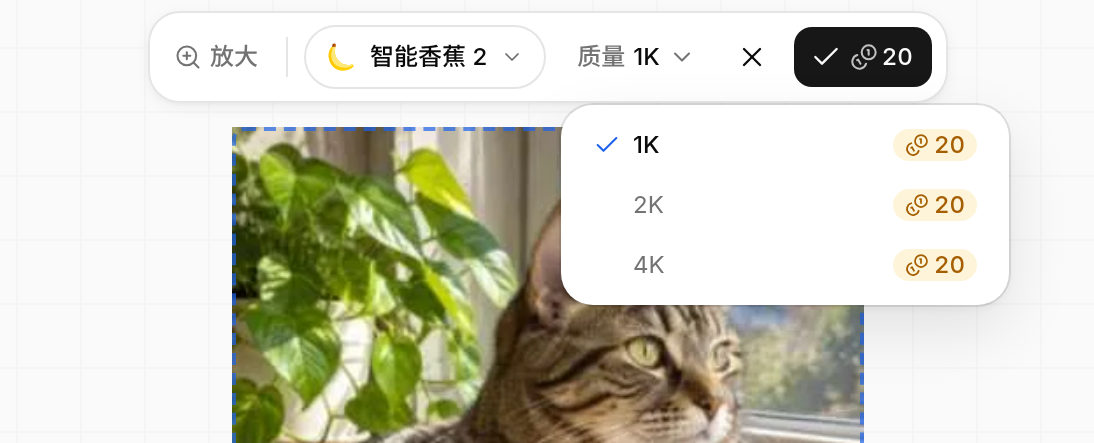
| 笔画 Image 2.5 | Upscales proportionally to the maximum size, with the long edge up to 3,840 pixels | Photos, product images, and images that need to retain their original aspect ratio |
| 智能香蕉 | Generates at the selected resolution (1K / 2K / 4K) | Illustrations, posters, and portraits |
If you’re not sure which to choose, use 笔画 Image 2.5. It preserves the original aspect ratio without cropping the image.
What Size Do You Need for Printing?
Printing is generally calculated at 300 pixels per inch. Here’s roughly how large an image can be printed clearly based on the pixel length of its long edge:
| Long edge in pixels | Clear print size on the long edge |
|---|---|
| 1024 (1K) | About 8.7 cm |
| 2048 (2K) | About 17 cm |
| 3840 (4K) | About 32 cm |
For an A4 poster with a long edge of 29.7 cm, upscaling to 4K is enough. For larger display boards and roll-up banners viewed from farther away, 150 pixels per inch is also acceptable.
What to Check Before and After Upscaling
- Check small text and logos: Upscaling regenerates details, so small text may be altered. Check brand logos, prices, and similar content individually after upscaling.
- Restore before upscaling: If an old photo has scratches or stains, upscaling it directly will enlarge those flaws too. Use Old Photo Restoration first.
- Expand before upscaling if you’re unhappy with the composition: If you want a banner, use “Expand” to extend the image first, then upscale it. See the AI Image Editing Tutorial.
- Choose a high resolution when generating: For a new image, selecting 2K or 4K when generating saves you the extra step of generating at 1K and then upscaling.
Images Suitable for Upscaling
- Reference images found online or small product images that you want to use on product detail pages or posters;
- Early 1K drafts after you’ve chosen the one you want to use;
- Mobile screenshots and images saved from chats;
- Scanned old photos (restore them before upscaling).
Open 笔画AI, drag a blurry image onto the canvas, and try clicking “Upscale.”