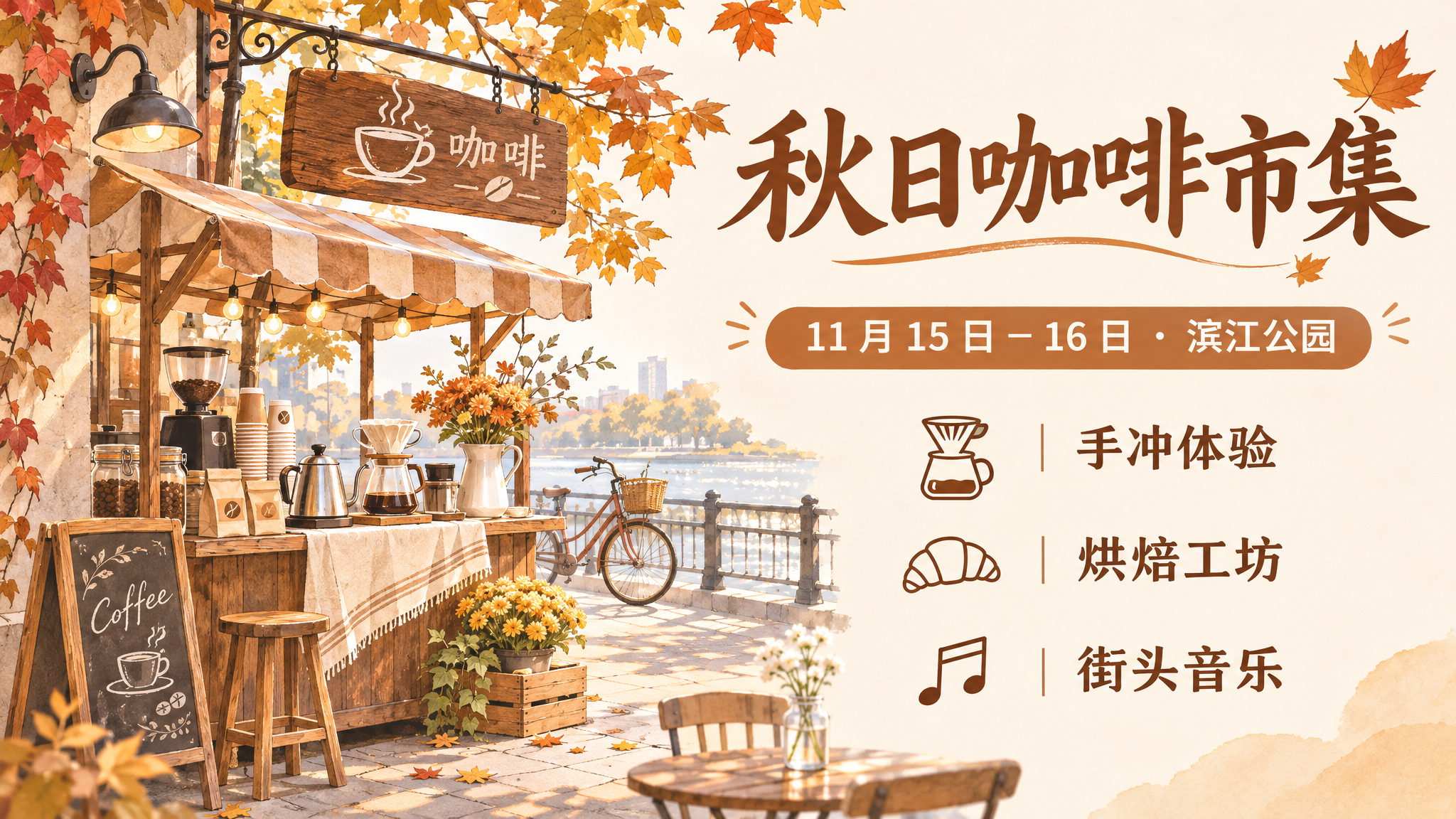
笔画 Image 2.6 is the newest image model on 笔画AI, available in two tiers: Fast and Pro. Compared with 2.5, it adds thinking effort: it plans the layout before it starts generating, so posters and infographics packed with headlines, small text, and icons make fewer mistakes. It can also generate GIF animations directly. Every image costs 20 credits, no matter which quality or resolution you pick.
Choosing between Fast and Pro
| Version | Highlights | Best for |
|---|---|---|
| 笔画 Image 2.6 Fast | Fast output — about 25 seconds for a 1K image in our tests | Sketches, social media images, trying out different directions |
| 笔画 Image 2.6 Pro | More accurate details and text, and keeps the original closer when editing | Product shots, marketing assets, fine-grained edits |
Both tiers cost the same and have the same capabilities. Use Fast to get the composition and copy right, then switch to Pro for the final render.
Thinking effort: choose "Deep" for complex layouts
Thinking effort controls how much work the model puts into planning the image before it starts drawing. There are three levels:
- Deep (default): works out where every piece of text goes and how the elements line up. Use this for posters, infographics, menus, and course cover images.
- Balanced: general illustrations and photo-style images.
- Fast: small single edits, or when you want to see a result quickly.
The poster in the cover image and the infographic below were both generated with Pro and "Deep." The prompt listed five steps with the numbers for each, and the model didn't just set the text correctly — for step 4, "pour in three parts to reach 240 ml," it broke the amount into 80 + 80 + 80 on its own.
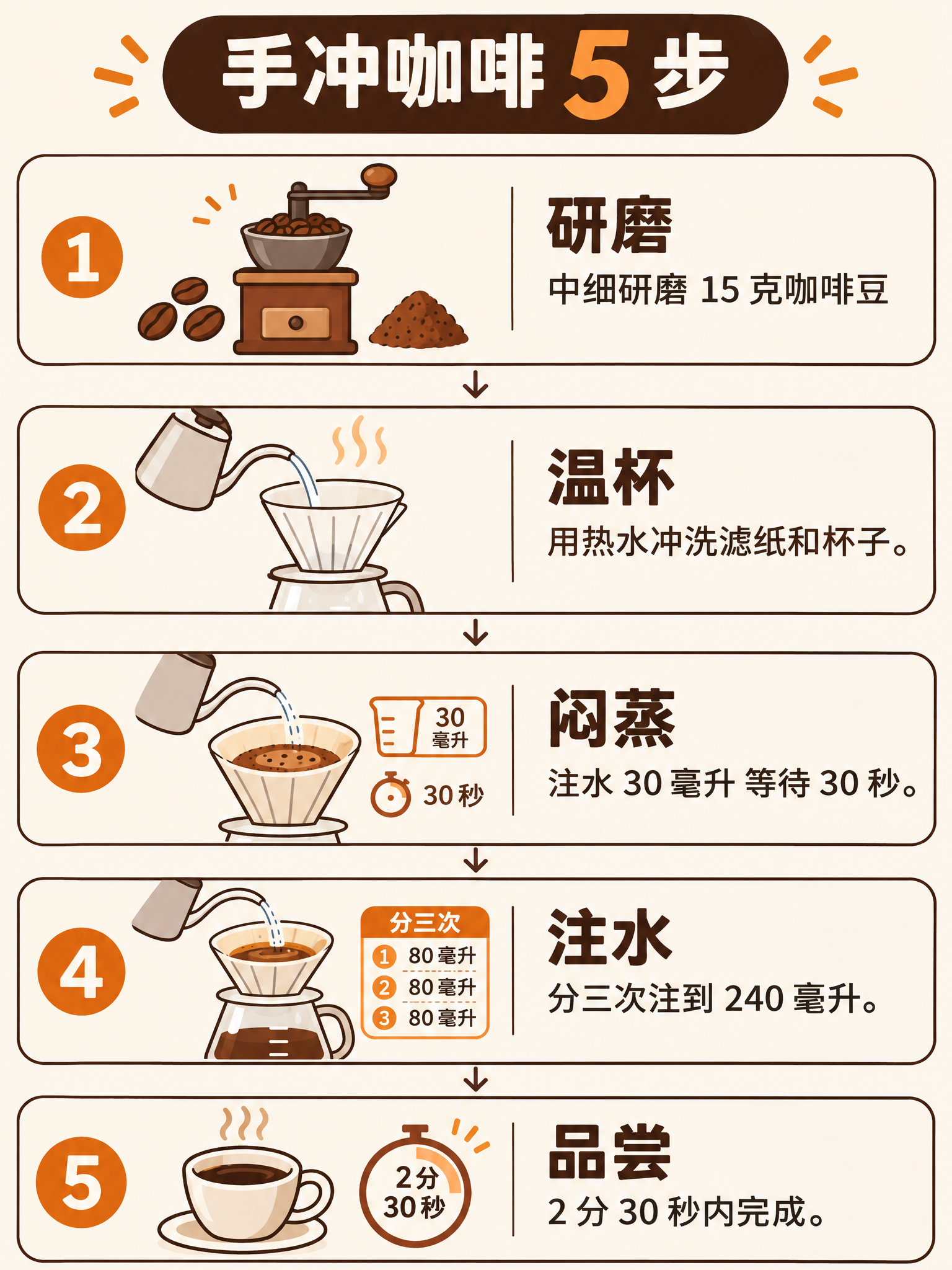
Thinking effort doesn't affect credits, only how long you wait: with Pro and "Deep," a 2K poster took a little over a minute in our tests.
Six quality levels
"Quality" has six levels — Auto, Low, Medium, High, Ultra, and Max. It controls how finely details like textures and small text are rendered, and it's separate from resolution. All six levels cost the same on 笔画AI, so if you want detail, just choose "Max."
Resolution comes in 1K, 2K, and 4K, or you can set a custom width and height: both must be multiples of 16, the longest side can be up to 3,840 pixels, and the aspect ratio can't exceed 3:1.
Generating GIF animations
- In the creation box, select 笔画 Image 2.6 Fast or Pro.
- Open "Generation settings," choose Animation on the first line, then pick an aspect ratio (1:1, 3:2, 2:3).
- In the prompt, describe clearly how the subject should move and make sure the motion ends where it started, so the loop looks natural.
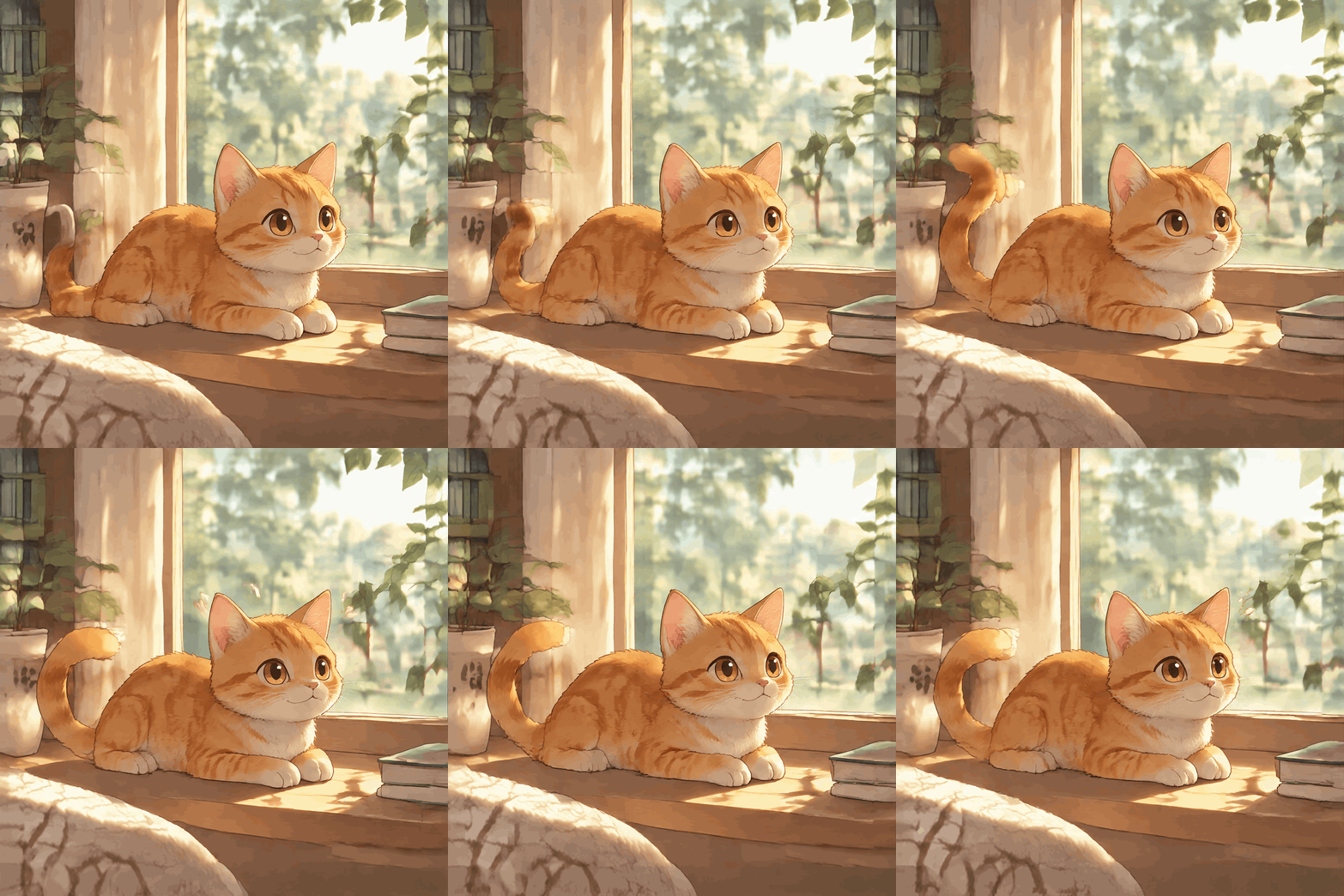
Animations on the canvas show the first frame by default. Double-click to play, and double-click again to stop. Already have an image you like and want to bring it to life? Select it, click "Make GIF (animation)" in the "⋯" menu, and describe the motion you want in one sentence.
Animations cost the same as static images, but they can't have transparent backgrounds, and they can't be used for outpainting, inpainting, or upscaling.
Editing an existing image
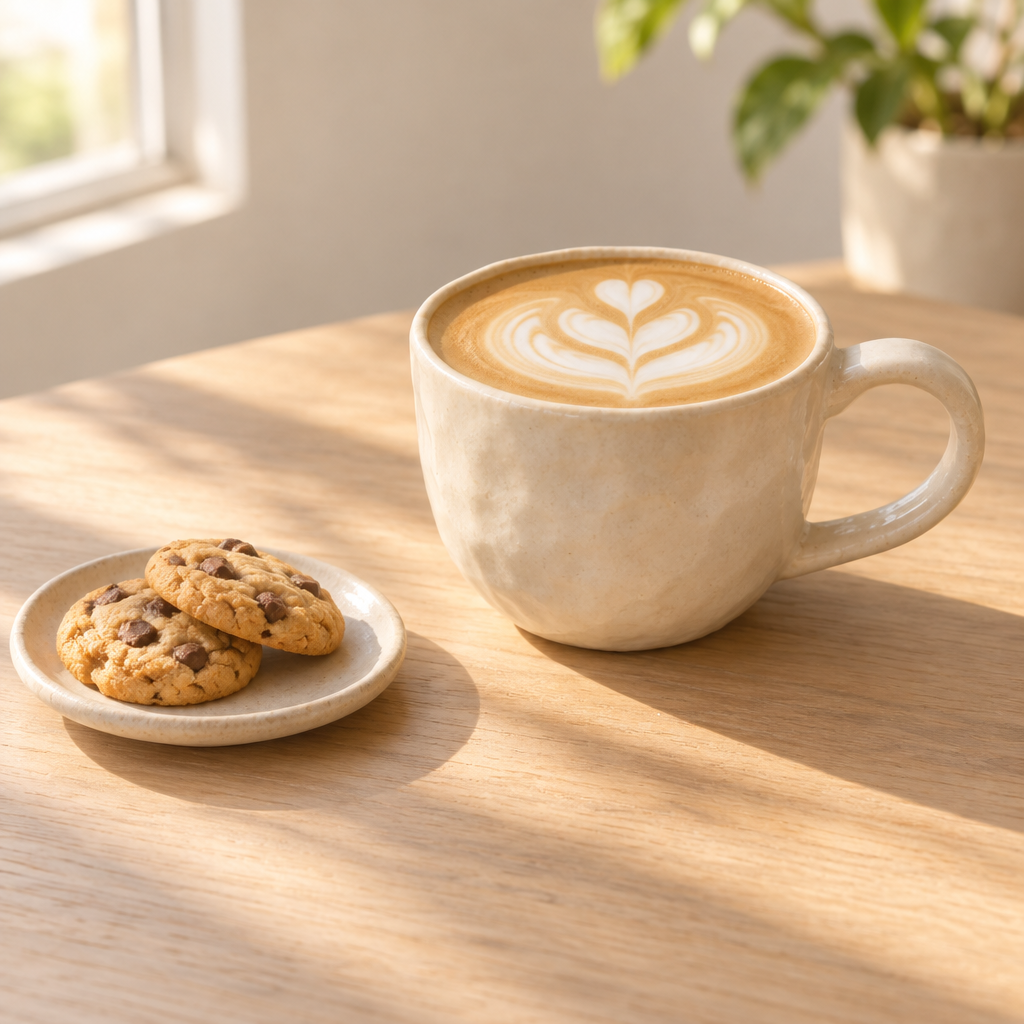
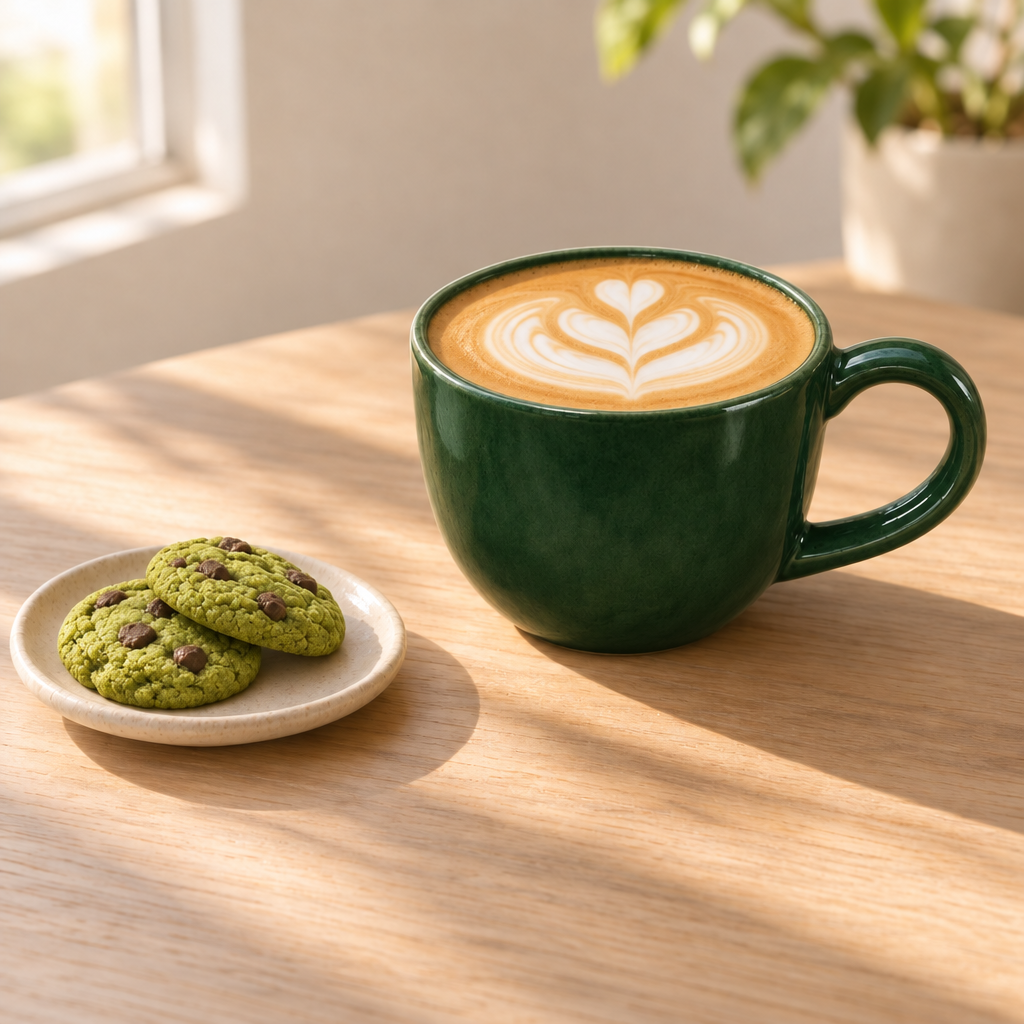
Add reference images in the creation box (up to 16), and make two things clear in your prompt: what to change and what to keep the same. The image on the right below used this prompt: "Change only two things: swap the coffee cup for the same cup in a dark green glaze, and swap the cookie on the saucer for two matcha cookies. Keep the latte art, tabletop, lighting, composition, and everything else as they are." It was made with Pro and the "Fast" thinking effort.
Transparent background PNGs
When you're making stickers, logos, or product assets, turn on "Transparent background" in "Generation settings" before you generate, and you'll get a transparent PNG you can layer onto other visuals directly. Describe only the subject in your prompt and don't mention the background.

How to write prompts
- Put text in quotes: headline "Autumn Coffee Market," dates "November 15 – 16."
- Spell out the layout: what goes on the left, what goes on the right, how many lines of text, and whether each line has an icon.
- Be specific with numbers: write steps, prices, and durations as exact numbers, and the model will lay them out accordingly.
Go to 笔画AI, create a new canvas, and give 笔画 Image 2.6 a try.