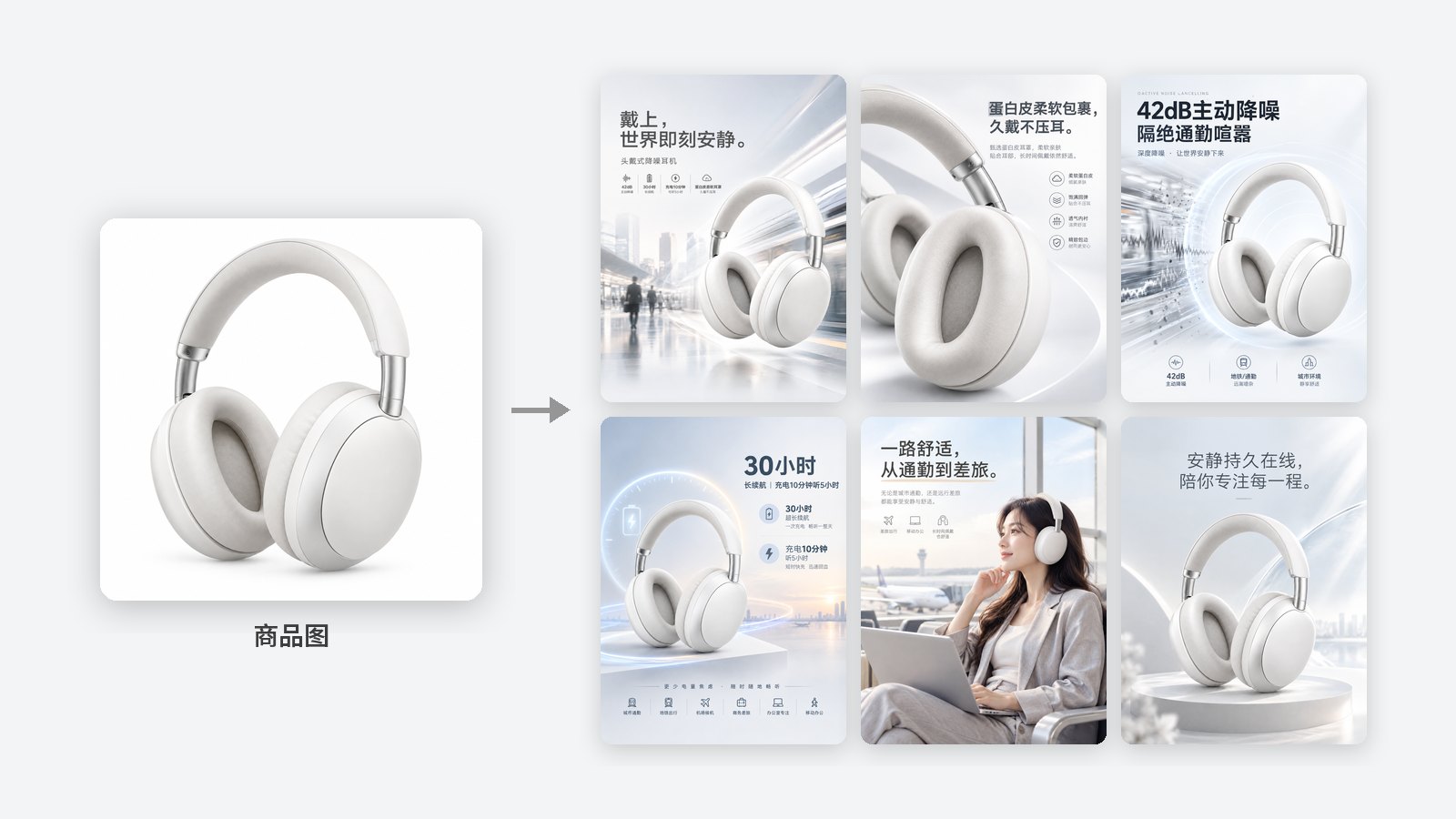
A typical e-commerce product detail page requires 8–15 images: an opening visual highlighting key selling points, detail close-ups, usage scenarios, specifications and dimensions, after-sales support, and more. Hiring a designer can take days, while creating it yourself requires design skills. In 笔画AI, go to “E-commerce Design → Product Detail Images,” upload product images, and describe the key selling points. AI will first plan the content for each section. Once you approve the plan, it will generate the complete set of product detail images in one batch.
Four Steps
1. Product Information
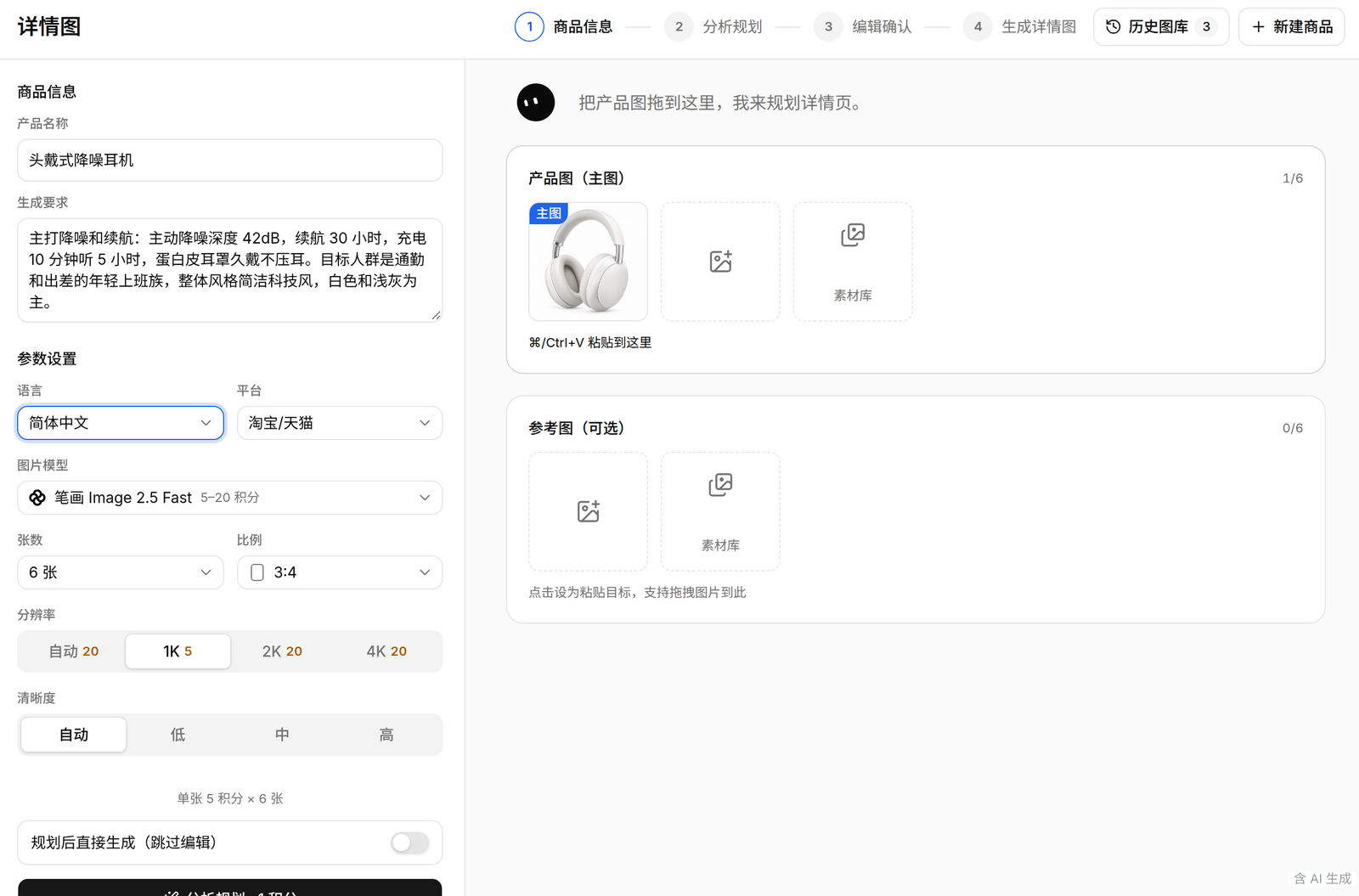
- Upload product images (up to 6): white-background images, multiple angles, and detail shots are all supported. The clearer, the better.
- Optionally upload reference images (up to 6): product detail page styles, color schemes, or layouts you like.
- Enter the product name and generation requirements: key selling points, target audience, and preferred style. For example, “Highlight noise reduction and battery life, target young professionals, and use a clean, high-tech style.”
- Select the platform, copy language, image model, number of images, aspect ratio, and resolution.
2. Analyze and Plan
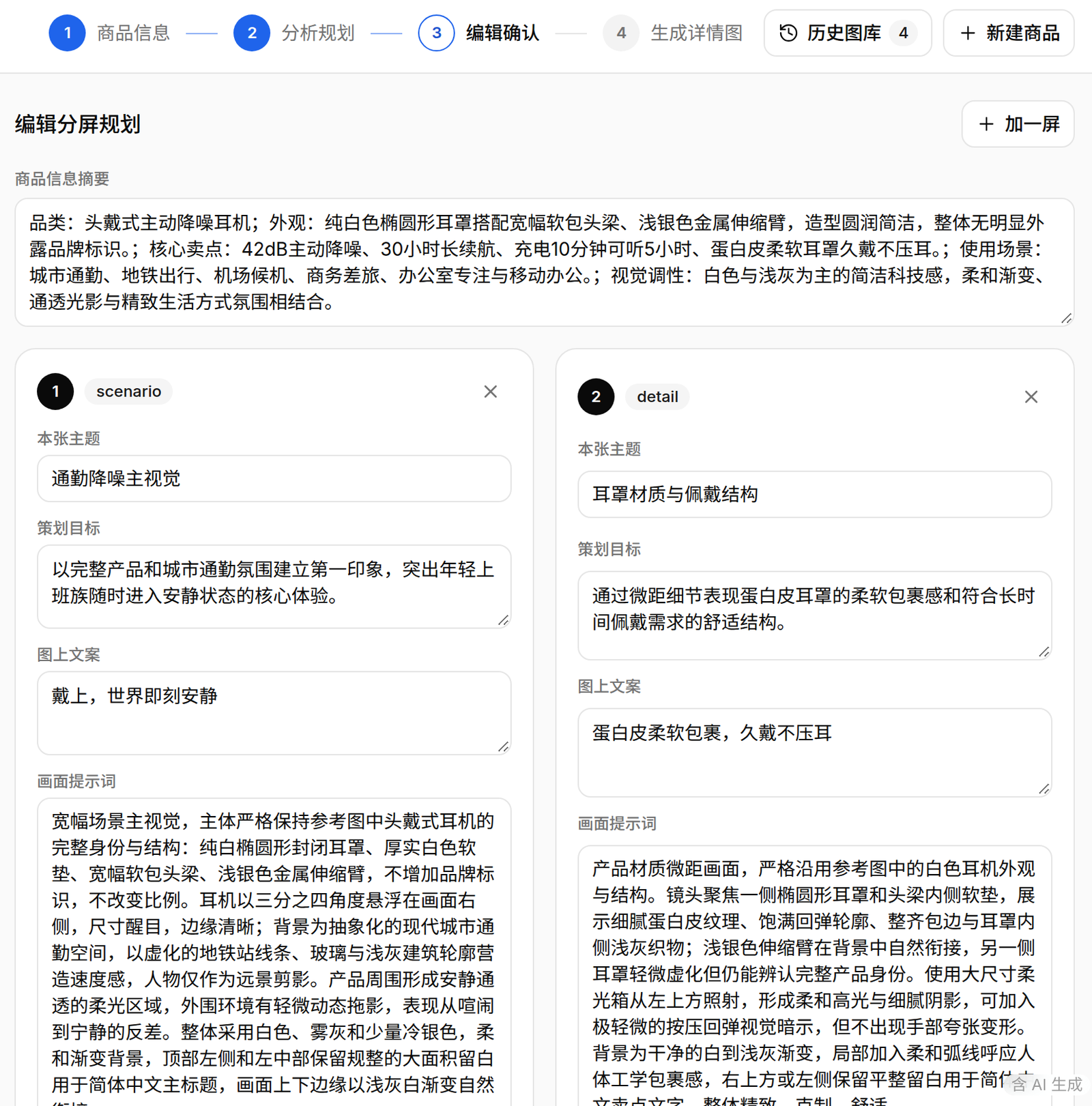
Click “Analyze and Plan.” AI will analyze the product and its selling points, then create a section-by-section plan covering each section’s theme, visual content, and copy. If planning fails, the credits will be automatically refunded.
3. Review and Edit
Review each section of the plan. You can edit the text, adjust the visual description, “Add a Section,” or delete any sections you do not need. If you are short on time, you can also enable “Generate Immediately After Planning (Skip Editing)” in Step 1.
4. Generate Product Detail Images
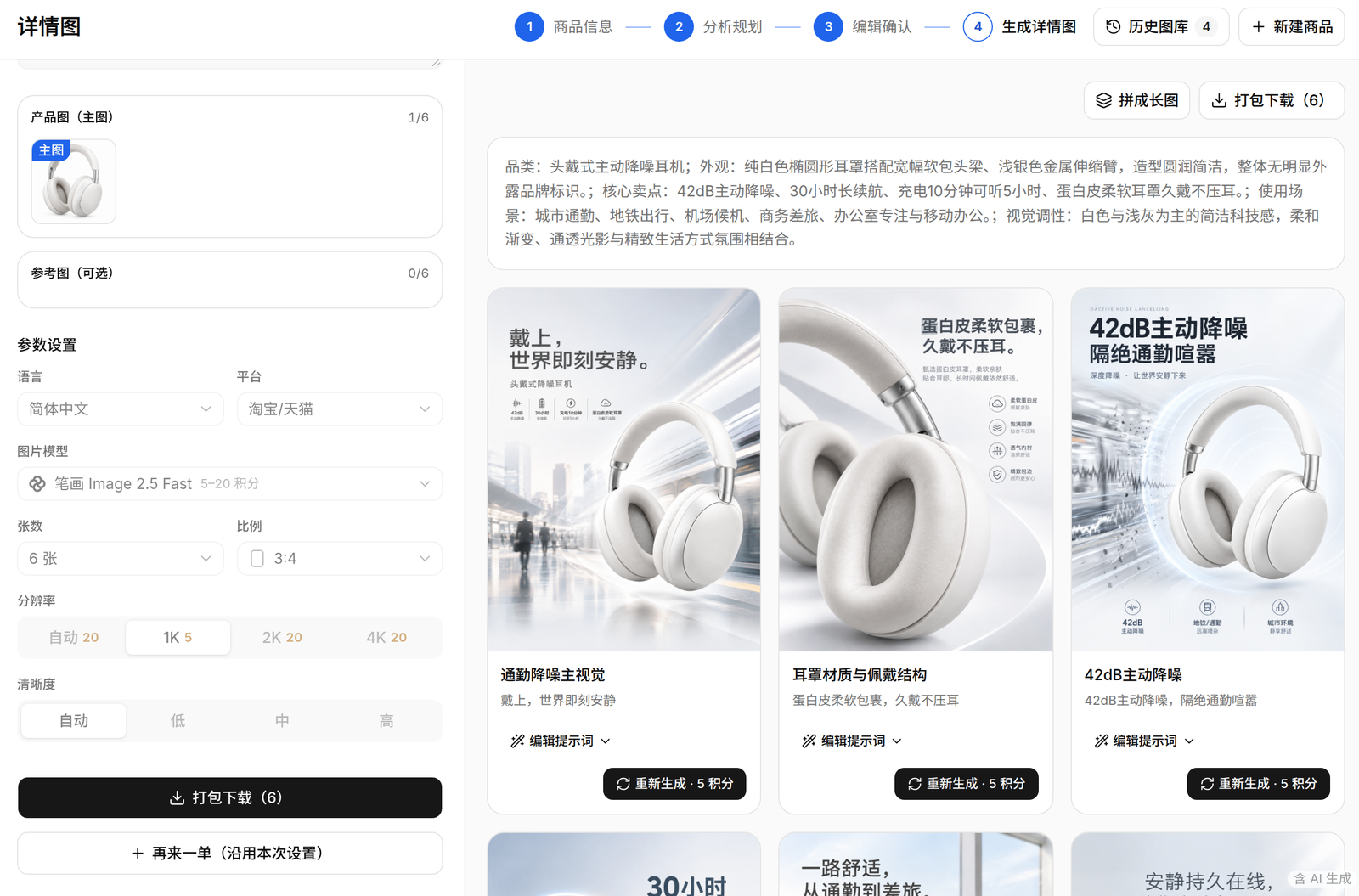
Once confirmed, generate all images in a batch. When generation is complete, you can:
- “Combine into One Long Image”: instantly create a single long product detail image ready to upload;
- “Download as ZIP”: download each section separately in a ZIP file;
- “Retry All Failed Images”: regenerate only the sections that failed;
- “Create Another”: reuse the current settings for a different product.
Supported Platforms and Languages
Platforms (9): General, Taobao/Tmall, JD.com, Pinduoduo, Douyin E-commerce, Kuaishou, Xiaohongshu, Amazon, and independent stores (Shopify). After you select a platform, the plan will follow that platform’s typical style and layout.
Languages: Chinese, English, and 24 other languages. You can also select “No Text (Visuals Only)” if you want to add copy later or use the same image set for stores in multiple countries.
How to Create Better Product Detail Pages
- Product image quality determines the results: Clear subjects, even lighting, and multiple angles help AI reproduce the product accurately.
- Be specific about selling points: “30-hour battery life and 42 dB noise reduction” will produce more persuasive copy than “long battery life and very quiet.”
- Focus on one message per section: During review, split multiple selling points crowded into a single section into separate sections.
- Use reference images for a consistent style: Upload one or two product detail pages you like to make the color scheme and layout more consistent across the entire set.
- To refine details in a specific section: After generation, place the image on the canvas and use Universal Editor to make targeted edits. See the AI Image Editing Tutorial.
Apparel Products
For clothing, shoes, hats, and accessories that need on-model images, use “Try-On Images” under “E-commerce Design.” Upload the apparel image and choose a model from the model library to generate on-model images in batches. See AI Fashion Model Images.
Open 笔画AI, go to “E-commerce Design → Product Detail Images,” and upload a product image to get started.